Acer Chromebox – 安裝 Ubuntu 14.04 多媒體相關套件

1. 安裝 ubuntu-restricted-extras 套件
$ sudo apt-get install ubuntu-restricted-extras

2. 安裝 totem
$ sudo apt-get install totem
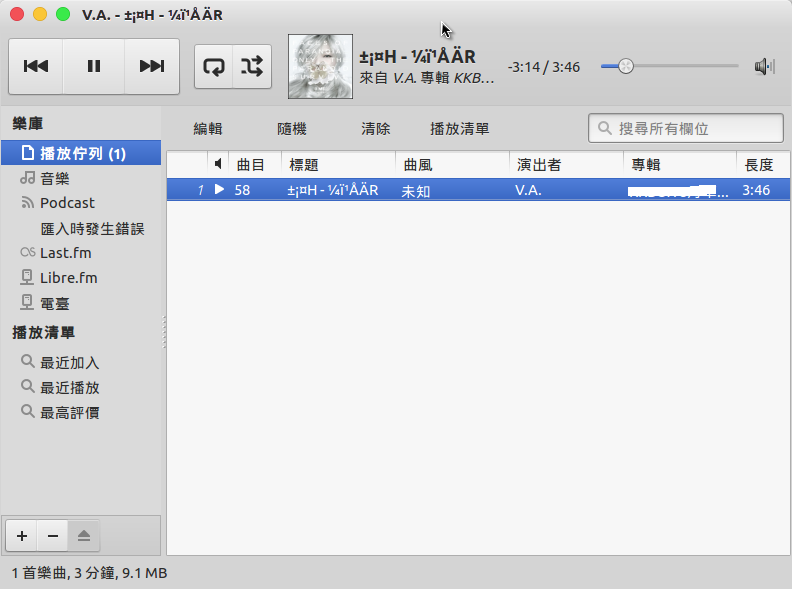
[@more@]3. 安裝  rhythmbox
$ sudo apt-get install rhythmbox

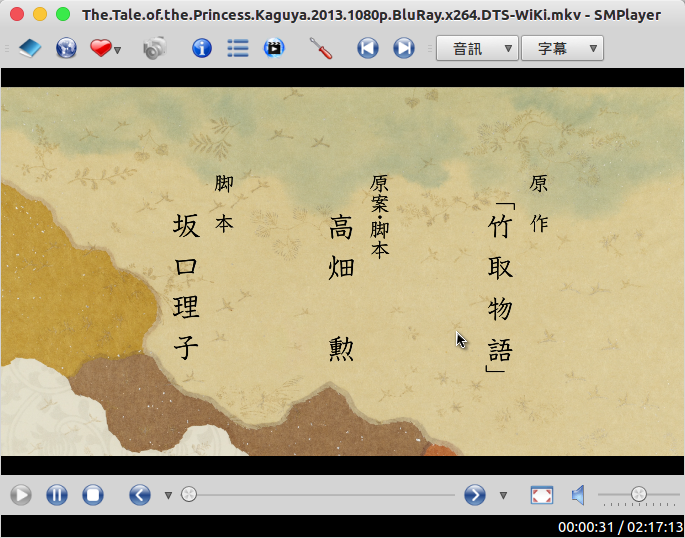
4. 安裝 smplayer
$ sudo apt-get install mplayer mplayer-fonts smplayer mplayer-skins mplayer-skin-blue

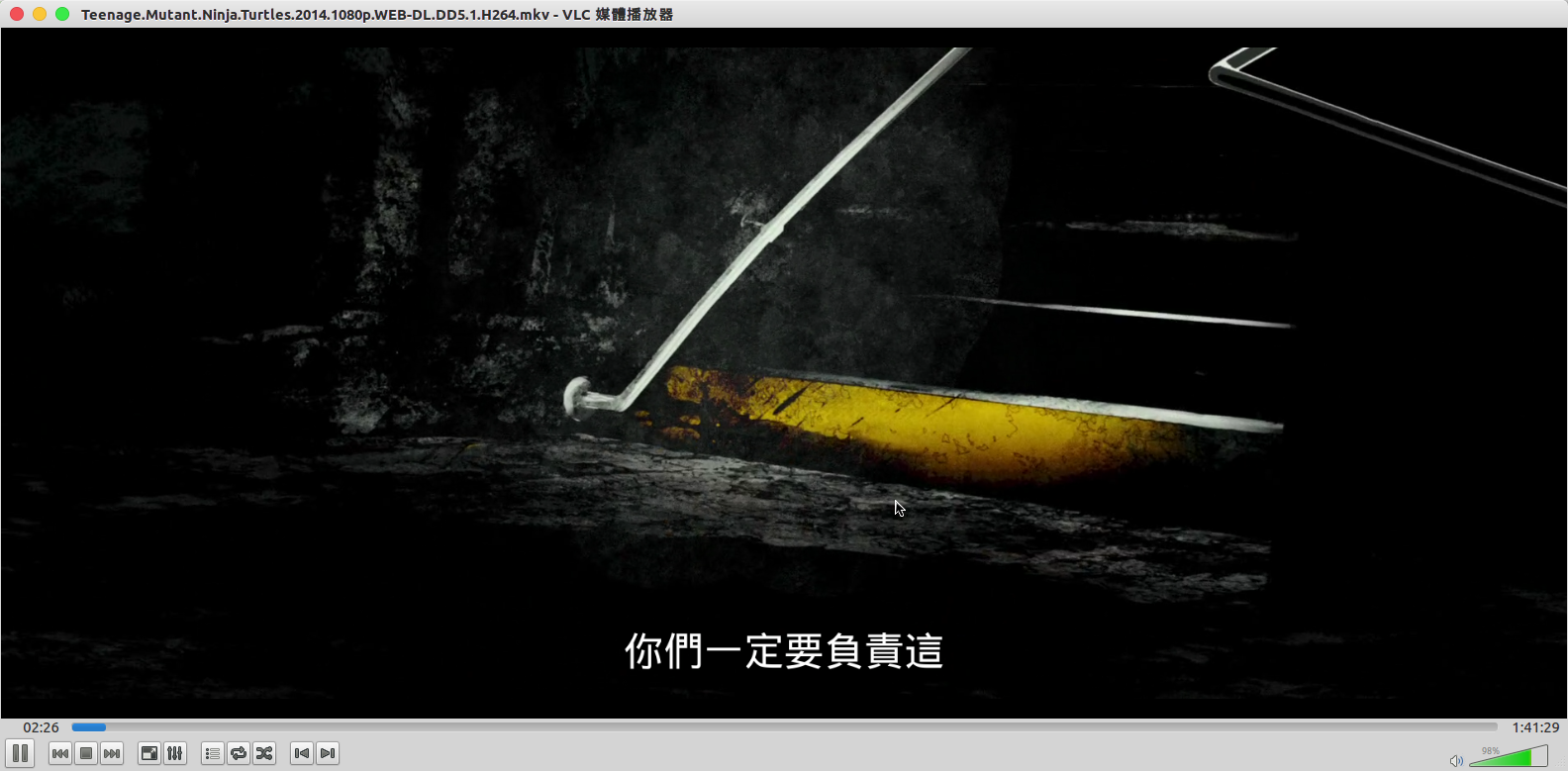
5. 安裝 vlc
$ sudo apt-get install vlc

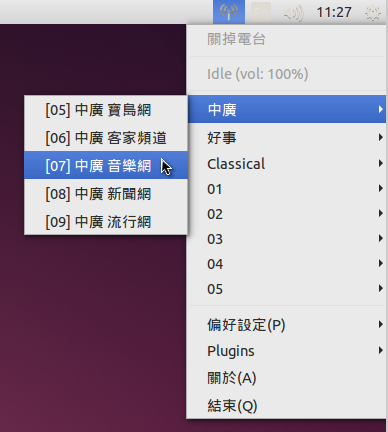
6. 安裝 radiotray
$ sudo apt-get install radiotray
添加中文頻道
$ wget https://2blog.ilc.edu.tw/wp-content/uploads/sites/985/25793/25793-2932173.zip -P ~/Downloads
備份原檔
$ mv ~/.local/share/radiotray/bookmarks.xml ~/.local/share/radiotray/bookmarks.xml.$(date +%F)
解壓縮
$ unzip ~/Downloads/25793-2932173.zip -d  ~/.local/share/radiotray

後來發現,因為中華電信常常網頁改版,所以好像只好中廣新聞網還可以收聽,其它大概都不行!

Acer Chromebox – 安裝 Ubuntu 14.04 所須套件

參考網頁:
[教學] Ubuntu 14.04的調校 [論壇 – Ubuntu基本設定] | Ubuntu 正體中文站
Ubuntu 14.04 LTS 中文修正 | ScarShow | 刀疤說
Ubuntu 14.04 LTS 中文字體 « Brian’s home
Ubuntu 使用軟體記錄 – 新營國小文件庫
清水國中資訊組 | Kubuntu與Linux自由軟體

主要是安裝一些常用到的套件及安裝資訊課程會教的一些套件。

1. 安裝 gnome-termainal 終端機程式
$ sudo apt-get install gnome-terminal

2. 安裝 gnome-screenshot 擷圖程式
$ sudo apt-get install gnome-screenshot

3. 安裝 eog 看圖程式
$ sudo apt-get install eog

4. 安裝文字編輯器 vim/nano/leafpad
$ sudo apt-get install vim nano leafpad

5. 移除 xterm
$ sudo apt-get remove –purge xterm

6. 移除 netsurf
$ sudo apt-get remove –purge netsurf-gtk netsurf-common[@more@]7. 安裝所須的套件
$ sudo apt-get install mlocate dnsutils zip unzip rar unrar p7zip p7zip-full p7zip-rar xarchiver

8. 安裝 gnome-tweak-tool
$ sudo apt-get install gnome-tweak-tool

9. 安裝 kolourpaint
$ sudo apt-get install kolourpaint4 kde-l10n-zhtw

10. 安裝 Firefox
$ sudo apt-get install firefox firefox-locale-zh-hant

11. 安裝 Firefox Flash Player Plugin
$ sudo apt-get install flashplugin-installer

12. 安裝 unity-tweak-tool
$ sudo apt-get install notify-osd overlay-scrollbar unity-webapps-service
$ sudo apt-get install unity-tweak-tool

13. 加入 add-apt-repository 指令
$ sudo apt-get install software-properties-common python-software-properties

14. 安裝 Adobe PDF Reader
新增套件庫來源
$ sudo add-apt-repository “deb http://archive.canonical.com/ precise partner”
更新套件庫
$ sudo apt-get update
安裝 acroread
$ sudo apt-get install -y acroread

15. 安裝 scratch
$ sudo apt-get install -y scratch

16. 安裝 Scratch 2
$ sudo apt-get install gnome-session-canberra libcanberra-gtk-module libcanberra-gtk0
下載檔案
$ wget http://airdownload.adobe.com/air/lin/download/2.6/AdobeAIRInstaller.bin -P ~/Downloads
$ wget http://cdn.scratch.mit.edu/scratchr2/static/sa/Scratch-431.air -P ~/Downloads
建立連結
$ sudo ln -s /usr/lib/i386-linux-gnu/libgnome-keyring.so.0 /usr/lib/libgnome-keyring.so.0
$ sudo ln -s /usr/lib/i386-linux-gnu/libgnome-keyring.so.0.2.0 /usr/lib/libgnome-keyring.so.0.2.0
更改檔案權限
$ sudo chmod +x ~/Downloads/adobeAIRInstaller.bin
開始進行安裝
$ sudo ~/Downloads/AdobeAIRInstaller.bin
$ sudo /etc/alternatives/Adobe_AIR_Application_Installer ~/Downloads/Scratch-431.air
Scratch 2.0 中文化設定
備份原設定檔
$ sudo mv /opt/Scratch 2/share/locale/lang_list.txt /opt/Scratch 2/share/locale/lang_list.txt.orig
切換成 root 身份
$ su –
建立 lang_list.txt
# echo “zh-tw,正體中文” > /opt/Scratch 2/share/locale/lang_list.txt
退出 root
# exit
下載正體中文語系檔
$ wget https://2blog.ilc.edu.tw/wp-content/uploads/sites/985/25793/25793-2647185.zip -P ~/Downloads
解壓縮
$ unzip ~/Downloads/25793-2647185.zip -d ~/Downloads
搬移正體中文語系檔到 /opt/Scratch 2/share/locale 目錄
$ sudo mv ~/Downloads/locale/zh_TW.po /opt/Scratch 2/share/locale/zh-tw.po
下載修正過的 Scratch.swf
$ wget https://2blog.ilc.edu.tw/wp-content/uploads/sites/985/25793/25793-2889399.zip -P ~/Downloads
解壓縮
$ unzip ~/Downloads/25793-2889399.zip -d ~/Downloads
備份原檔
$ sudo mv  /opt/Scratch 2/share/Scratch.swf /opt/Scratch 2/share/Scratch.swf-bak
複製檔案到 /opt/Scratch 2/share 目錄
$ sudo cp ~/Downloads/Scratch.swf /opt/Scratch 2/share/
更改檔案權限
$ sudo chown root.root  /opt/Scratch 2/share/Scratch.swf
執行 Scratch 2,並將語系切換成正體中文
修改檔案權限
$ sudo chown root:root ~/.appdata/edu.media.mit.Scratch2Editor/Local Store/#SharedObjects/Scratch.swf/Scratch.sol

17. 安裝 arduino 1.0.x
Arduino 官方網站:http://www.arduino.cc/
$ sudo apt-get install -y arduino arduino-core

18. 安裝 arduino 1.5.x
建立目錄
$ sudo mkdir /opt/arduino
解壓縮
$ sudo tar xvzf ~/Downloads/arduino-1.5.8-linux32.tgz -C /opt/arduino
讓所有人都可以執行
$ sudo chmod a+rX /opt/arduino
建立在功能表上執行的圖示
$ sudo vim /usr/share/applications/arduino158.desktop
[Desktop Entry]
Type=Application
Name=Arduino IDE 1.5.8
GenericName=Create physical computing projects
Exec=/opt/arduino/arduino-1.5.8/arduino
Icon=arduino
Terminal=false
Categories=Development;Engineering;Electronics;
MimeType=text/x-arduino

19. 安裝 s4a
sa4 官方網站:http://s4a.cat/
下載 s4a
$ wget http://vps34736.ovh.net/S4A/S4A15.deb -P ~/Downloads
進行安裝
$ sudo dpkg -i ~/Downloads/S4A15.deb

20. 安裝 ardublock arduino 圖形化工具
下載 ardublock
$ wget http://sourceforge.net/projects/ardublock/files/ardublock-beta-20140828.jar -P ~/Downloads
建立目錄
$ sudo mkdir -p /usr/share/arduino/tools/ArduBlockTool/tool
複製檔案
$ sudo cp ~/Downloads/ardublock-beta-20140828.jar /usr/share/arduino/tools/ArduBlockTool/tool/
建立目錄
$ sudo mkdir -p /opt/arduino/arduino-1.5.8/tools/ArduBlockTool/tool
複製檔案
$ sudo cp ~/Downloads/ardublock-beta-20140828.jar /opt/arduino/arduino-1.5.8/tools/ArduBlockTool/tool/

21. 安裝 LibreOffice
$ sudo apt-get install libreoffice libreoffice-help-zh-tw libreoffice-l10n-zh-tw openclipart-libreoffice openclipart-png

Acer Chromebox – 安裝 Ubuntu 14.04 後中文化設定

參考網頁:
Ubuntu 14.04 主機的終端機中文顯示 – Linux – 彰化縣自由軟體工作日誌
頭城國小資訊組 | Cubie Truck 測試 – Ubuntu Desktop 中文化

利用 crouton 建立的 Ubuntu,因為是最小化安裝,所以語系是英文的,而且也缺少非常多的套件,須要再處理過。
建立中文化環境的設定
1.  備份原檔
$ sudo cp /var/lib/locales/supported.d/local /var/lib/locales/supported.d/local.$(date +%F)
2. 加入 zh_TW.UTF-8
$ sudo sed -i ‘$azh_TW.UTF-8 UTF-8’ /var/lib/locales/supported.d/local
3. 產生中文化環境設定
$ sudo locale-gen zh_TW.UTF-8
Generating locales…
  zh_TW.UTF-8… done
  Generation complete.
$ sudo update-locale LANG=zh_TW.UTF-8
$ sudo update-locale LANGUAGE=zh_TW.UTF-8
[@more@]4. 安裝中文化所須套件
$ sudo apt-get install fonts-arphic-bkai00mp fonts-arphic-bsmi00lp fonts-arphic-ukai fonts-arphic-uming fonts-wqy-microhei fonts-wqy-zenhei ttf-wqy-microhei ttf-wqy-zenhei xfonts-wqy fonts-droid
$ sudo apt-get install language-pack-zh-hant language-pack-gnome-zh-hant language-pack-zh-hant-base language-pack-gnome-zh-hant-base language-selector-common language-selector-gnome

5. 移除不須要的輸入法模組
$ sudo apt-get remove –purge ibus-table-cangjie3 ibus-table-cangjie5 ibus-table-quick-classic ibus-table
6. 安裝行列輸入法模組
$ sudo apt-get install ibus-array ibus-table-array30

7. 輸入法設定
$ /usr/bin/im-config


8. 重新登出再登入

9. ibus 設定,移除不要的輸入法
$ /usr/bin/ibus-setup

Chromebox 安裝 Ubuntu(crouton)

參考網頁:在 ASUS Chromebook C300 使用 Ubuntu Unity 桌面 « Jamyy’s Weblog

1. 進入開發人員模式
注意:進入開發人員模式,會把 ChromeOS 上的所有設定清除,就像是重新使用新機一樣,所以請先備份好自己的檔案
先將 Chromebox 關機
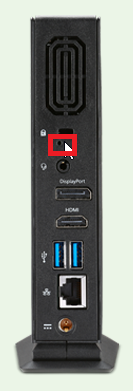
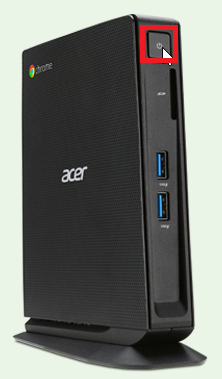
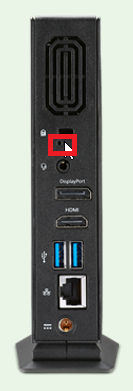
同時按 修復按鈕電源鍵

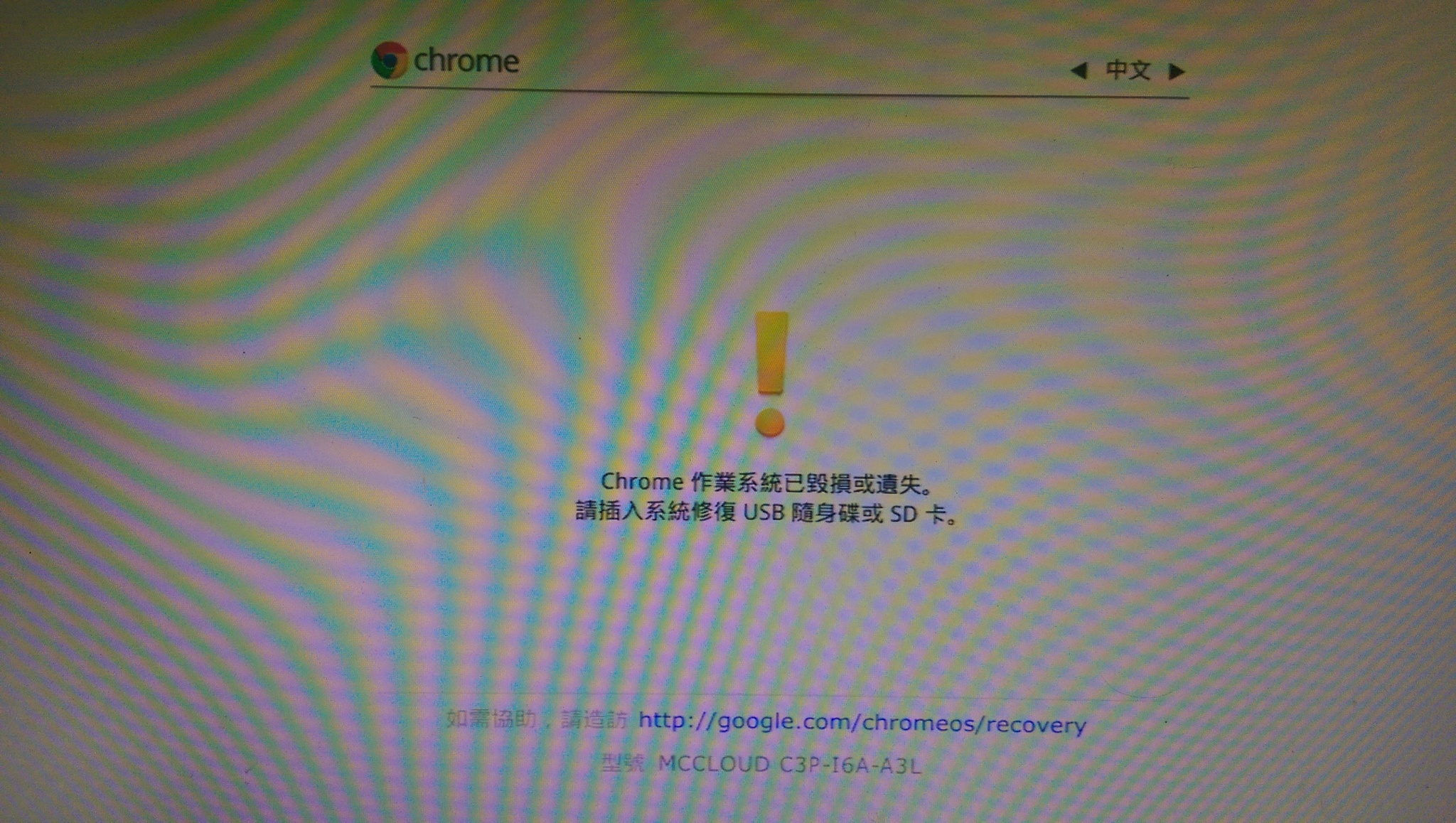
[@more@]出現 Chrome 作業系統已毀損或遺失,請按 Ctlr+D
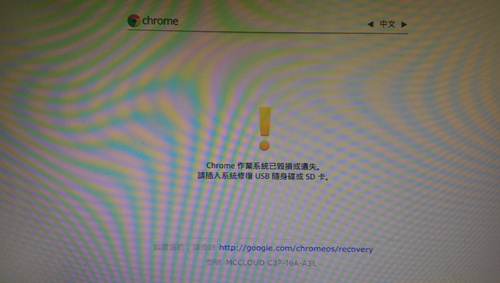
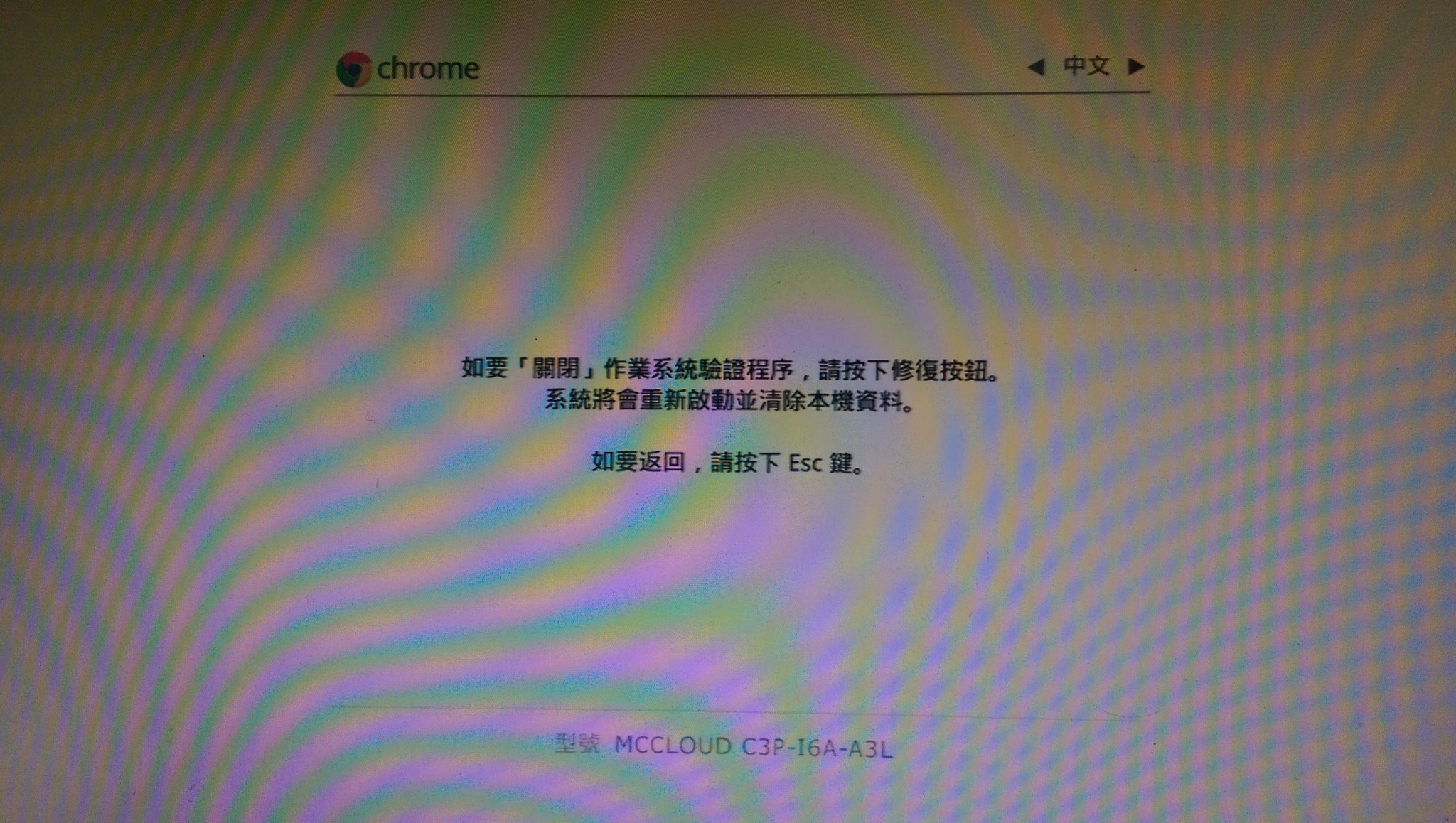
按一下 修復按鈕,關閉 Chrome 作業系統驗證程序
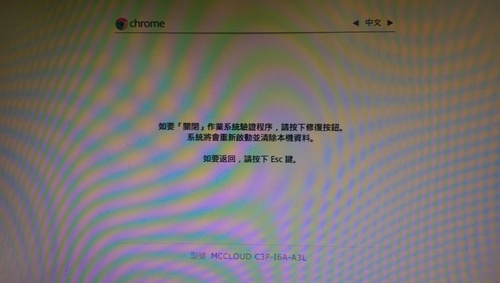
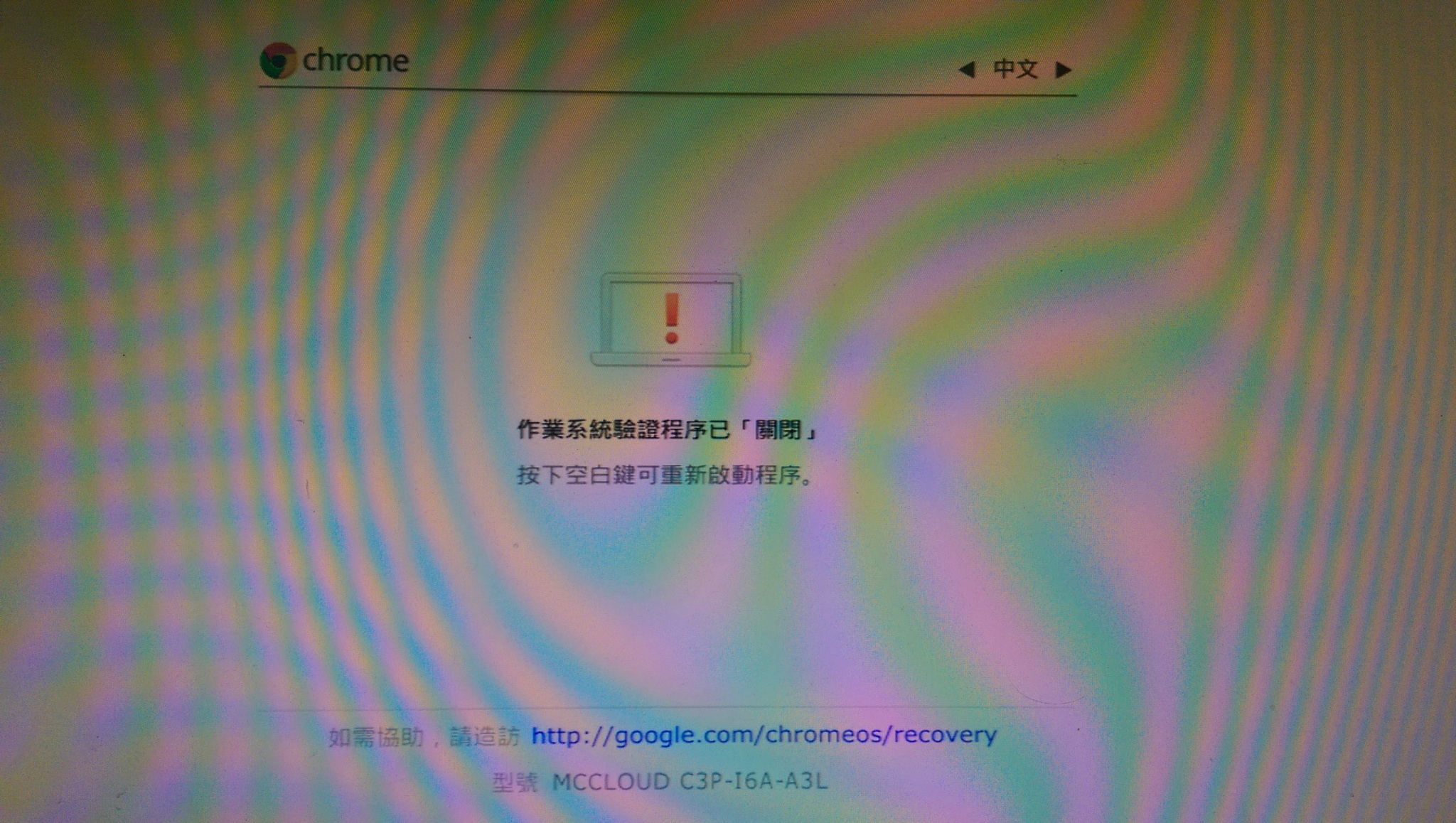
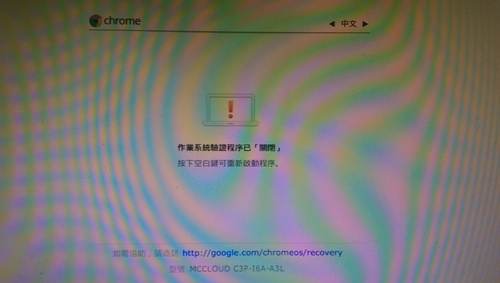
Chrome 作業系統驗證程序已關閉,按 Ctrl+D 繼續
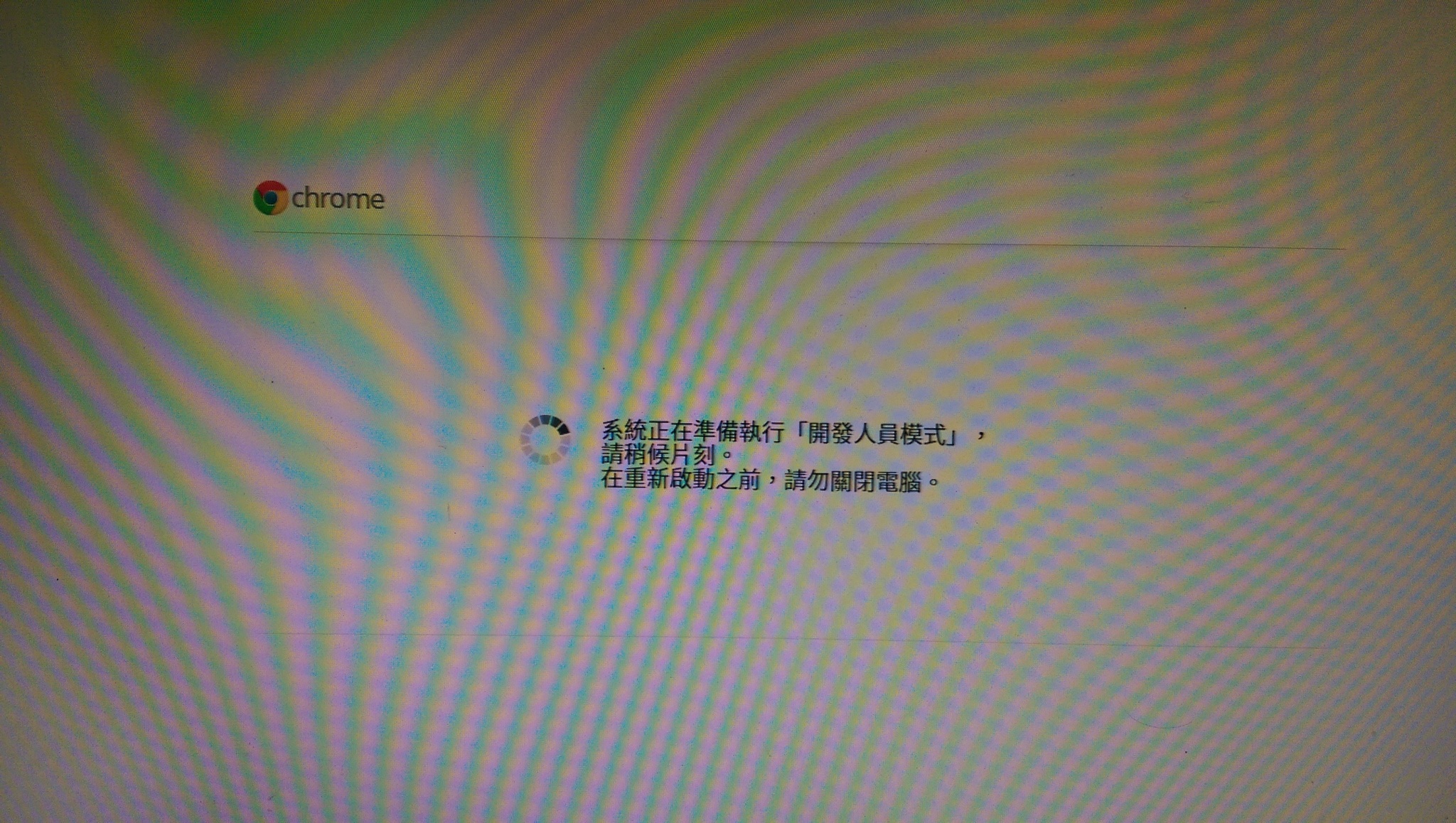
系統正在進入 開發人員模式,本機的資料已遭到清除
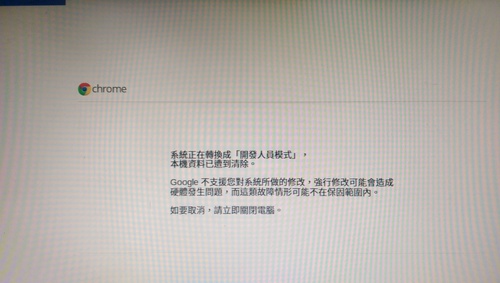
轉換完成之後,系統會重新開機
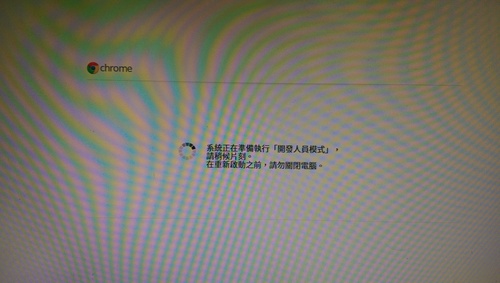
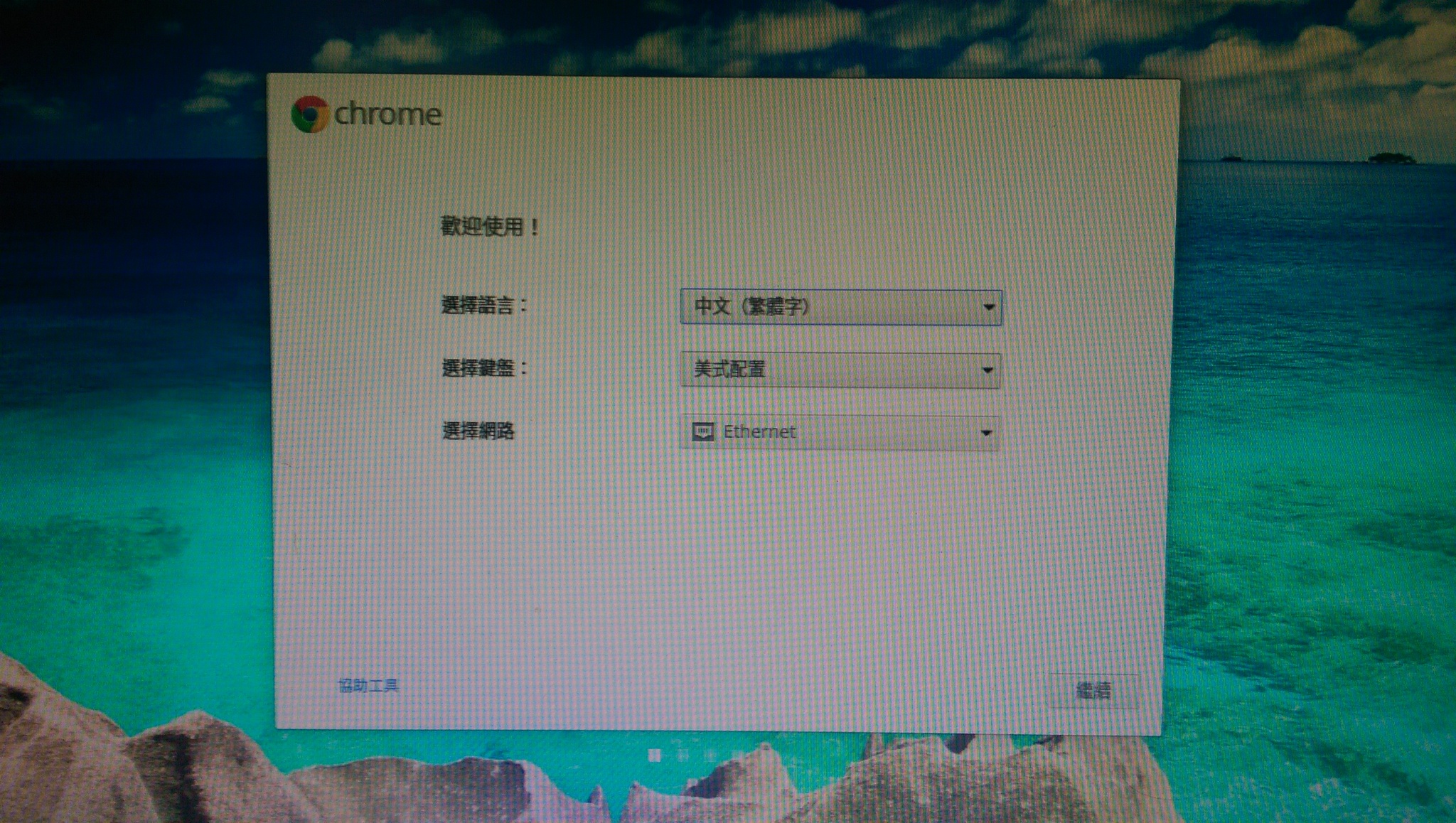
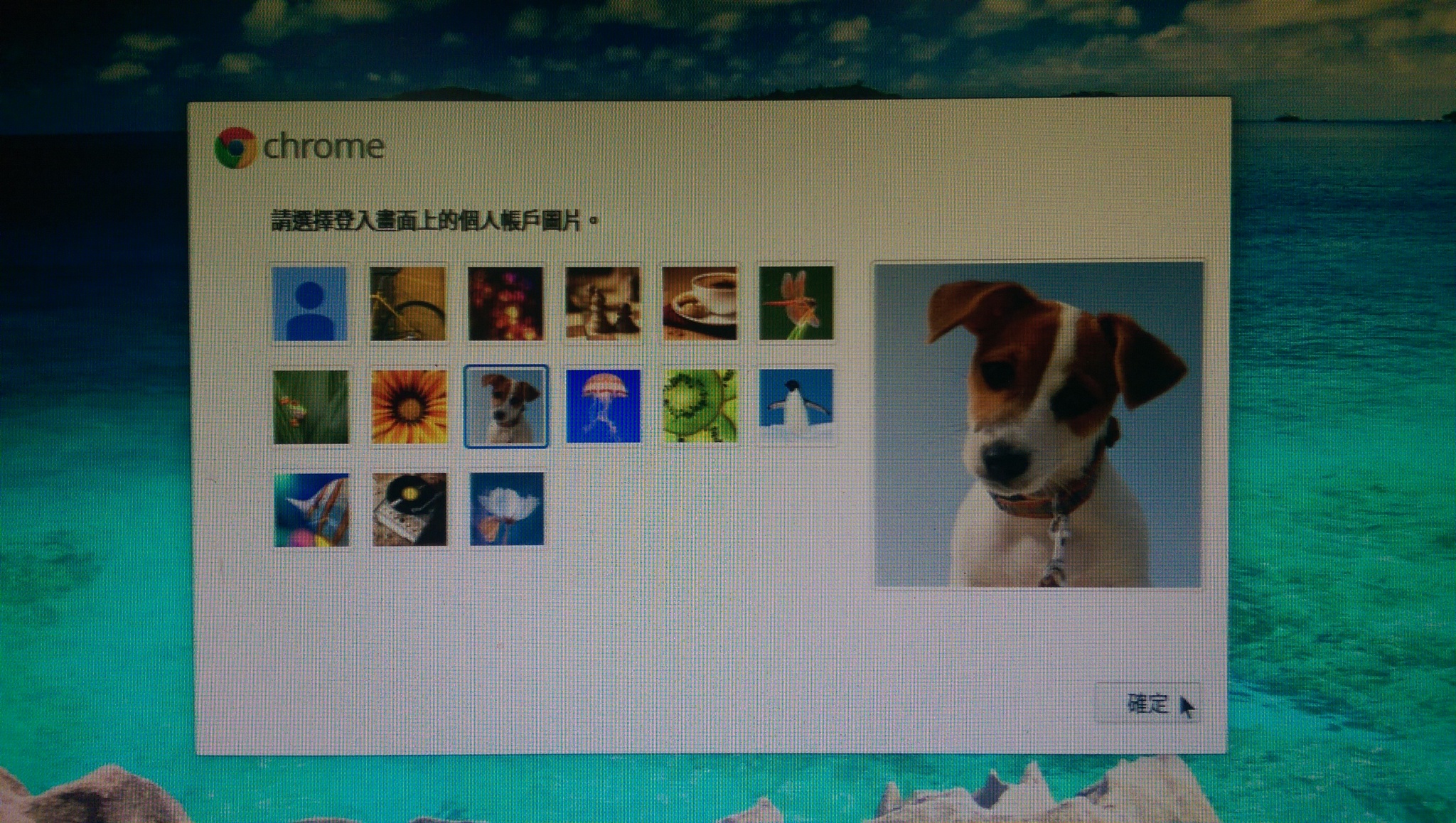
重新初始化設定
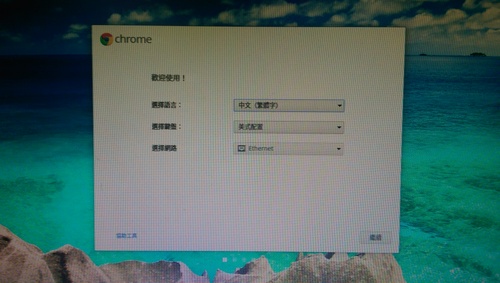
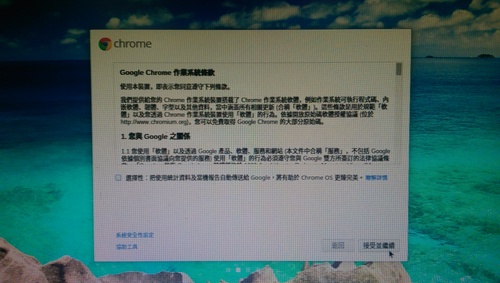
2. 下載 crouton,將檔案存放在 Downloads 目錄

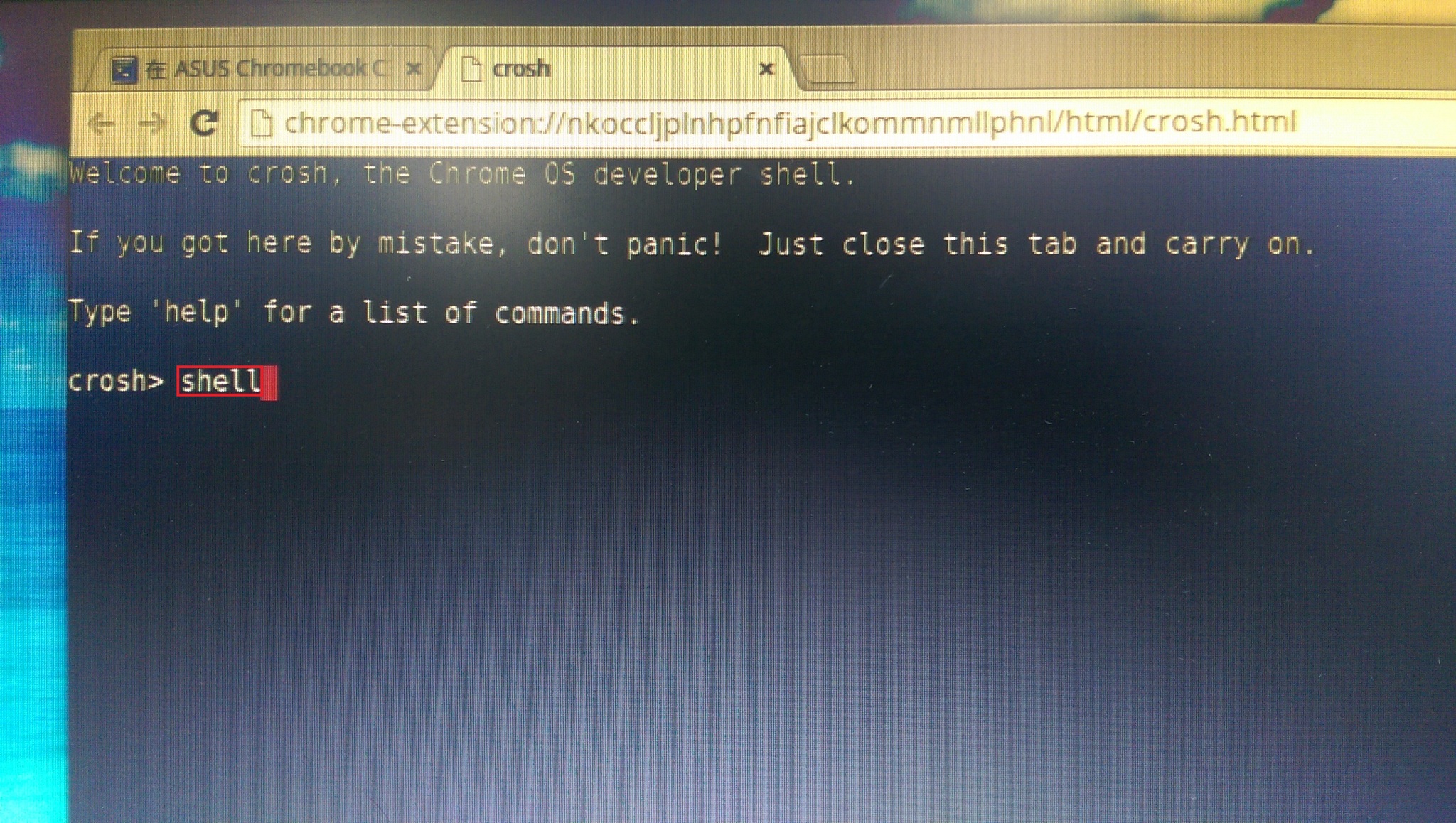
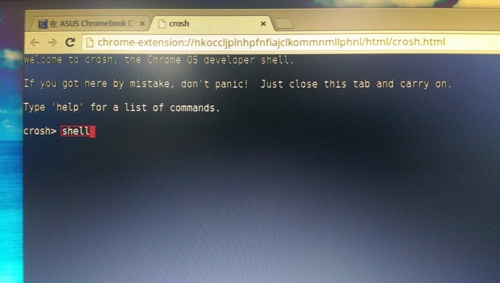
3. 按 Ctrl+Alt+T 開啟 Shell 終端機
輸入 shell 並按 Enter 鍵,進入完整的 Shell 模式
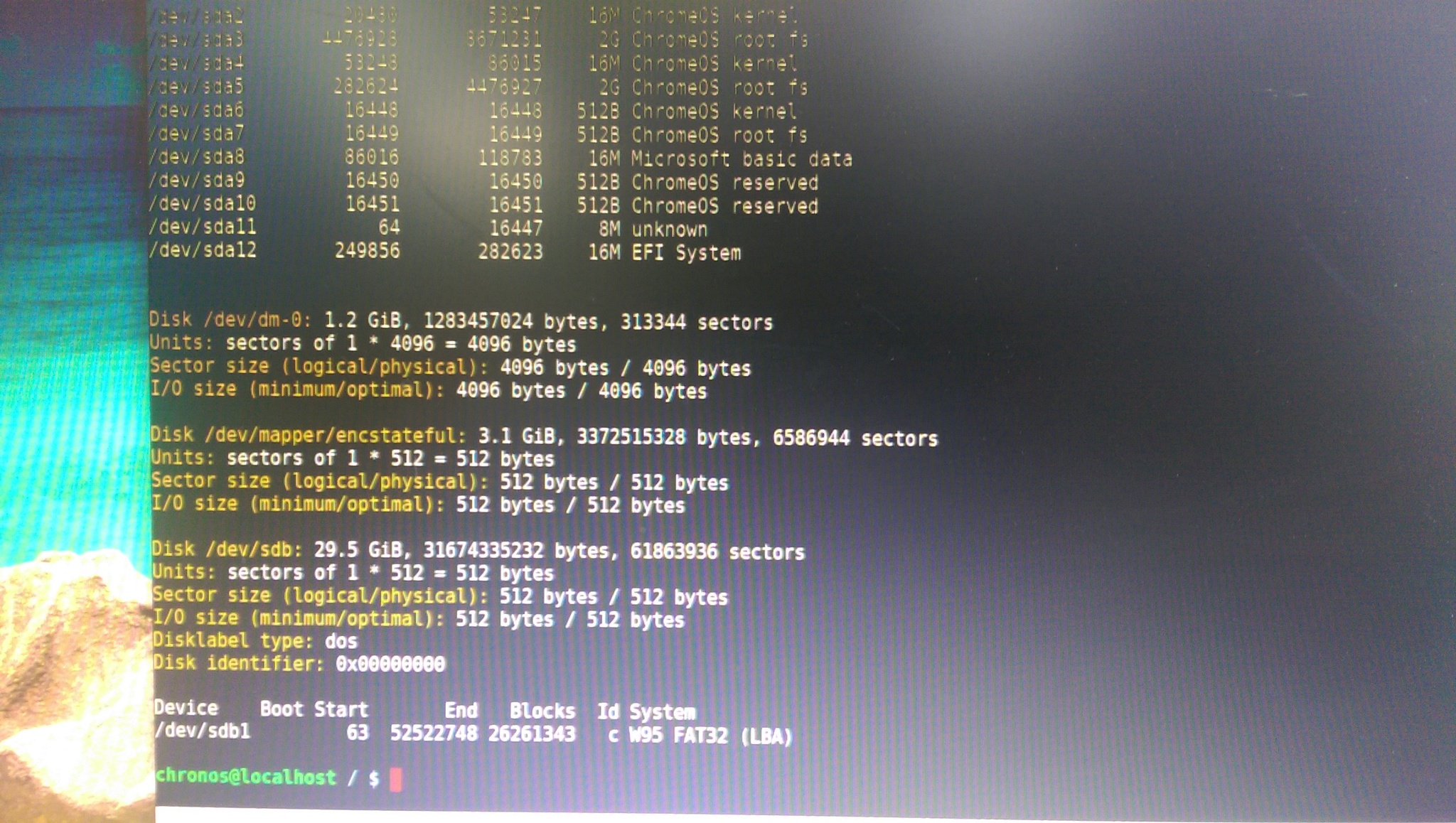
4. 查看分割區的資訊
$ sudo fdisk -l
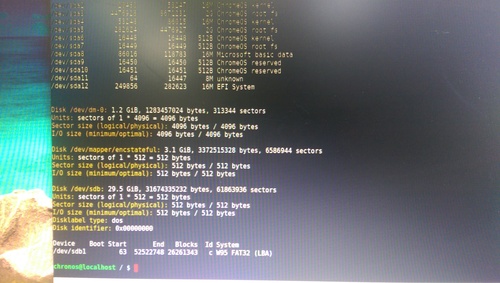
5. 取消掛載記憶卡,這裡要視掛載的目錄而定 
$ sudo umount /media/removable/SD Card

6. 分割記憶卡
$ sudo fdisk /dev/sdb

Welcome to fdisk (util-linux 2.24).
Changes will remain in memory only, until you decide to write them.

Be careful before using the write command.


Command (m for help): d
Selected partition 1
Partition 1 has been deleted.

Command (m for help): n

Partition type:
   p   primary (0 primary, 0 extended, 4 free)
   e   extended
Select (default p): p
Partition number (1-4, default 1): 
First sector (2048-61863935, default 2048): 
Last sector, +sectors or +size{K,M,G,T,P} (2048-61863935, default 61863935): 

Created a new partition 1 of type ‘Linux’ and of size 29.5 GiB.

Command (m for help): wq
The partition table has been altered.
Calling ioctl() to re-read partition table.
Syncing disks.

7. 格式化記憶卡
$ sudo mkfs.ext4 -m 1 /dev/sdb1

mke2fs 1.42 (29-Nov-2011)
Filesystem label=
OS type: Linux
Block size=4096 (log=2)
Fragment size=4096 (log=2)
Stride=0 blocks, Stripe width=0 blocks
1933312 inodes, 7732736 blocks
77327 blocks (1.00%) reserved for the super user
First data block=0
Maximum filesystem blocks=4294967296
236 block groups
32768 blocks per group, 32768 fragments per group
8192 inodes per group
Superblock backups stored on blocks: 
        32768, 98304, 163840, 229376, 294912, 819200, 884736, 1605632, 2654208, 
        4096000

Allocating group tables: done                            
Writing inode tables: done                            
Creating journal (32768 blocks): done
Writing superblocks and filesystem accounting information: done

8. 建立掛載目錄
$ sudo mkdir /media/removable/sdcard

9. 進行掛載
$ sudo mount -o rw,noatime /dev/sdb1 /media/removable/sdcard

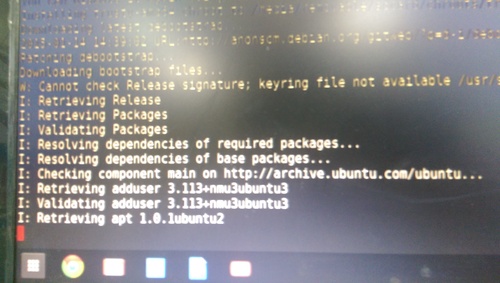
10. 建立 Chroot 環境(Ubuntu 14.04 Unity 桌面)
這一個部分須要很久的時間,因為要到網路上下載套件
-a 採用架構  i386/amd64/armhf
-r  安裝 Ubuntu 版本 trusty-14.04  precise-12.04 saucy-13.10
-t 採用 XWindow gnome/lxde/xfce/kde/cinnamon/unity 
$ sudo sh ~/Downloads/crouton -r trusty -t unity -p /media/removable/sdcard
11. 設定帳號及密碼
Please specify a username for the primary user: 
Enter new UNIX password: 

Retype new UNIX password: 

看到下面這一段時,代表終於完成了
Here’s some tips:

Audio from the chroot will now be forwarded to CRAS (Chromium OS audio server),
through an ALSA plugin.

Future Chromium OS upgrades may break compatibility with the installed version
of CRAS. Should this happen, simply update your chroot.

You can flip through your running chroot desktops and Chromium OS by hitting
Ctrl+Alt+Shift+Back and Ctrl+Alt+Shift+Forward.

You can start Unity via the startunity host command: sudo startunity

Unmounting /media/removable/sdcard/chroots/trusty…
Done! You can enter the chroot using enter-chroot.

12. 讓 Ubuntu 桌面按揵配置與 Chrome OS 相同
$ sudo sh ~/Downloads/crouton -u -r trusty -t keyboard -p /media/removable/sdcard

或將 10 和 12 合而為一
sudo sh -e ~/Downloads/crouton -a i386 -r trusty -t audio,core,gtk-extra,keyboard,x11,chrome,cli-extra,extension,unity -p /media/removable/sdcard

13. 建立啟動 Ubuntu 的 Script 檔
$ vim ~/startunity

#!/bin/bash
if [ -z “$(mount | grep sdb1 | grep sdcard)” ]; then
    umount /dev/sdb1
    if [ ! -d /media/removable/sdcard ]; then
        mkdir /media/removable/sdcard
    fi 

    mount -o rw,noatime /dev/sdb1 /media/removable/sdcard
fi
/media/removable/sdcard/bin/startunity

14. 進入 Ubuntu Unity 桌面
Chrome 作業系統驗證程序已關閉,按 Ctrl+D 繼續

進入 Chrome OS
按 Ctrl+Alt+T,輸入 shell 進入完整 shell 模式
執行
$ sudo sh ~/startunity

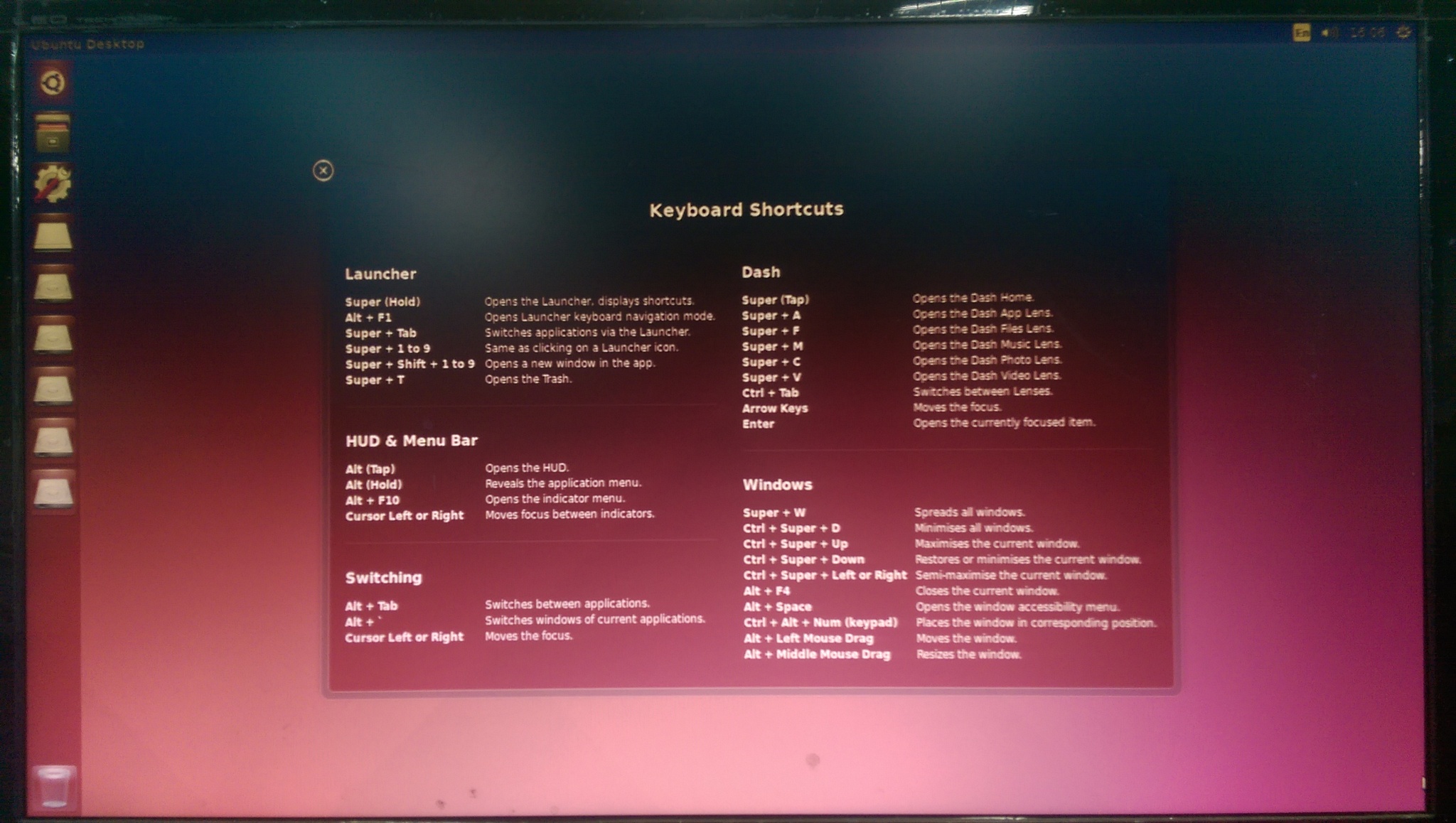
進入 Ubuntu
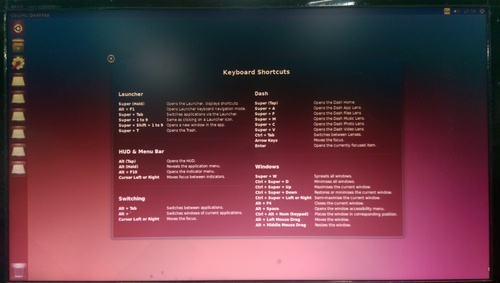
使用 crouton 的方式來安裝 Ubuntu 的好處是可以保留原有的 ChromeOS,在進入 ChromeOS 系統後,再以 Chroot 的方式來執行 Ubuntu。

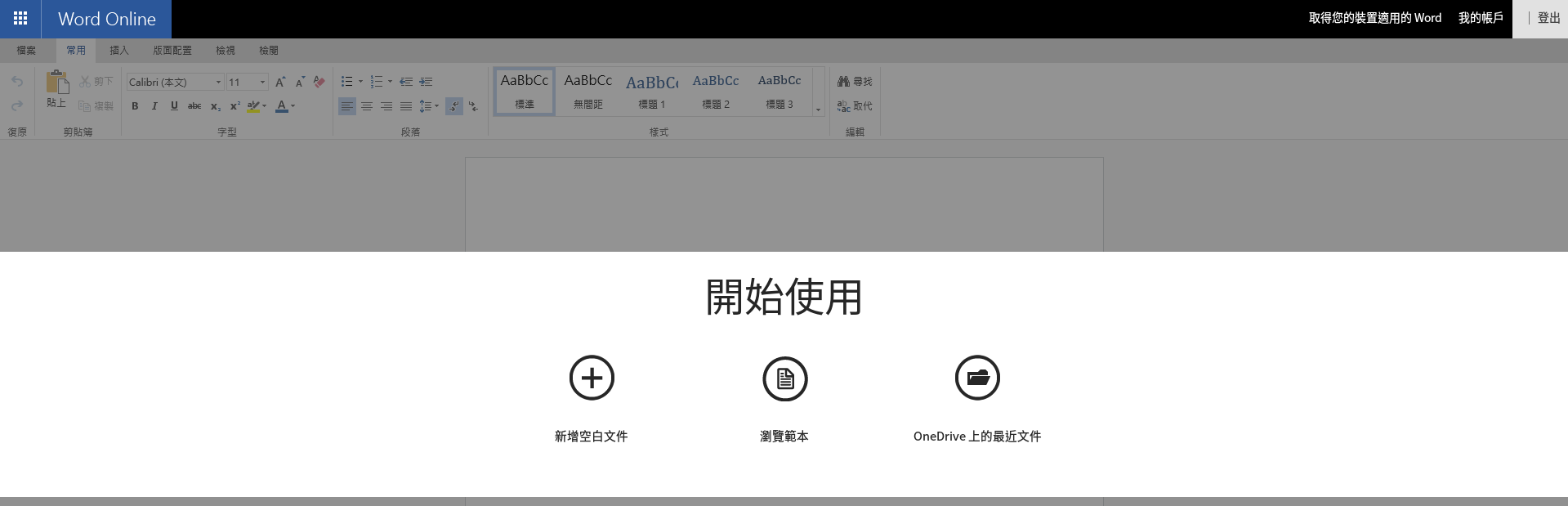
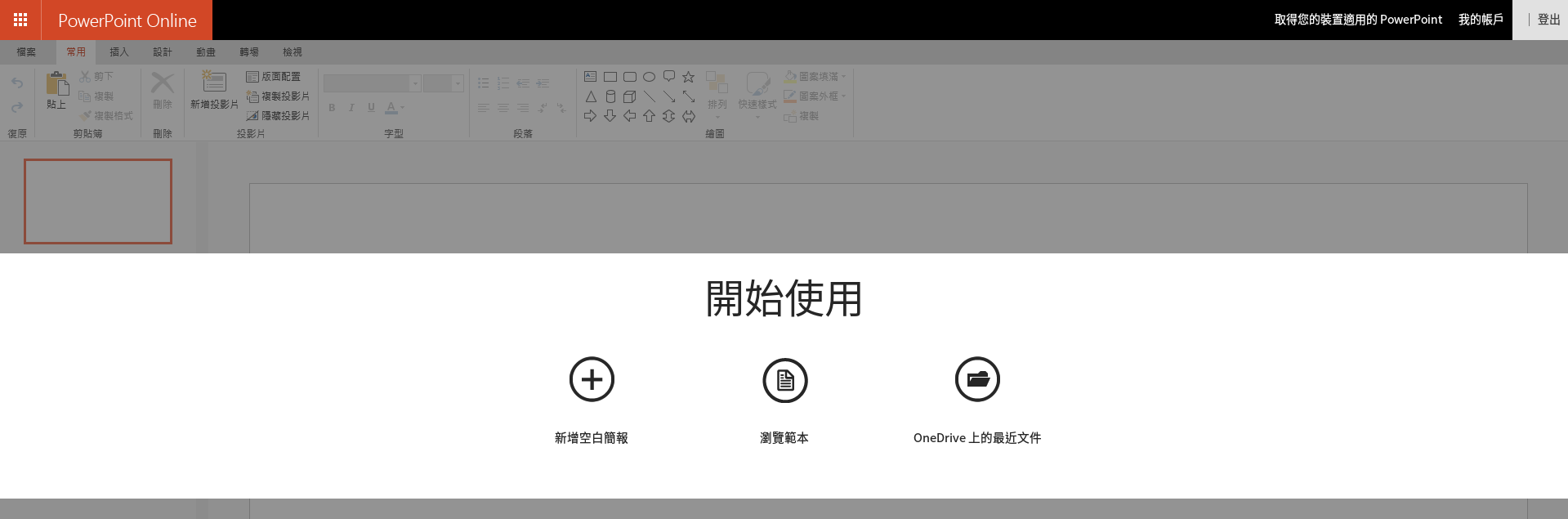
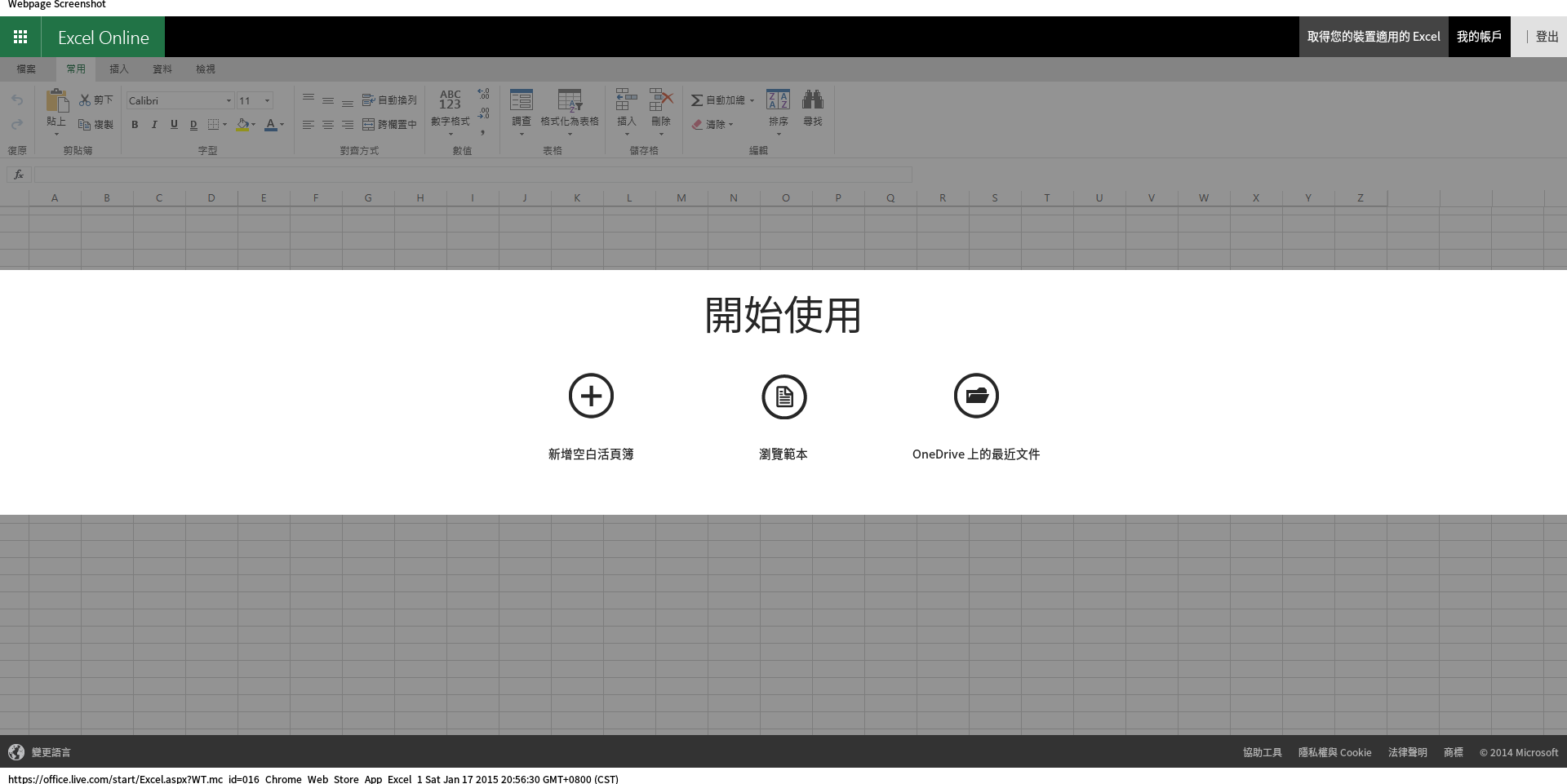
Chrome OS – Office Online

如果不習慣使用 Google 文件/簡報/試算表,也可以考慮使用 Microsoft Word/PowerPoint/Excel Online。
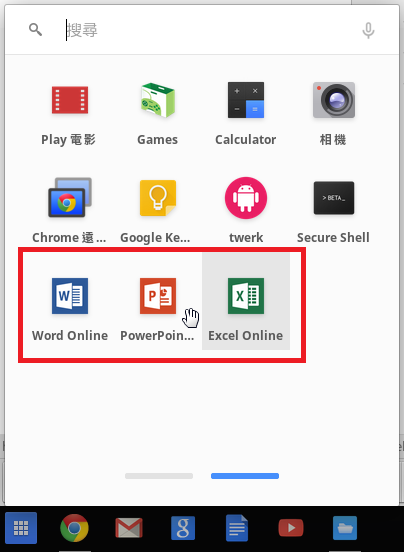
1. 可以在 Chrome 線上應用程式商店的應用程式中找到


2. 安裝完成之後可以在應用程式中找到

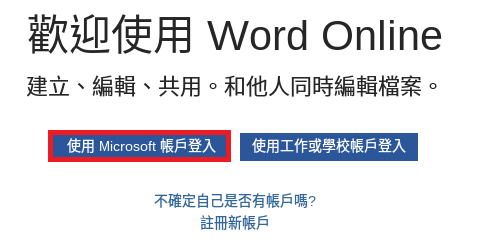
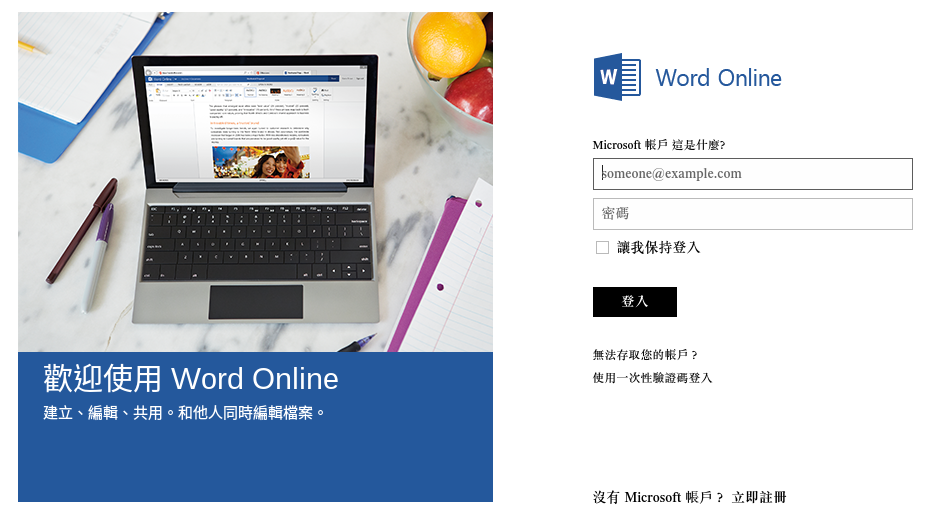
[@more@]3. 程式開啟後要選擇使用 Microsoft 帳戶登入或是另外有 Office 365 帳戶登入

以 Microsoft 帳戶登入

以 Office 365 帳戶登入

4. 可以開始使用


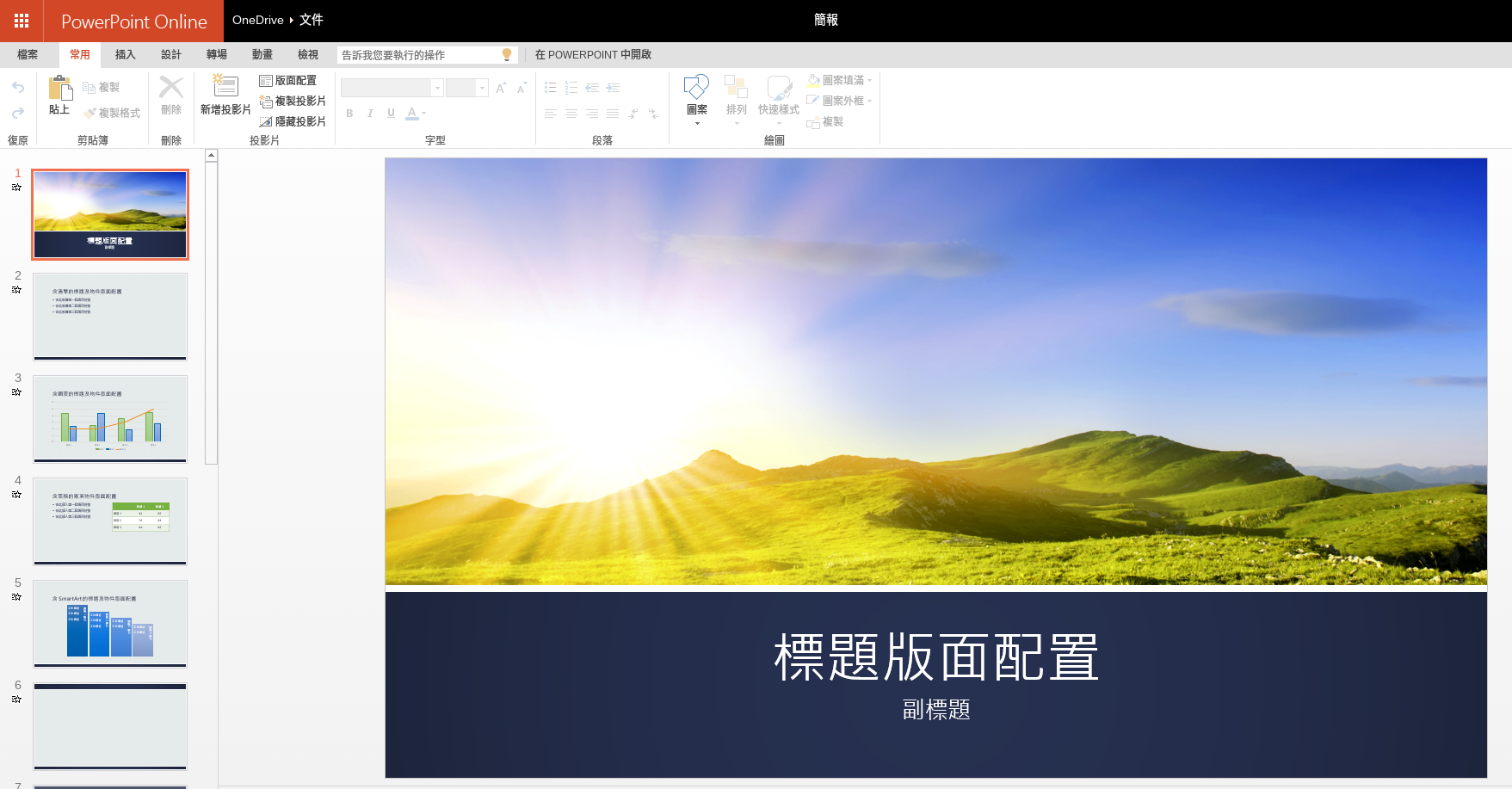
5. 進行作業


使用起來,整體來說還算可以,就是中文字形可選擇性比較少,範本也比較少一些,其它的部分還算堪用。


也可以將文件或是簡報崁入到部落格中!
https://onedrive.live.com/embed?cid=3716B09CCCF54B09&resid=3716B09CCCF54B09%21350&authkey=AAyP5clE8-ufSCs&em=2&wdAr=1.7771260997067448

Chrome OS SSH Client – Sec Shell

Chrome OS 上的 SSH Client
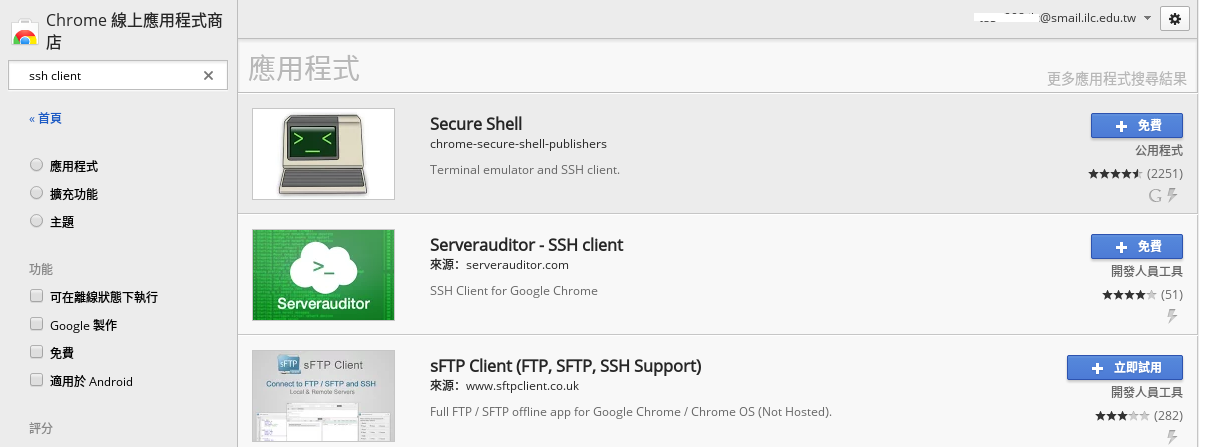
目前在應用程式部分,有三套 Client 端可以使用,分別是:
Secure Shell – 可以正常連線,但無法輸入中文,可以正常顯示中文
Serverauditor – SSH Client – 似乎有些站台無法正常連線
sFTP Client(FTP,SFTP,SSH Support) – 商業版軟體,有試用版

底下以 Secure Shell 為例
1.  選擇 + 免費
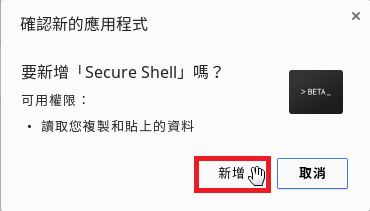
[@more@]2. 選擇 新增

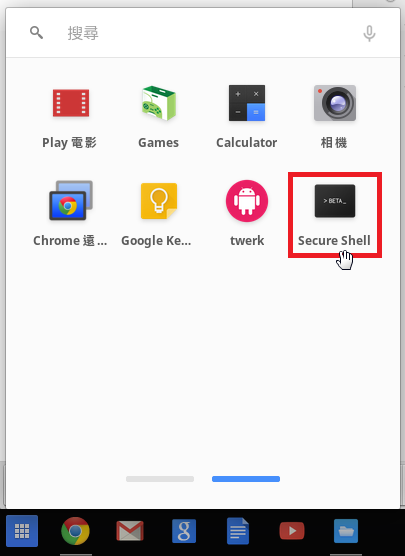
3. 在功能表中可以找到已經安裝好的應用程式,如果要移除的話,只要按滑鼠右鍵,選擇 從 Chrome 中移除…  即可

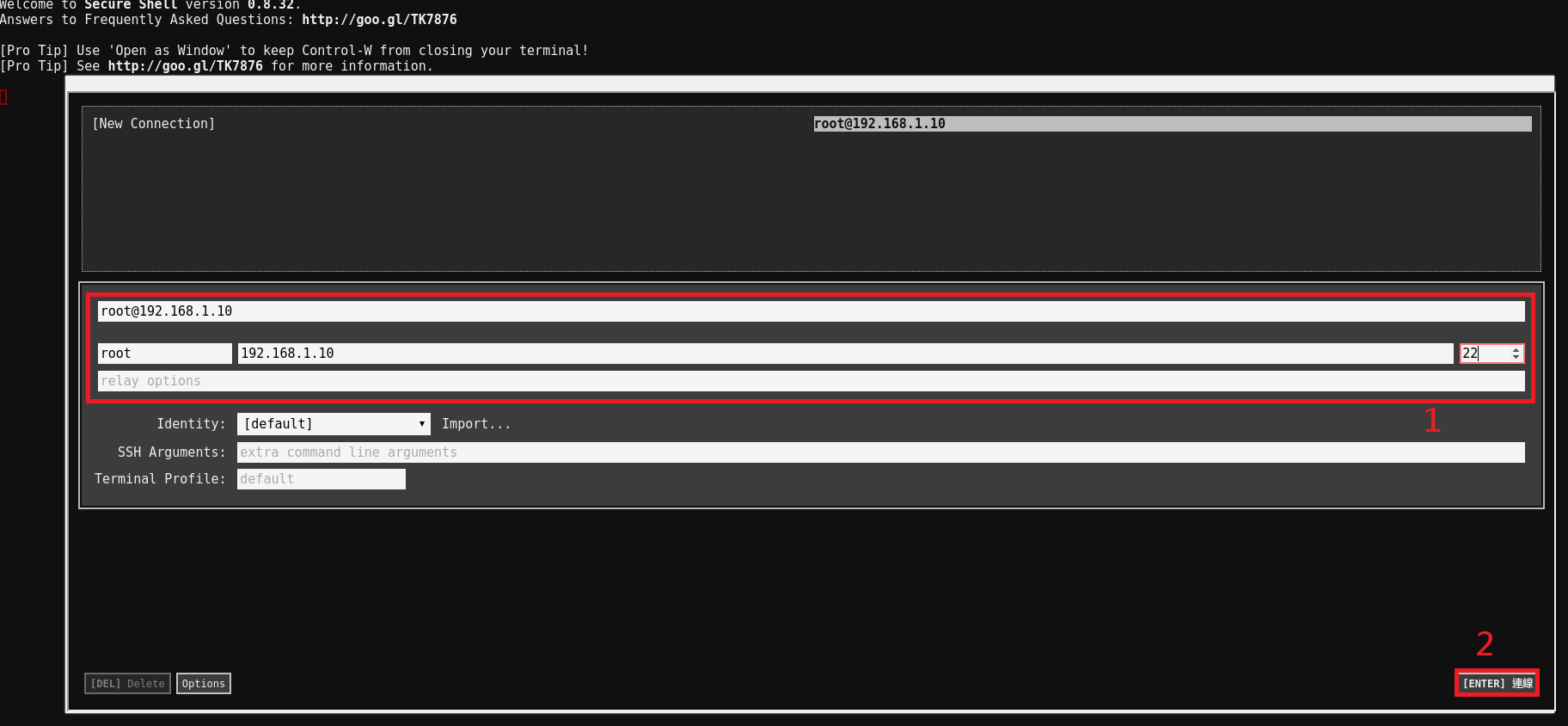
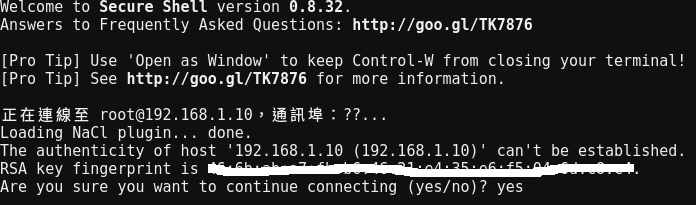
4. 輸入連線資訊

5. 連線

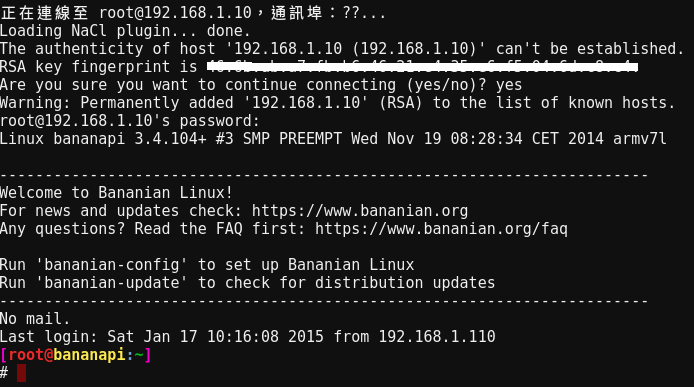
6. 已正常連登入

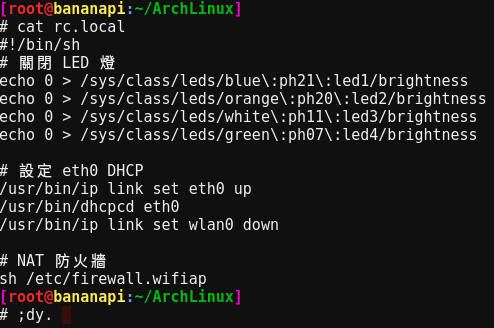
7. 可以顯示中文,但無法輸入中文

ChromeOS 輸入法 – 改安裝 JsCIN 中文輸入法

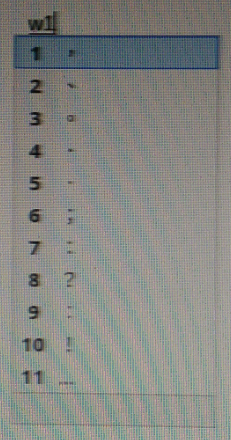
ChromeOS 內建有行列輸入法,但用起來有些奇怪,尤其是在標點符號的選擇順序和沒有的部分一級簡碼,如「的」這個字,原本在行列輸入法只要輸入「t」,但在 ChromeOS 中要輸入「lplh」。
在宜蘭縣自由軟體團隊聚會時,詢問啟宏老師這個問題,得知可以改用 JsCIN 中文輸入法來解決,而且用 JsCIN 輸入法也可以解決 ChromeOS 內建沒有嘸蝦米輸入法的問題,但要自備嘸蝦米輸入法輸入法的表格檔。
1. 在 Chrome 線上應用程式商店搜尋 jscin,並選擇 + 免費 來進行安裝
[@more@]2.  選擇 新增

3. 進行設定,選擇 美式配置

4. 選擇 自定語言與輸入法…

5.  勾選 JsCIN 中文輸入法

6.  請按 確定 繼續

7.  選擇 設定…

8.  已啟用的輸入法 – 就是要使用的輸入法
     其它已安裝的輸入法 – 可以選用的輸入法
     如果是其它的輸入法使用者,請看下方的新增更多輸入法

9.  如果是 新酷音輸入法的使用者,要加裝下列的模組

10.  可以使用 Alt+Shift 來切換不同的輸入法(ChromeOS/JsCIN)
        Ctrl+Space 可以選用前一個輸入法
ZH 是 ChromeOS 內建的輸入法

ZH* 是 JsCIN 中文輸入法

11. 行列輸入法 ChromeOS

12. 行列輸入法 JsCIN

Chrome OS 有線網路設定

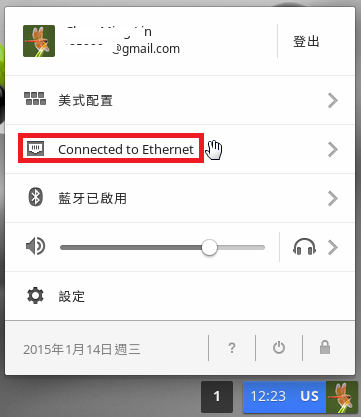
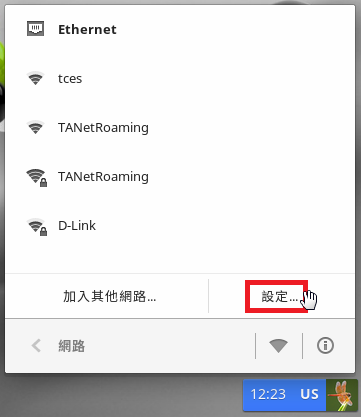
選擇 Connected to Ethernet
[@more@]2. 選擇 設定…

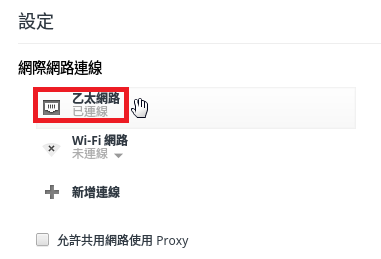
3. 選擇 乙太網路

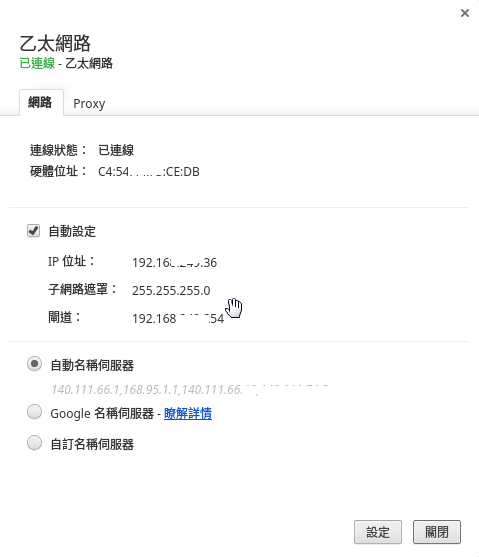
4. 目前網路是採用 DHCP 自動取得

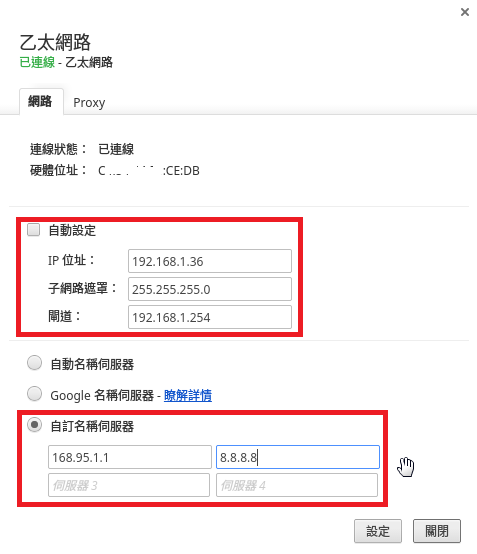
5. 改採手動設定

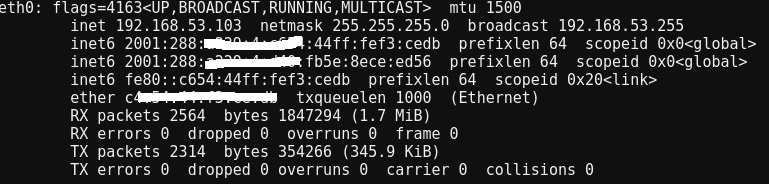
似乎看不到關於 IPv6 的設定,但使用 DHCP 設定時,還是可以正確抓到 IPv6

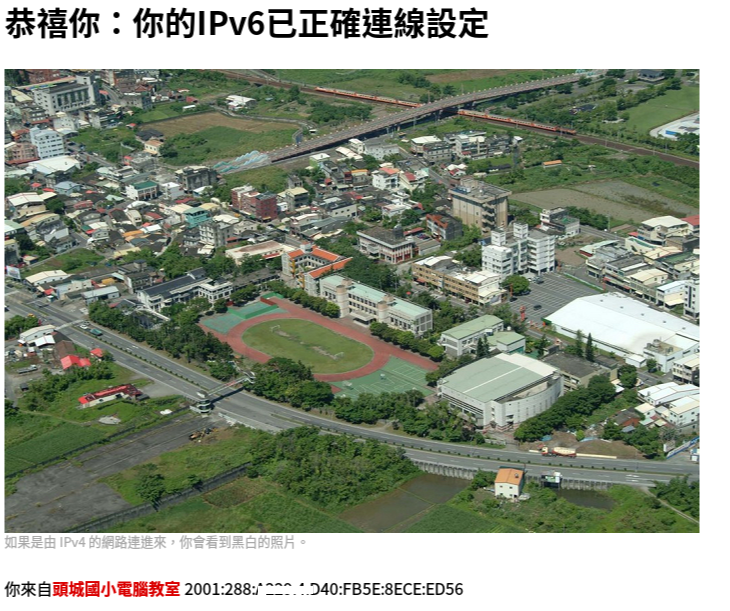
而且可以正確以 IPv6 連線