解決使用中小學教師專業發展線上課程學習平台所碰到的問題

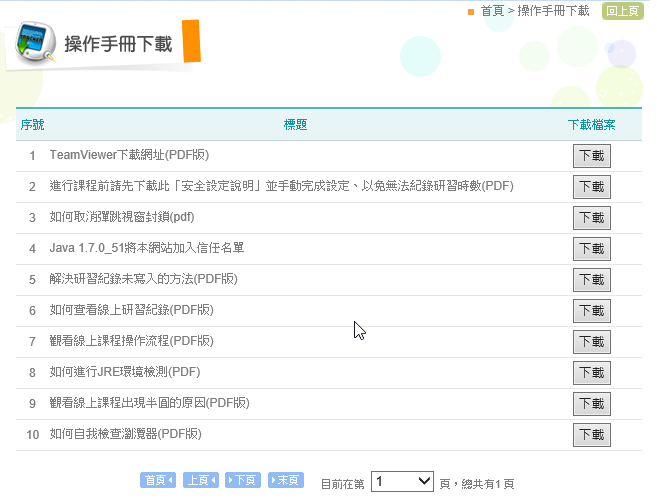
最近在使用「中小學教師專業發展線上課程學習平台」的線上 10 小時課程,按照網站上的操作手冊做完該有的設定

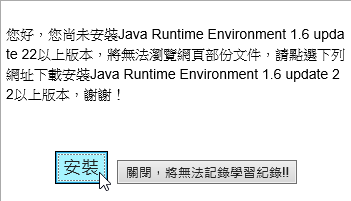
但要上線上課程時,還是出現下面的警告訊息
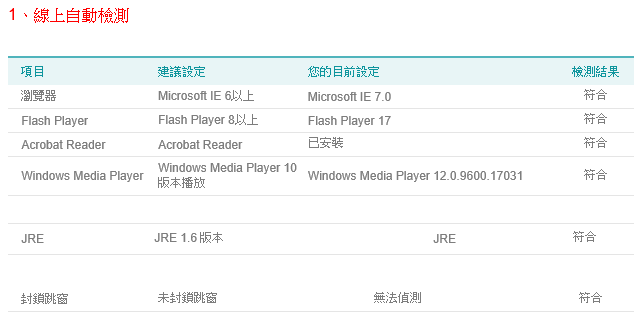
[@more@]但線上檢測環境是沒有問題的

解決及設定方式:
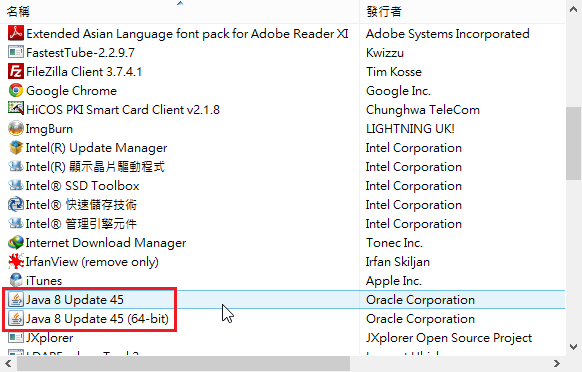
1. 先檢查有沒有安裝 Java,如果沒有安裝,請先下載下來安裝
    Java 下載網站:https://java.com/zh_TW/download/

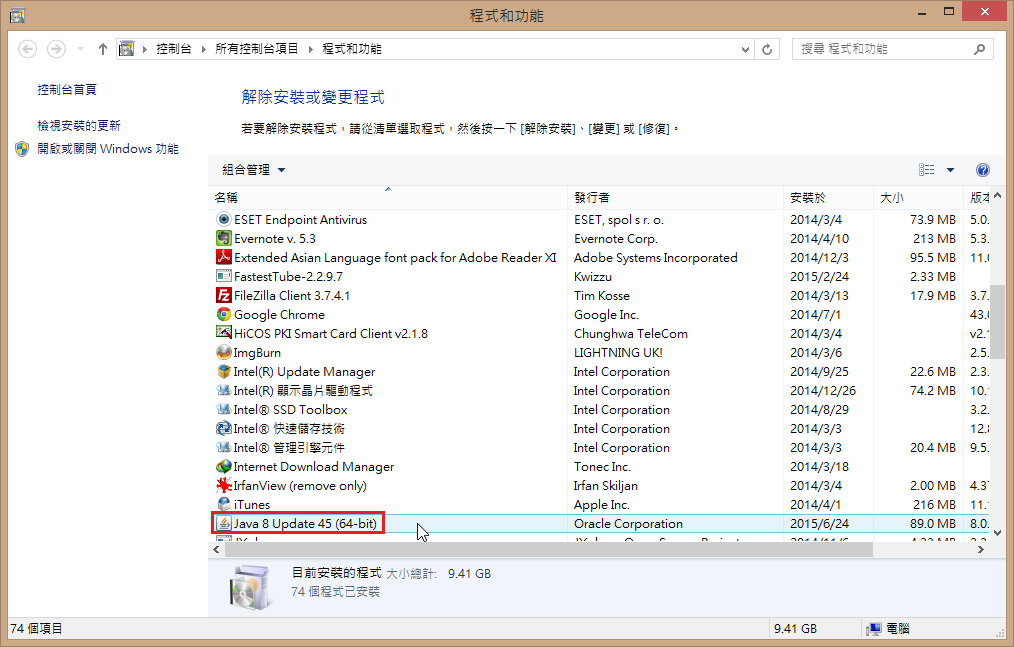
2. 檢查您的作業系統是不是 64 bit,如果是的話,請改安裝 32bit Java

3. Java 的設定
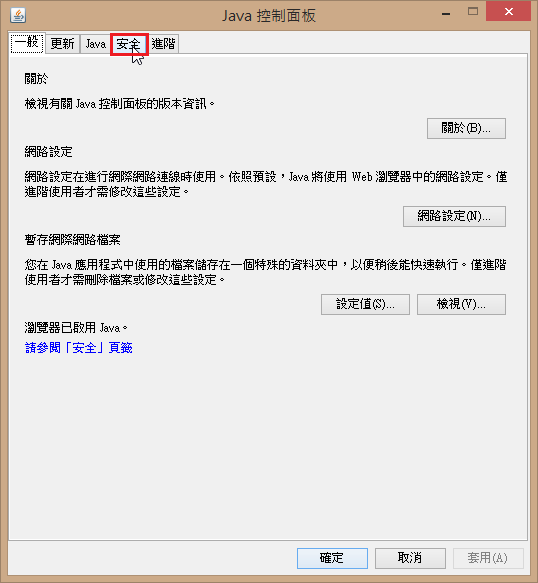
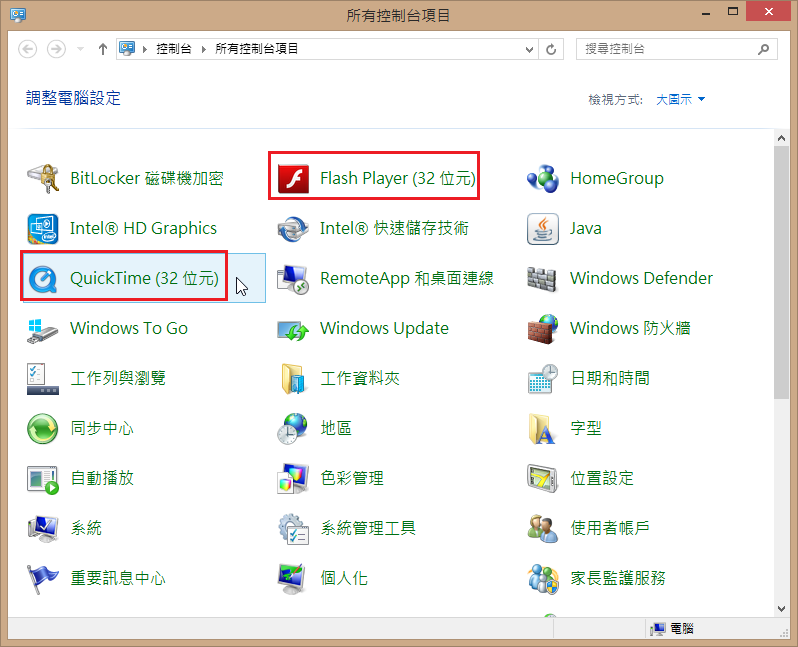
在控制台執行 Java 設定

選擇 安全 頁面

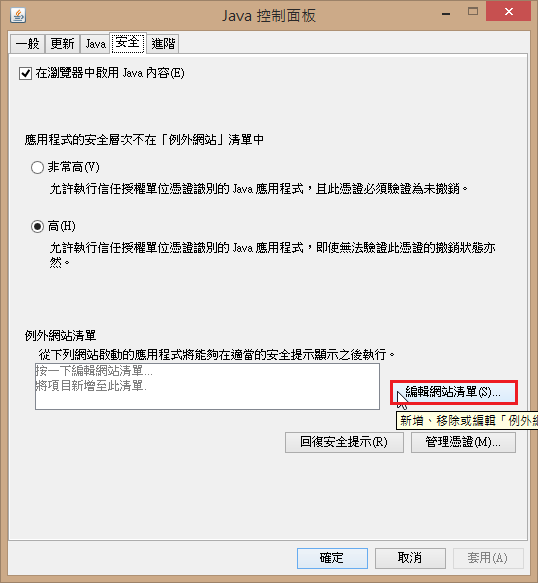
選擇 編輯網站清單(S)

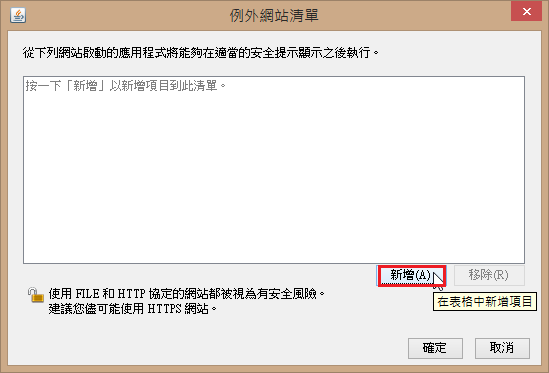
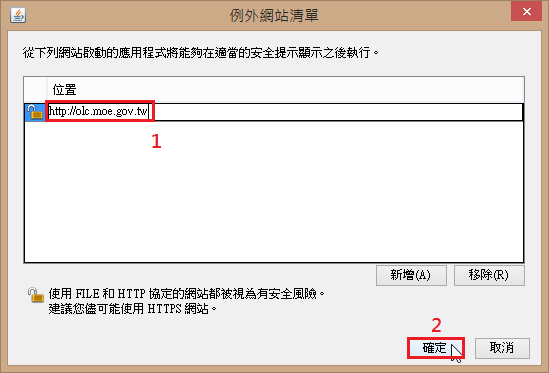
選擇 新增(A)

新增 http://olc.moe.gov.tw 網址,然後按 確定

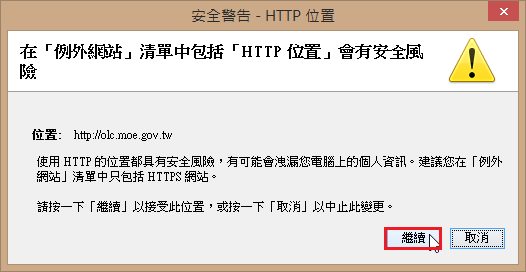
按 繼續

4. Internet Explorer 的設定(一定要用 IE)
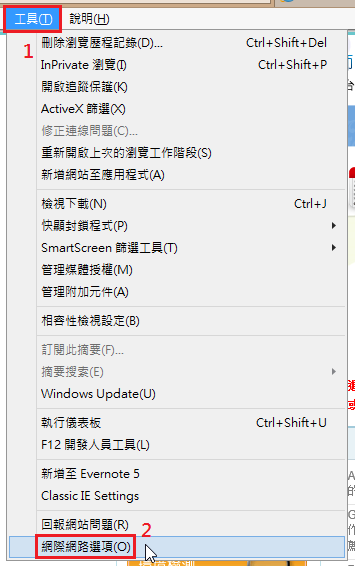
選擇 工具(T) / 網際網路選項(O)

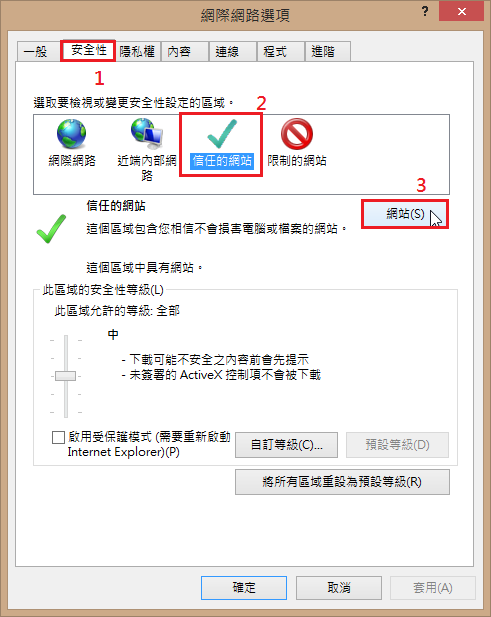
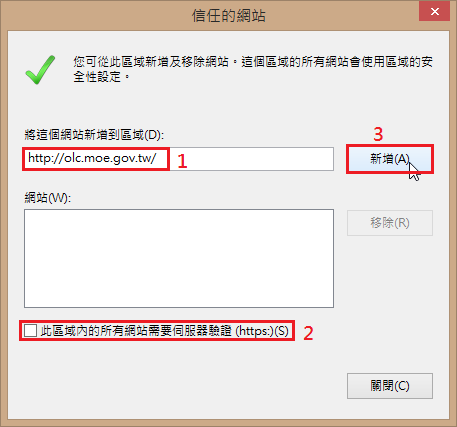
選擇 安全性 / 信任的網站 / 網站(S)

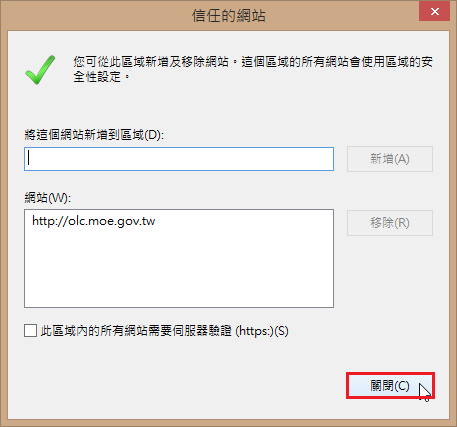
新增 http://olc.moe.gov.tw,取消 此區域內的所有網站需要伺服器驗證(https:)(S),然後按 新增(A)

按 關閉(C)

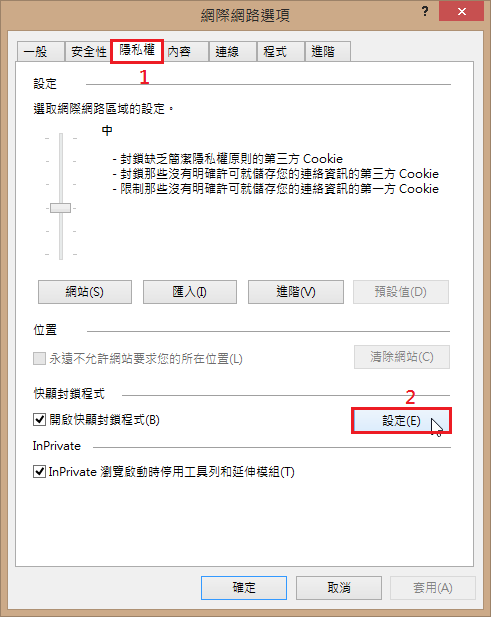
選擇 隱私權 頁面 / 設定(E)

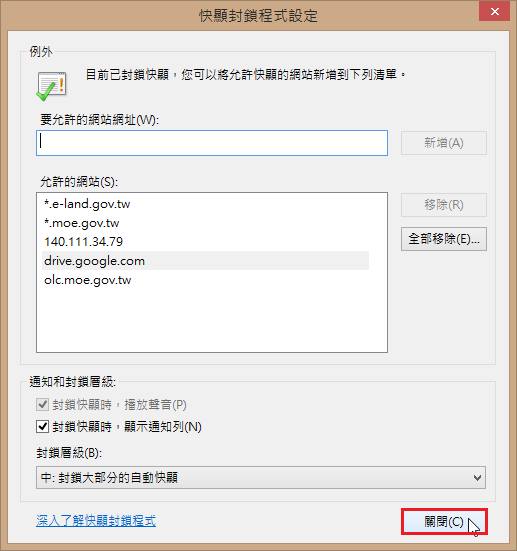
新增 http://olc.moe.gov.tw,然後按 新增(A)

按 關閉(C)

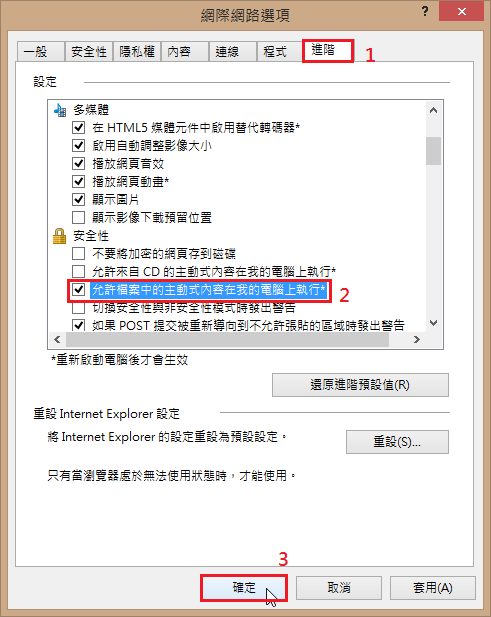
進階 頁面設定

5. 終於完成設定,可以正常上課了!

關於 Windows 64bit 作業系統

現在安裝電腦 Windows 作業系統時,絕大部分都是安裝 64bit,除非是電腦效能不彰,記憶體少於 4G,或是有很特別的原因,也一直深信 64bit  的作業系統應該要安裝 64bit 的軟體。

但最近在上教專的線上課程時,吃了 Java 很大的虧

明明我都已經安裝最新版的 Java 了,但它還是一直出現這個訊息,難道是要我安裝 Java Runtime Environment 1.6 update 22 嗎?
[@more@]
後來到別台電腦去測試一下,卻出現可以正常執行,差別不過是,可以的那一台是安裝 32bit 的 Windows 作業系統,而我用的是 64bit 的 Windows 作業系統。

後來在控制台發現,其實在 64bit 的 Windows 作業系統中,還是很多都是使用 32bit 的軟體,後來我把 Java 改安裝 32bit 之後,上述的問題就迎刃而解了!

Linux 上的 GUI SMART Applications

硬碟使用久了,很難保哪一天會突然出現狀況,一般會使用 Self-Monitoring, Analysis and Reporting Technology (SMART) 來偵測硬碟目前的狀態。
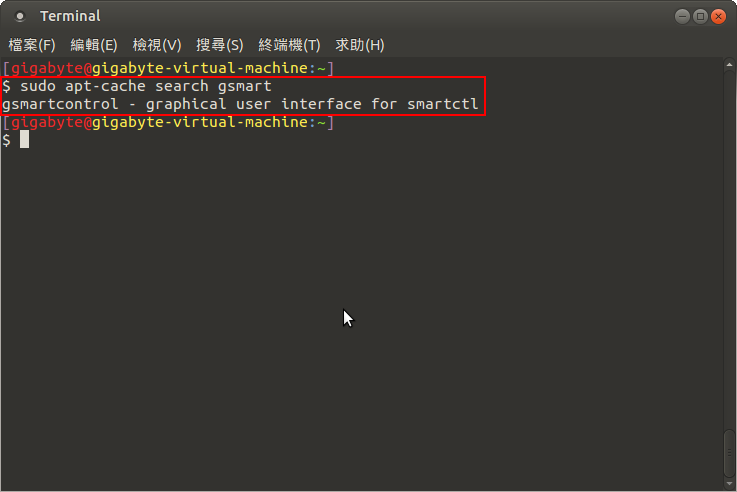
查詢套件
$ sudo apt-cache search gsmart
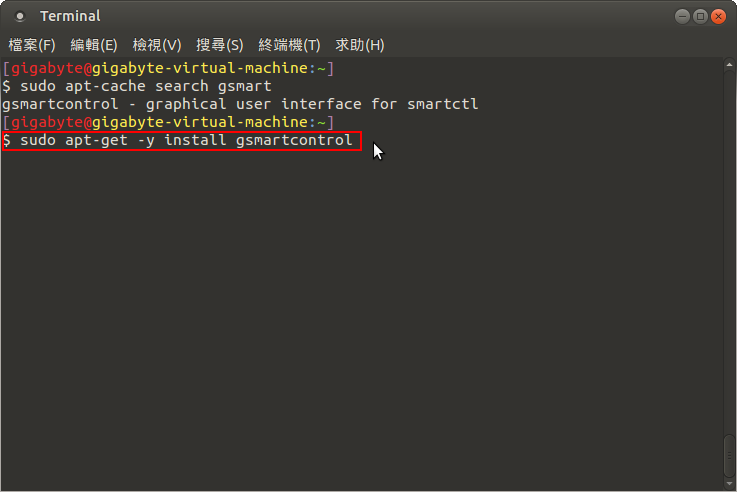
[@more@]進行安裝
$ sudo apt-get -y install gsmartcontrol

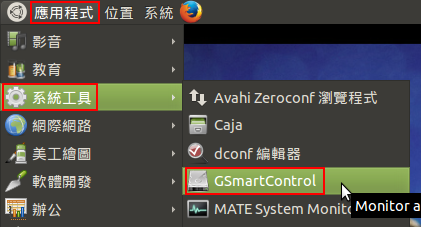
3. 在功能表上的位置,以 Ubuntu MATE 為例

更進階的研究可以參考:[完全用 GNU/Linux 工作] 29. 檢測硬碟 SMART 健康狀態 – iT邦幫忙::IT知識分享社群

tar.bz2 無法解壓縮

將在別台 Server 備份好的檔案,利用 scp 複製到 Banana Pi 架設的 Server,要解壓縮時,卻發現無法解壓縮。
$ sudo tar xvjf blog_N.tar.bz2
tar (child): bzip2: Cannot exec: No such file or directory
tar (child): Error is not recoverable: exiting now
tar: Child returned status 2
tar: Error is not recoverable: exiting now

百思不得其解,本來以為是壓縮檔損毀,可是在原 Server 上可以正常解壓縮。後來上網查了一下,在下面這一篇文章找到了答案。
Can’t extract tar.bz2

發現原來是系統沒有安裝 bzip2 套件
$ sudo apt-get install bzip2

安裝了 bzip2 套件後,就可以正常解壓縮了!

在 Ubuntu Linux 上安裝 gcin 中文輸入法

本來都一直直接使用 Ubuntu 套件庫來安裝 gcin,後來無意中看到 Ubuntu 15.04/14.10/14.04/…/12.10/12.04 安裝最新的 gcin 中文輸入的完整步驟 這一篇。
稍微試了一下,可以安裝並使用,不過一時之間看不出二者之間有什麼差異。

加入 GPG 金鑰
$ sudo apt-key adv –keyserver keyserver.ubuntu.com –recv-keys 835AB0E3
如果沒加入,在做 apt-get update 更新套件庫時會出現錯誤訊息
W: GPG 錯誤: http://hyperrate.com eliu Release: 由於無法取得它們的公鑰,以下簽章無法進行驗證: NO_PUBKEY 5C577D59835AB0E3

加入 gcin 套件庫來源
$ sudo echo “deb http://hyperrate.com/debian eliu release” >> /etc/apt/sources.list

更新套件庫
$ sudo apt-get update

進行安裝
$ sudo apt-get install gcin

使用 GRUB2 掛載 Linux ISO 來執行

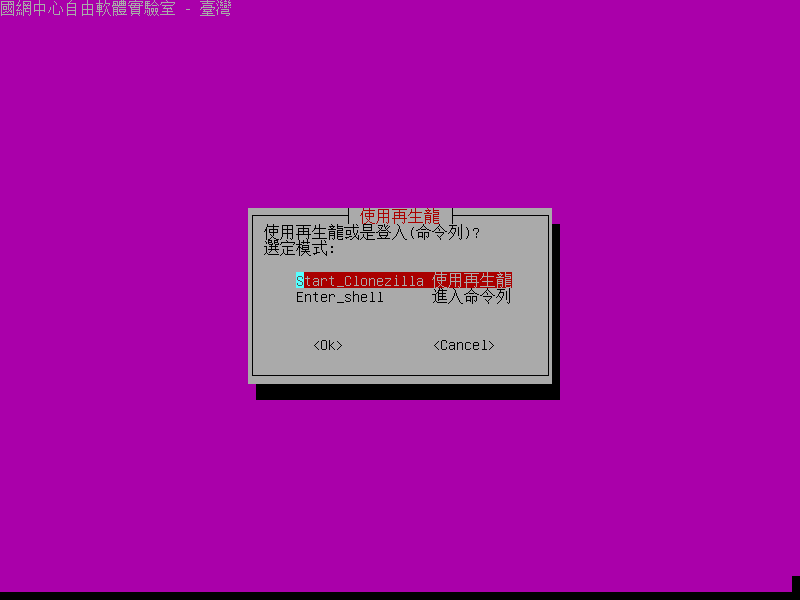
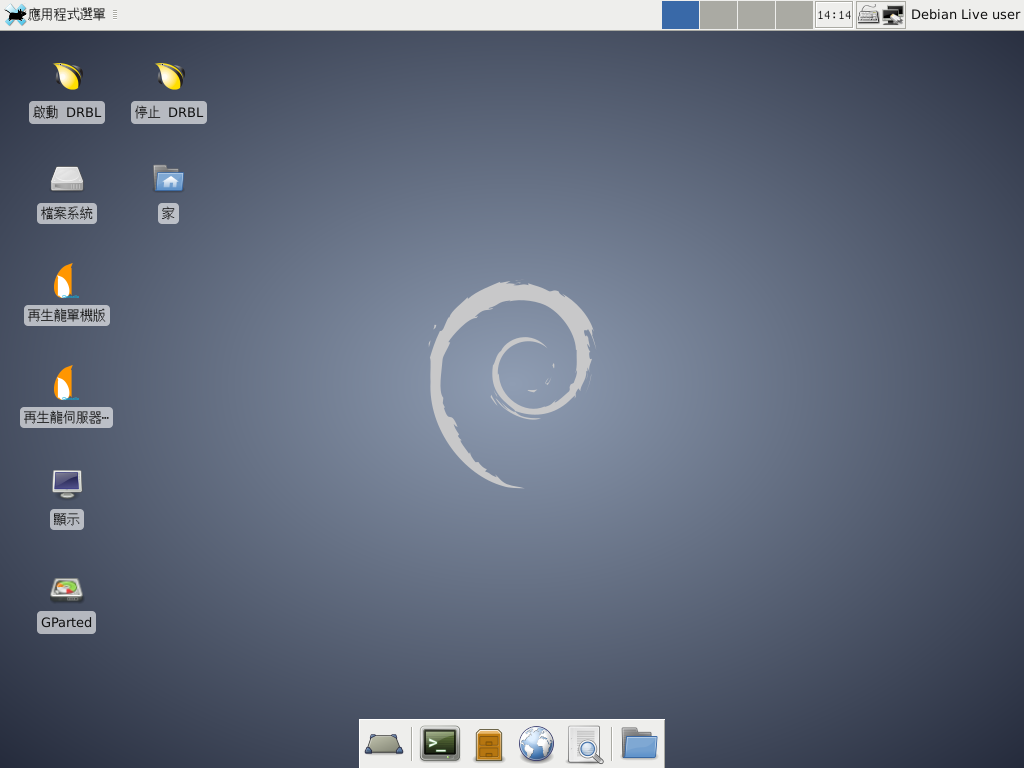
因為在電腦教室常常會利用 Clonezilla / DRBL Live 來備份及還原電腦,雖然已經將 Clonezilla / DRBL Live 利用 grub4dos,製作成開機隨身碟,但隨身碟也不是都會放在身上,最好的方式就是直接放在本機上,所以利用 Linux 本身的 GRUB2 掛載 ISO 檔來啟動  Clonezilla / DRBL Live。
參考網站:
Grub2 設定以 Linux LiveCD 的 ISO 檔啟動系統 – 石頭閒語 – 樂多日誌

1. 首先下載 Clonezilla / DRBL Live(有時最新版本不一定能正確執行),這裡是放置在第一顆硬碟的第一個分割區的 /home/test 目錄
$ wget http://jaist.dl.sourceforge.net/project/clonezilla/clonezilla_live_alternative/20150217-utopic/clonezilla-live-20150217-utopic-i386.iso -P /home/test
$ wget http://downloads.sourceforge.net/project/drbl/drbl_live_stable/2.3.1-6/drbl-live-xfce-2.3.1-6-i686-pae.iso -P /home/test[@more@]2. 修改設定檔 /etc/grub.d/40_custom
$ sudo vim /etc/grub.d/40_custom
加入下面選項
insmod loopback

menuentry “CloneZilla live 20150217-utopic” {
    set isofile=”/home/test/clonezilla-live-20150217-utopic-i386.iso”
    loopback loop (hd0,1)$isofile
    linux (loop)/live/vmlinuz boot=live config locales=”zh_TW.UTF-8″ keyboard-layouts=”NONE” noswap noprompt nosplash vga=788 ip=frommedia findiso=$isofile
    initrd (loop)/live/initrd.img
}

menuentry “DRBL live XFCE 2.3.1-6-i686-pae” {
    set isofile=”/home/test/drbl-live-xfce-2.3.1-6-i686-pae.iso”
    loopback loop (hd0,1)$isofile
    linux (loop)/live/vmlinuz boot=live username=user config quiet nomdoeset locales=”zh_TW.UTF-8″ keyboard-layouts=”NONE” noswap noprompt nosplash vga=791 ip=frommedia findiso=$isofile
    initrd (loop)/live/initrd.img
}

3. 修改 /etc/default/grub
把 GRUB_HIDDEN_TIMEOUT 和 GRUB_HIDDEN_TIMEOUT_QUIET 這二行前面加上 # 註解
$ cp /etc/default/grub ~/grub.default
$ sudo sed -i ‘s/^GRUB_HIDDEN_TIMEOUT/#GRUB_HIDDEN_TIMEOUT/’ /etc/default/grub
$ sudo sed -i ‘s/^GRUB_HIDDEN_TIMEOUT_QUIET/#GRUB_HIDDEN_TIMEOUT_QUIET/’ /etc/default/grub

4. 更新 GRUB2
$ sudo update-grub
正在產生 grub 設定檔 …
找到 linux 映像檔:/boot/vmlinuz-3.13.0-32-generic
找到 initrd 映像檔:/boot/initrd.img-3.13.0-32-generic
找到 linux 映像檔:/boot/vmlinuz-3.13.0-24-generic
找到 initrd 映像檔:/boot/initrd.img-3.13.0-24-generic
Found memtest86+ image: /boot/memtest86+.elf
Found memtest86+ image: /boot/memtest86+.bin
完成
$ sudo update-grub2
正在產生 grub 設定檔 …
找到 linux 映像檔:/boot/vmlinuz-3.13.0-32-generic
找到 initrd 映像檔:/boot/initrd.img-3.13.0-32-generic
找到 linux 映像檔:/boot/vmlinuz-3.13.0-24-generic
找到 initrd 映像檔:/boot/initrd.img-3.13.0-24-generic
Found memtest86+ image: /boot/memtest86+.elf
Found memtest86+ image: /boot/memtest86+.bin
完成

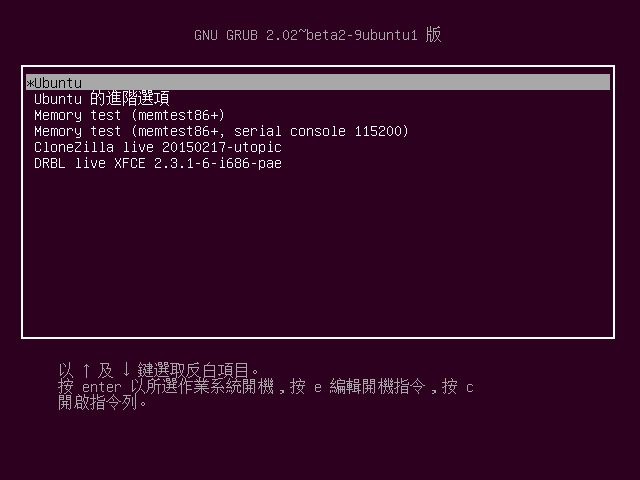
5. Ubuntu 開機出現的功能表
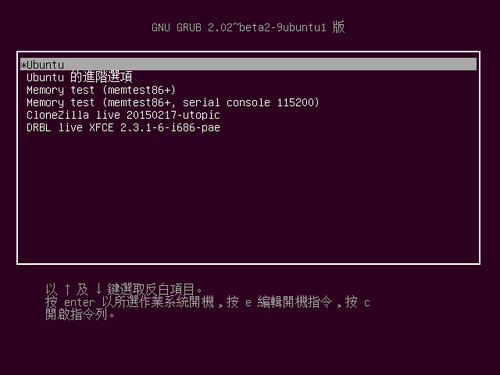
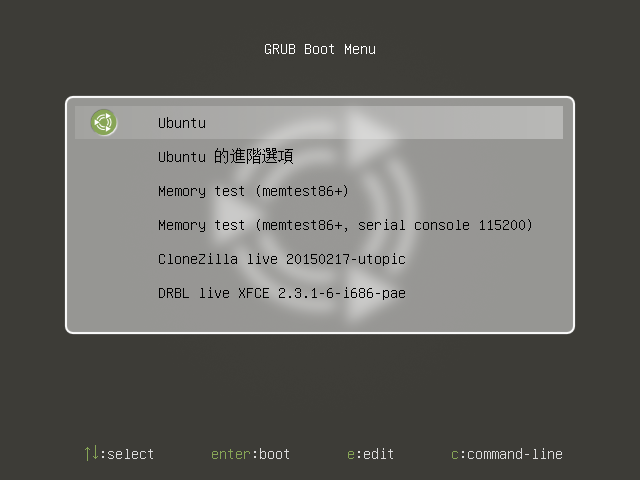
Ubuntu MATE 開機出現的功能表

6. Clonezilla 開機
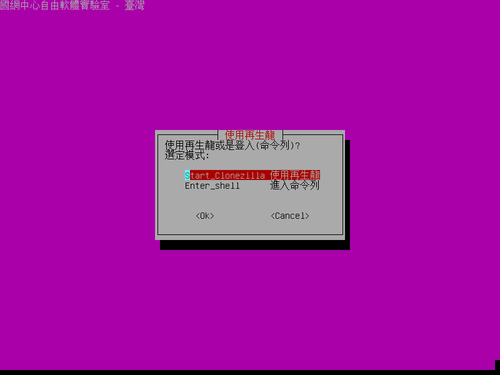
7. DRBL Live 開機

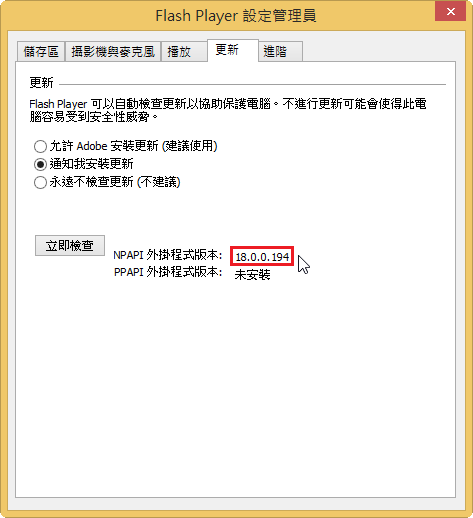
Adobe Flash Player 18.0.0.194

Adobe Flash Player 18.0.0.194
檢查安裝版本:https://www.adobe.com/tw/software/flash/about/
[@more@]Windows 平台
Internet Explorer:
http://fpdownload.macromedia.com/get/flashplayer/current/licensing/win/install_flash_player_18_active_x.exe

Windows 8 / 8.1 / Server 2012 / Server 2012 R2 要從 Windows Update 更新

All Other Browsers(Firefox,Safari & Opera):
http://fpdownload.macromedia.com/get/flashplayer/current/licensing/win/install_flash_player_18_plugin.exe

Mac 平台:
http://fpdownload.adobe.com/get/flashplayer/pdc/18.0.0.194/install_flash_player_osx.dmg

在 Ubuntu MATE 14.04.2 上使用 Scratch 2 來開啟 .sb2 檔

之前是利用 Ubuntu Tweak 來處理:
頭城國小資訊組 | 在 Ubuntu Linux 上使用 Scratch 2 來開啟 .sb2 檔

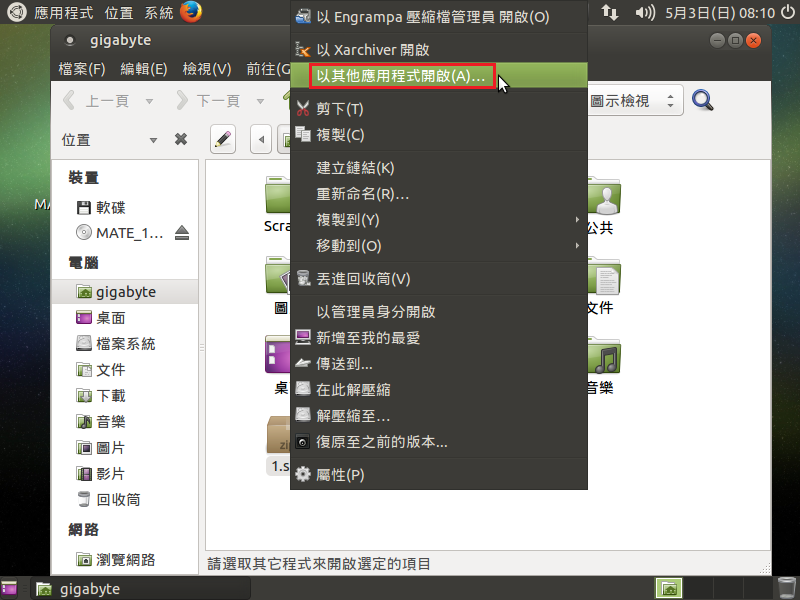
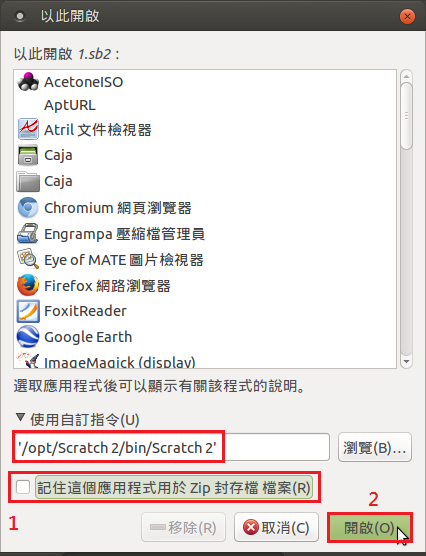
1. 在 .sb2 檔上按滑鼠右鍵,選擇 以其它應用程式開啟(A)…
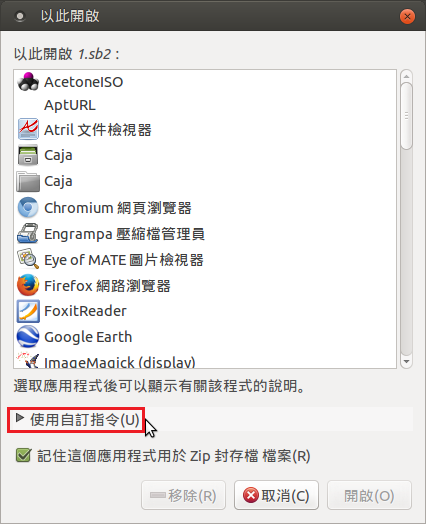
[@more@]2. 選擇 使用自訂指令(U)

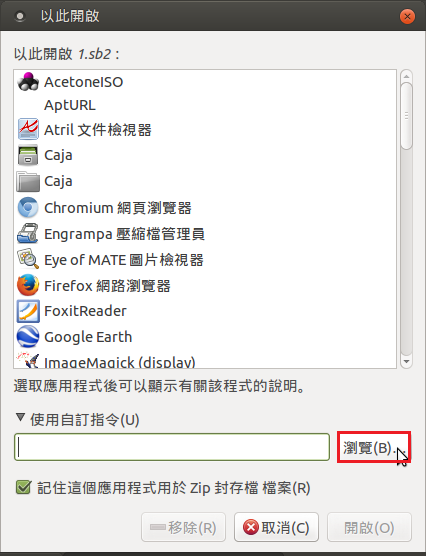
3. 選擇 瀏覽(B)…

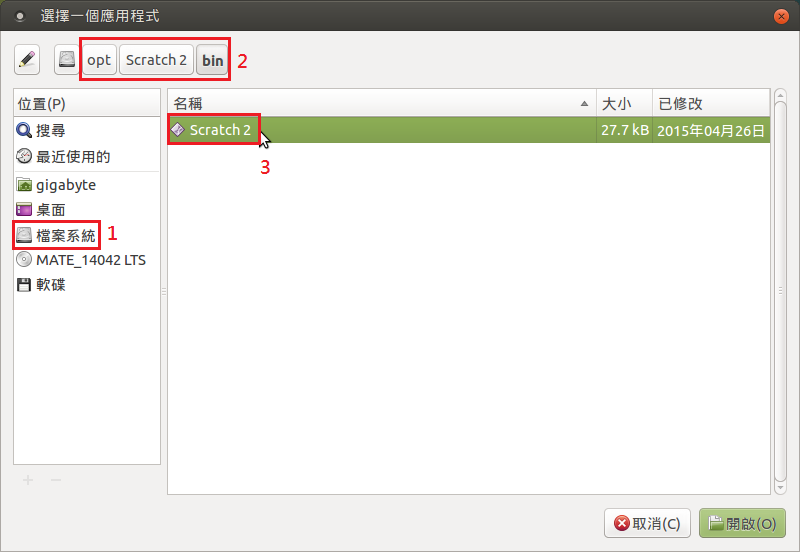
4. 選擇 Scratch 2 程式所在的路徑

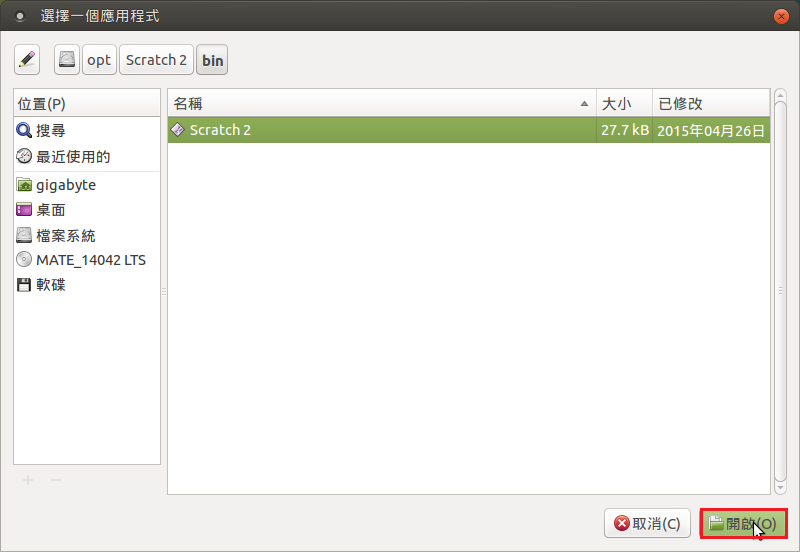
5. 選擇 開啟(O)

6. 取消勾選 記住這個應用程式用於 Zip 封存檔 檔案(R),然後按 開啟(O)

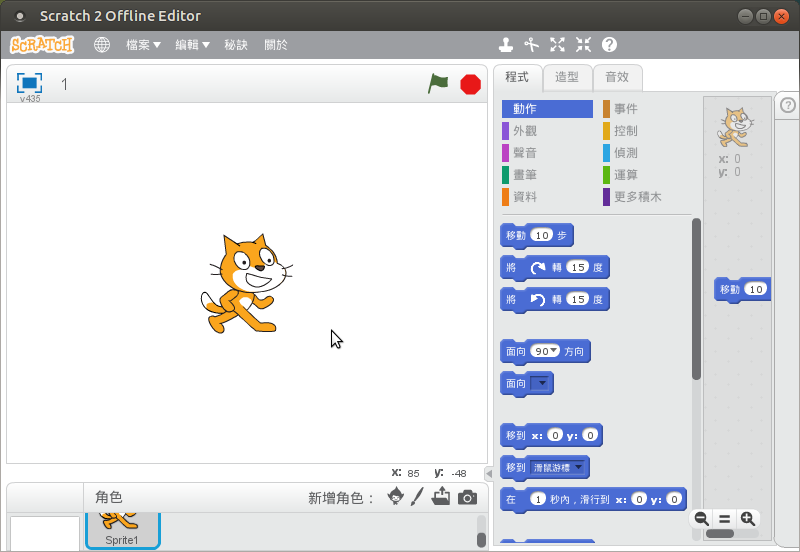
6. 以 Scratch 2 開啟

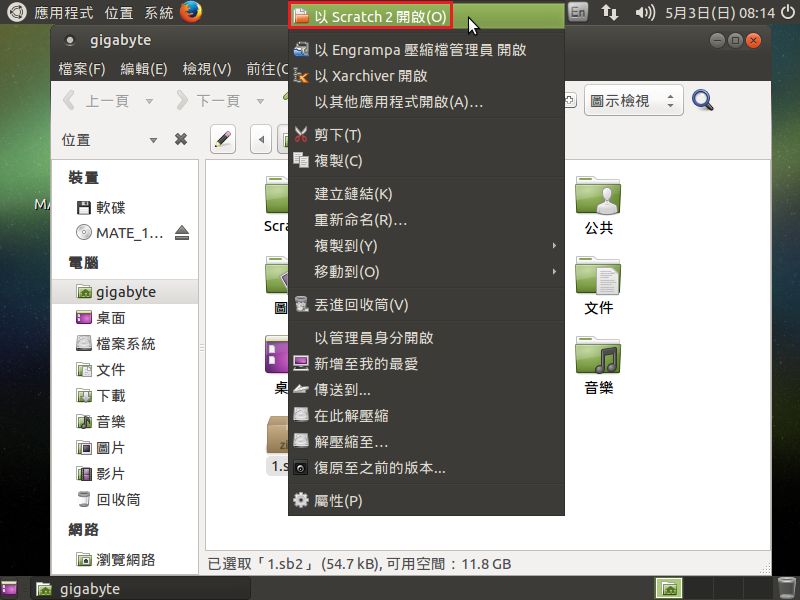
7. 以後在 .sb2 檔上按滑鼠右鍵,就會出現 以 Scratch 2 開啟(O)

Linux 軟體套件整理

把 ezgo 和 ntpcU 上的軟體套件稍做整理
辦公
  流程圖 – Dia   $ sudp apt-get install dia
  電子書 – Calibre   $ sudo apt-get install calibre
  PDF 瀏覽 – Okular   $ sudo apt-get install okular
  PDF 編輯 – PDF Shuffler   $ sudo apt-get install pdfshuffler
  PDF 手繪筆記 – Xournal   $ sudo apt-get install xournal
  QR Code 產生器 – QtQR  $ sudo apt-get install qtqr
  心智圖 – XMind   https://www.xmind.net/
  心智圖 – FreeMind   $ sudo apt-get install freemind

美工
  小畫家 – KolourPaint   $ sudo apt-get install kolourpaint4 kde-l10n-zhtw
  企鵝小畫家 – TuxPaint   $ sudo apt-get install tuxpaint
  筆刷繪圖 – Krita   $ sudo apt-get install krita
  筆刷繪圖 – My Paint   $ sudo apt-get install mypaint
  相片瀏覽 – Gwenview   $ sudo apt-get install gwenview
  相片管理 – digikam   $ sudo apt-get install digikam
  影像擷取 – Shutter   $ sudo apt-get install shutter
  多圖合併 – Fotowall   $ sudo apt-get install fotowall
  電路設計 – Fritzing   $ sudo apt-get install fritzing
  圖片管理 – gThumb   $ sudo apt-get install gthumb
  相片管理 – Shotwell   $ sudo apt-get install shotwell
  影像檢視 – eog   $ sudo apt-get install eog
  圖片檢視 – GpicView   $ sudo apt-get install gpicview
  panorama photo stitcher – GUI tools – hugin   $ sudo apt-get install hugin[@more@]
影音
  多媒體中心 – XBMC   $ sudo apt-get install xbmc
  影音播放 – VLC   $ sudo apt-get install vlc
  影片編輯 – OpenShot   $ sudo apt-get install openShot
  影片編輯 – Kdenlive   $ sudo apt-get install kdenlive
  桌面錄製 – Kazam   $ sudo apt-get install kazam
  視訊擷取 – Cheese   $ sudo apt-get install cheese
  影像擷取 – guvcview   $ sudo apt-get install guvcview
  投影片秀 – Imagination   $ sudo apt-get install imagination
  投影片秀 – ffDiaporama   $ sudo apt-get install ffDiaporama
  虛擬光碟 – Furius ISO Mount   $ sudo apt-get install furiusisomount
  音樂播放 – Amarok   $ sudo apt-get install amarok
  音樂播放 – Audacious   $ sudo apt-get install audacious
  樂譜編輯 – MuseScore   $ sudo apt-get install museScore
  音樂編輯 – Audacity   $ sudo apt-get install audacity
  媒體播放器 – Parole   $ sudo apt-get install parole

網路
  BBS 連線 – PCMan X BBS   $ sudo apt-get install pcmanx-gtk2
  檔案分享 – Meiga   http://meiga.igalia.com/
  網頁編輯 – Blue Griffon   http://bluegriffon.org/
 

遊戲
  打字遊戲 – Tux Typing   $ sudo apt-get install tuxtype
  數學遊戲 – TuxMath   $ sudo apt-get install tuxmath
  企鵝練習 – Pingus   $ sudo apt-get install pingus
  超級企鵝 – SuperTux   $ sudo apt-get install supertux  or $ sudo apt-get install supertux-stable   
  賽車遊戲 – Supertuxkart   $ sudo apt-get install supertuxkart

教育
  幼教 – GCompris   $ sudo apt-get install gcompris
  馬鈴薯小子 – Ktuberling   $ sudo apt-get install ktuberling
  天文 – Stellarium   $ sudo apt-get install stellarium
  天文 – Celestia   $ sudo apt-get install celestia