Raspberry Pi 測試 – ArchLinux 篇 IPv6

雖然 IPv6 目前在家裡使用的機率不是很高,但在學校裡使用是必要的。
預設使用的 Raspberry Pi  ArchLinux 預設把 IPv6 的設定關掉。
# cat /boot/cmdline.txt
ipv6.disable=1 avoid_safe_mode=1 selinux=0 plymouth.enable=0 smsc95xx.turbo_mode=N dwc_otg.lpm_enable=0 console=ttyAMA0,115200 kgdboc=ttyAMA0,115200 console=tty1 root=/dev/mmcblk0p5 rootfstype=ext4 elevator=noop rootwait libahci.ignore_sss=1

開啟 IPv6 功能
修改前先備份原檔
# cp /boot/cmdline.txt /boot/cmdline.txt.$(date +%F)[@more@]
修改設定檔
# vim /boot/cmdline.txt
avoid_safe_mode=1 selinux=0 plymouth.enable=0 smsc95xx.turbo_mode=N dwc_otg.lpm_enable=0 console=ttyAMA0,115200 kgdboc=ttyAMA0,115200 console=tty1 root=/dev/mmcblk0p5 rootfstype=ext4 elevator=noop rootwait libahci.ignore_sss=1

重新啟動電腦
# systemctl reboot

檢查是否有取得 IPv6
# ifconfig eth0 | grep -m 1 inet6
        inet6 2001:288:a229:2:ba27:ebff:fe31:70a5  prefixlen 64  scopeid 0x0<global>

檢查是否能以 IPv6 ping 到外部
# ping6 -c 4 2001:288:a229:1::250
PING 2001:288:a229:1::250(2001:288:a229:1::250) 56 data bytes
64 bytes from 2001:288:a229:1::250: icmp_seq=1 ttl=64 time=1.80 ms
64 bytes from 2001:288:a229:1::250: icmp_seq=2 ttl=64 time=0.502 ms
64 bytes from 2001:288:a229:1::250: icmp_seq=3 ttl=64 time=0.470 ms
64 bytes from 2001:288:a229:1::250: icmp_seq=4 ttl=64 time=0.502 ms

— 2001:288:a229:1::250 ping statistics —
4 packets transmitted, 4 received, 0% packet loss, time 3004ms
rtt min/avg/max/mdev = 0.470/0.818/1.800/0.567 ms
Raspberry Pi 測試 – ArchLinux 篇 安裝 fail2ban

在 ArchLinux 安裝 fail2ban
# pacman -S fail2ban

但安裝好了之後,在 /var/log 目錄下卻一直找不到相關的 log 檔,後來才又安裝了 syslog-ng 解決了這個問題!
ArchLinux 的系統 ssh log 檔

修改設定檔,加入對 ssh 的攻擊防護,因為根據自己架設的 Server,大部分都是嘗試對 ssh 的錯誤連線,而 ftp 的部分幾乎都沒有。
Chain fail2ban-ssh (1 references)
target     prot opt source               destination
DROP       all  —  61.174.51.232        0.0.0.0/0
DROP       all  —  61.174.51.235        0.0.0.0/0
DROP       all  —  122.225.109.217      0.0.0.0/0
DROP       all  —  218.2.0.123          0.0.0.0/0
RETURN     all  —  0.0.0.0/0            0.0.0.0/0

Chain fail2ban-vsftpd (1 references)
target     prot opt source               destination
RETURN     all  —  0.0.0.0/0            0.0.0.0/0[@more@]# vim /etc/fail2ban/jail.conf
修改並加入下面的設定
[sshd]
enabled = true
port    = ssh
logpath = /var/log/ssh.log
#logpath = %(sshd_log)s
maxretry = 3
bantime  = 86400

重新啟動 fail2ban
# systemctl start fail2ban

設定開機時啟動
# systemctl enable fail2ban

檢查 fail2ban 的狀態
# fail2ban-client status
Status
|- Number of jail:      1
`- Jail list:   sshd

以 Client  IP 192.168.1.10 嘗試對 Server IP 192.168.1.106 嘗試連線錯誤幾次之後
列出 fail2ban 偵測到的 SSH 攻擊
# fail2ban-client status sshd
Status for the jail: sshd
|- Filter
|  |- Currently failed: 0
|  |- Total failed:     3
|  `- File list:        /var/log/ssh.log
`- Actions
   |- Currently banned: 1
   |- Total banned:     1
   `- Banned IP list:   192.168.1.10

列出 f2b-sshd 的規則
# iptables -t filter -L f2b-sshd -n
Chain f2b-sshd (1 references)
target     prot opt source               destination
REJECT     all  —  192.168.1.10         0.0.0.0/0            reject-with icmp-port-unreachable
RETURN     all  —  0.0.0.0/0            0.0.0.0/0

刪除防火牆規則
# iptables -D f2b-sshd  -s 192.168.1.10 -j REJECT

ArchLinux 的系統 ssh log 檔

使用 ArchLinux 時,覺得有些奇怪,因為在使用 Linux 時,經常要查詢一些系統的 log 檔,都會到 /var/log 目錄之下搜尋,不過 ArchLinux 的 /var/log 實在是有些簡潔。
# ls -l /var/log
total 104
-rw——-  1 root  utmp             1920 Sep 30 22:26 btmp
-rw——-  1 root  root             1068 Sep 30 22:30 fail2ban.log
-rw——-  1 root  root              984 Sep 30 22:30 faillog
drwxr-sr-x+ 4 root  systemd-journal  4096 Sep 29 23:22 journal
-rw-r–r–  1 root  root            11972 Sep 30 22:30 lastlog
-rw-r–r–  1 named named               0 Sep 29 23:41 named.log
drwxr-xr-x  2 root  root             4096 Jun  4  2013 old
-rw-r–r–  1 root  root            10229 Sep 30 22:38 pacman.log
-rw-rw-r–  1 root  utmp            53760 Sep 30 22:30 wtmp[@more@]比如,想要查詢一下,經由 ssh 嘗試錯誤登錄的記錄,竟然都找不到,一般來說,大概是
/var/log/secure
或是
/var/log/auth.log

後來使用 Google 查詢了一下
arch linux – Where are my sshd logs? – Unix & Linux Stack Exchange

原來是可以用下面的指令來擷取關於 ssh 的 log
# journalctl -u sshd |tail -10
Sep 30 22:26:40 alarmpi sshd[308]: Failed password for root from 192.168.1.6 port 3192 ssh2
Sep 30 22:27:55 alarmpi sshd[308]: Connection closed by 192.168.1.6 [preauth]
Sep 30 22:27:55 alarmpi sshd[308]: PAM 3 more authentication failures; logname= uid=0 euid=0 tty=ssh ruser= rhost=192.168.1.6  user=root
Sep 30 22:27:55 alarmpi sshd[308]: PAM service(sshd) ignoring max retries; 4 > 3
Sep 30 22:28:25 alarmpi systemd[1]: Stopping OpenSSH Daemon…
Sep 30 22:28:26 alarmpi systemd[1]: Stopped OpenSSH Daemon.
— Reboot —
Jan 01 08:00:16 alarmpi sshd[115]: Server listening on 0.0.0.0 port 22.
Sep 30 22:30:12 alarmpi sshd[265]: Accepted password for root from 192.168.1.6 port 3269 ssh2
Sep 30 22:30:12 alarmpi sshd[265]: pam_unix(sshd:session): session opened for user root by (uid=0)

在同一篇文章中也提到,可以在 /etc/syslog.conf 或 /etc/rsyslog.conf 中設定,把記錄檔單獨擷取出來
安裝 rsyslog 套件
# pacman -S syslog-ng
# sed -i ‘s/#ForwardToSyslog=no/ForwardToSyslog=yes/’ /etc/systemd/journald.conf

設定開機時啟動 syslog-ng 服務
# systemctl enable syslog-ng
Created symlink from /etc/systemd/system/syslog.service to /usr/lib/systemd/system/syslog-ng.service.
Created symlink from /etc/systemd/system/multi-user.target.wants/syslog-ng.service to /usr/lib/systemd/system/syslog-ng.service.

啟動 syslog-ng 服務
# systemctl start syslog-ng

檢查 /var/log 目錄下的 log 檔
# ls -l /var/log
total 824
-rw-r—–  1 root  log               1245 Oct  1 20:17 auth.log
-rw——-  1 root  utmp              2688 Oct  1 20:17 btmp
-rw——-  1 root  utmp              6912 Sep 30 23:29 btmp.1
-rw-r—–  1 root  log              10952 Oct  1 20:16 daemon.log
-rw-r—–  1 root  root              8000 Jan  1  1970 debug
-rw-r—–  1 root  log              11910 Oct  1 20:16 everything.log
-rw——-  1 root  root              4342 Oct  1 20:16 fail2ban.log
-rw——-  1 root  root               984 Oct  1 20:17 faillog
drwxr-sr-x+ 4 root  systemd-journal   4096 Sep 29 23:22 journal
-rw-r—–  1 root  root            206836 Jan  1  1970 kern.log
-rw-r–r–  1 root  root             11972 Oct  1 20:15 lastlog
-rw-r—–  1 root  root            202786 Oct  1 19:49 messages
-rw-r—–  1 root  log              10952 Oct  1 20:16 messages.log
-rw-r–r–  1 named named                0 Sep 29 23:41 named.log
drwxr-xr-x  2 root  root              4096 Jun  4  2013 old
-rw-r–r–  1 root  root             12889 Oct  1 19:51 pacman.log
-rw-r—–  1 root  log               1005 Oct  1 20:17 ssh.log
-rw-r—–  1 root  root            215446 Oct  1 19:49 syslog
-rw-r—–  1 root  log                958 Jan  1  1970 syslog.log
-rw-rw-r–  1 root  utmp             83712 Oct  1 20:15 wtmp

ssh log 檔儲存在 /var/log/auth.log
# cat /var/log/auth.log
Jan  1 08:00:15 alarmpi systemd-logind[126]: New seat seat0.
Oct  1 20:15:55 alarmpi sshd[258]: Accepted password for root from 192.168.1.6 port 2278 ssh2
Oct  1 20:15:55 alarmpi sshd[258]: pam_unix(sshd:session): session opened for user root by (uid=0)
Oct  1 20:15:55 alarmpi systemd-logind[126]: New session c1 of user root.
Oct  1 20:15:55 alarmpi systemd: pam_unix(systemd-user:session): session opened for user root by (uid=0)
Oct  1 20:16:55 alarmpi sshd[275]: Address 192.168.1.10 maps to tces-doc-airport-express.home, but this does not map back to the address – POSSIBLE BREAK-IN ATTEMPT!
Oct  1 20:16:57 alarmpi sshd[275]: pam_unix(sshd:auth): authentication failure; logname= uid=0 euid=0 tty=ssh ruser= rhost=192.168.1.10  user=root
Oct  1 20:16:58 alarmpi sshd[275]: Failed password for root from 192.168.1.10 port 59403 ssh2
Oct  1 20:17:01 alarmpi sshd[275]: Failed password for root from 192.168.1.10 port 59403 ssh2
Oct  1 20:17:04 alarmpi sshd[275]: Failed password for root from 192.168.1.10 port 59403 ssh2
Oct  1 20:17:04 alarmpi sshd[275]: Connection closed by 192.168.1.10 [preauth]
Oct  1 20:17:04 alarmpi sshd[275]: PAM 2 more authentication failures; logname= uid=0 euid=0 tty=ssh ruser= rhost=192.168.1.10  user=root

也可以單獨把 ssh 的 log 檔抽離出來
修改 /etc/syslog-ng/syslog-ng.conf
# vim /etc/syslog-ng/syslog-ng.conf
#sshd configuration
加入下面三行設定
destination ssh { file(“/var/log/ssh.log”); };
filter f_ssh { program(“sshd”); };
log { source(src); filter(f_ssh); destination(ssh); };

重新啟動 syslog-ng 服務
# systemctl restart syslog-ng

只剩下和 ssh 相關的 log
# cat /var/log/ssh.log
Oct  1 20:15:55 alarmpi sshd[258]: Accepted password for root from 192.168.1.6 port 2278 ssh2
Oct  1 20:15:55 alarmpi sshd[258]: pam_unix(sshd:session): session opened for user root by (uid=0)
Oct  1 20:16:55 alarmpi sshd[275]: Address 192.168.1.10 maps to tces-doc-airport-express.home, but this does not map back to the address – POSSIBLE BREAK-IN ATTEMPT!
Oct  1 20:16:57 alarmpi sshd[275]: pam_unix(sshd:auth): authentication failure; logname= uid=0 euid=0 tty=ssh ruser= rhost=192.168.1.10  user=root
Oct  1 20:16:58 alarmpi sshd[275]: Failed password for root from 192.168.1.10 port 59403 ssh2
Oct  1 20:17:01 alarmpi sshd[275]: Failed password for root from 192.168.1.10 port 59403 ssh2
Oct  1 20:17:04 alarmpi sshd[275]: Failed password for root from 192.168.1.10 port 59403 ssh2
Oct  1 20:17:04 alarmpi sshd[275]: Connection closed by 192.168.1.10 [preauth]
Oct  1 20:17:04 alarmpi sshd[275]: PAM 2 more authentication failures; logname= uid=0 euid=0 tty=ssh ruser= rhost=192.168.1.10  user=root

ArchLinux – 安裝 WordPress

WordPress › Taiwan 正體中文網站:https://tw.wordpress.org/

下載 WordPress
# wget https://tw.wordpress.org/wordpress-4.0-zh_TW.tar.gz

解壓縮
# tar xvzf wordpress-4.0-zh_TW.tar.gz -C /srv/http

也可以直接使用 ArchLinux 內建的套件來安裝
# pacman -Ss wordpress
community/wordpress 4.0-1
    Blog tool and publishing platform
# pacman -S wordpress

建立資料庫 wordpress
# /usr/bin/mysqladmin -u root -p create wordpress
Enter password:[@more@]

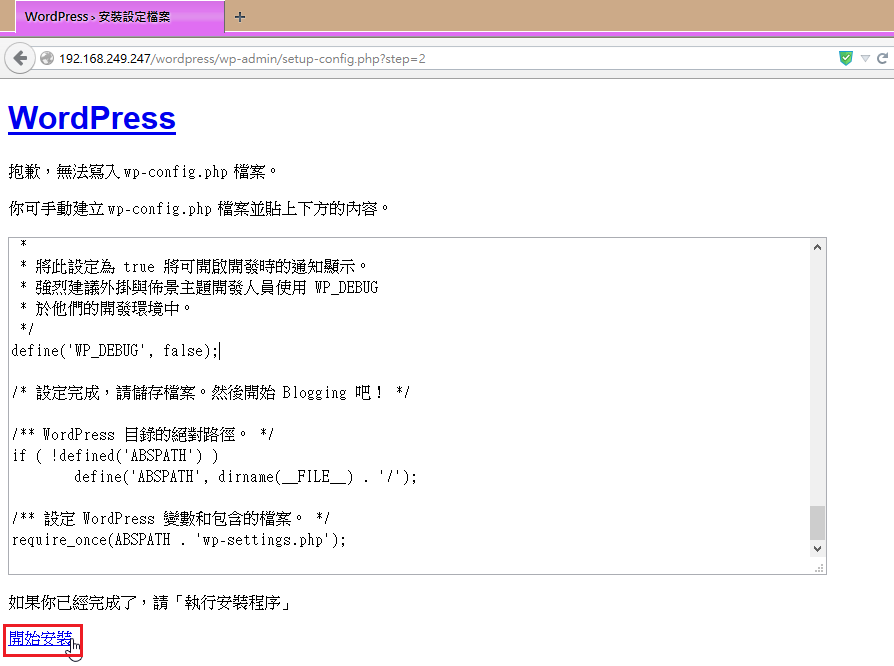
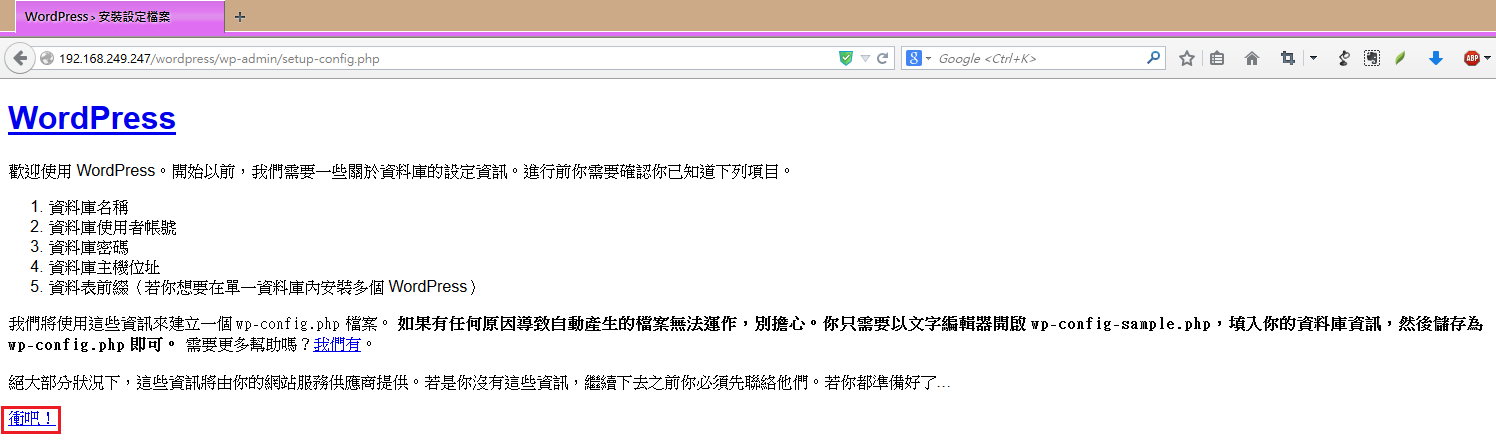
開啟瀏覽器在網址列輸入 http://Server’IP/wordpress,然後選擇 衝吧!

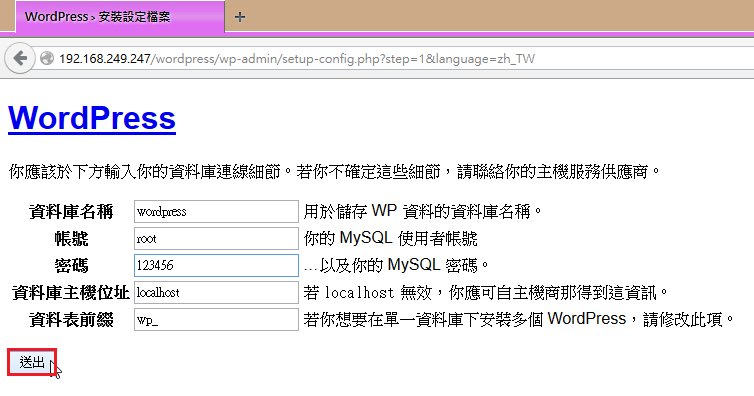
資料庫設定

 在 /srv/http/wordpress 目錄下建立 wp-config.php 設定檔
# vim /srv/http/wordpress/wp-config.php

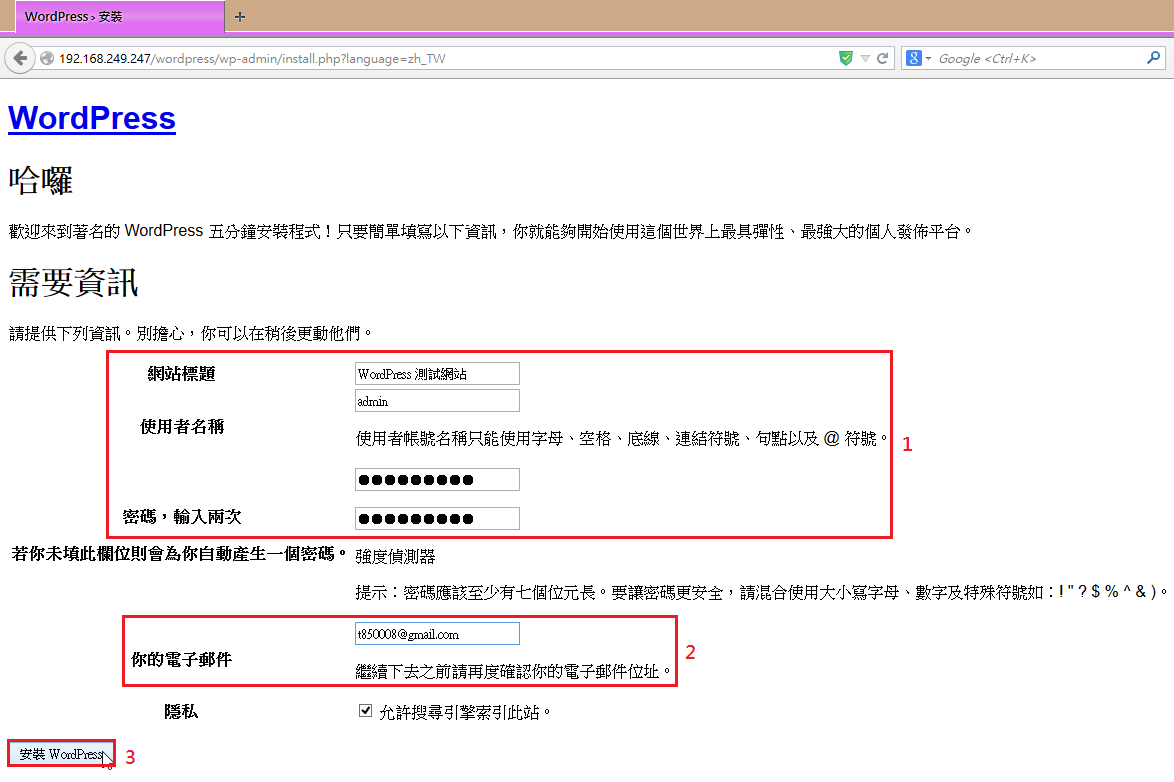
設定管理者資訊

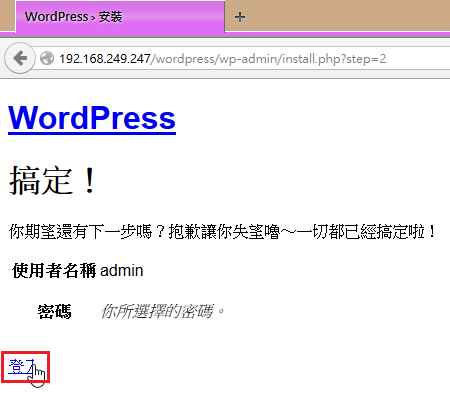
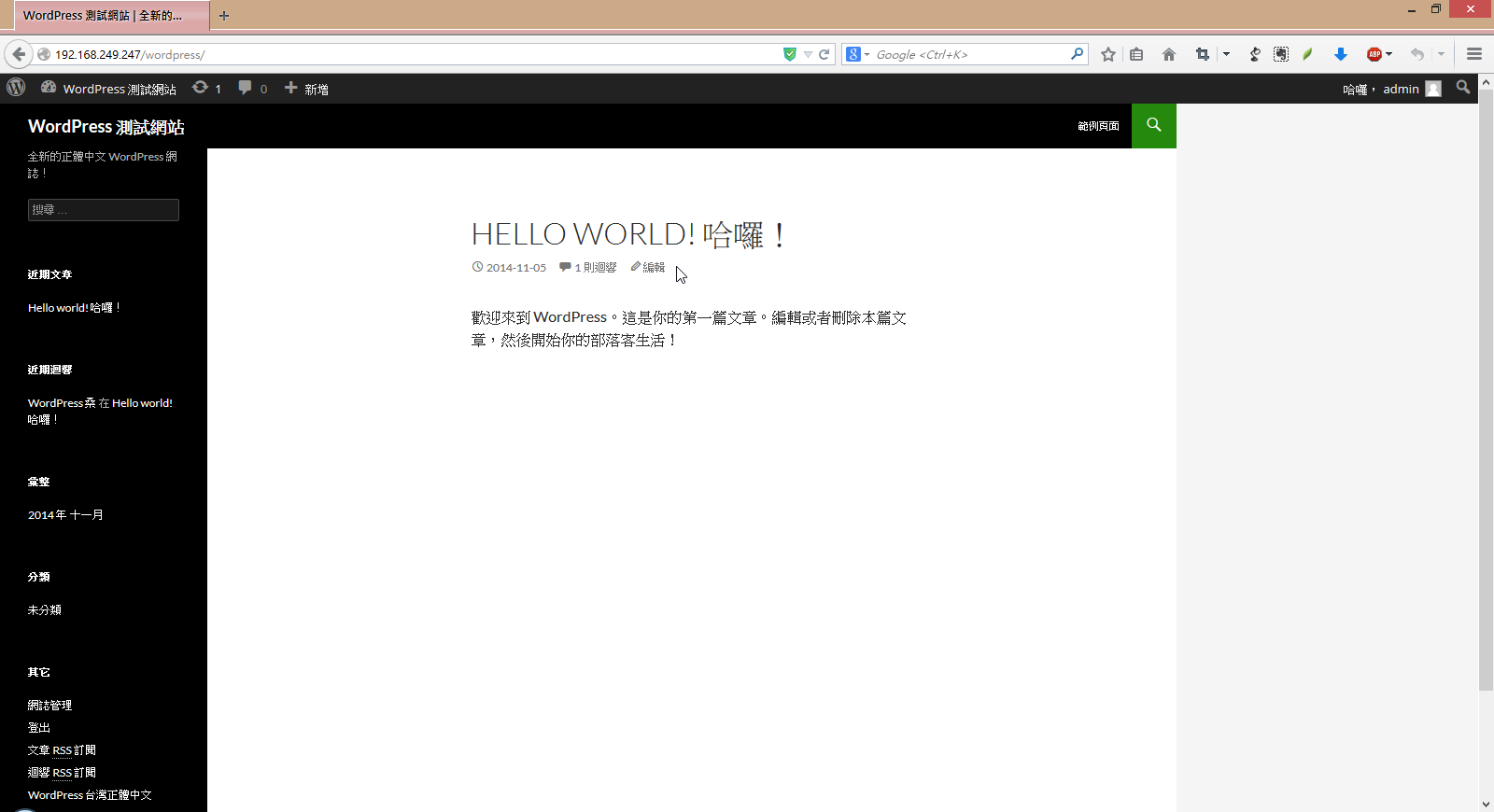
安裝完成

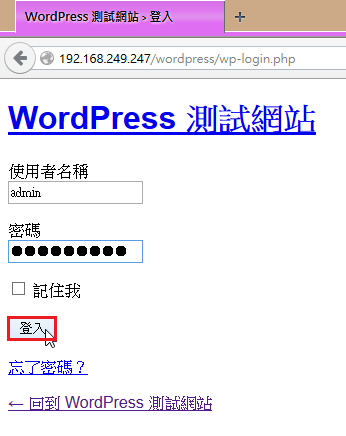
登入網站

登入成功

ArchLinux – 建立 DNS Server Chroot 環境

ArchLinux 好像並沒有像 CentOS Linux,在 Bind DNS Server 有直接提供 DNS Server Chroot(bind-chroot) 的套件,可以方便做設定,所以要用手動的方式來設定。
在 CentOS
# yum list | grep bind-chroot | awk ‘{print $1}’
bind-chroot.x86_64

底下文章參考:
How to install and set-up Slave Named (BIND) DNS server in ArchLinux | Stavrovski.Net

[@more@]設定 DNS Chroot 的目錄
# CHROOT=/var/named/chroot
# 建立 chroot 目錄
# mkdir -p “${CHROOT}”/{dev,etc} “${CHROOT}”/var/{run,log,named,tmp}
# mkdir -p “${CHROOT}”/usr/lib/bind “${CHROOT}”/usr/lib/engines

建立  block devices
# mknod “${CHROOT}”/dev/null c 1 3
# mknod “${CHROOT}”/dev/random c 1 8

複製  /usr/lib/libgost.so/var/named/chroot/usr/lib/engines/
# cp /usr/lib/engines/libgost.so “${CHROOT}”/usr/lib/engines/

更改目錄權限
# chown root:named “${CHROOT}”
# chmod 750 “${CHROOT}”
# chown -R named: “${CHROOT}”/var/named/
# chown named: “${CHROOT}”/var/{run,log}
# chmod 666 “${CHROOT}”/dev/{null,random}

搬移原有的設定檔到 chroot 目錄
# mv /etc/named.conf “${CHROOT}”/etc/
# mv /etc/rndc.key “${CHROOT}”/etc/
# mv /var/named/{root.hint,127.0.0.zone,localhost.zone,db.1.168.192,db.tces.ilc.edu.tw} “${CHROOT}”/var/named/

建立 /var/named/chroot/etc/named.conf 的連結到 /etc 目錄之下
# ln -s “${CHROOT}”/etc/named.conf /etc/

設定目錄的權限
# chown -R named: “${CHROOT}”/var/named/

在 /etc/systemd/system 目錄下建立 named.service 啟動檔
# vim /etc/systemd/system/named.service

[Unit]
Description=Internet domain name server
After=network.target

[Service]
ExecStart=/usr/bin/named -f -u named -t /var/named/chroot
ExecReload=/usr/bin/rndc reload
ExecStop=/usr/bin/rndc stop

[Install]
WantedBy=multi-user.target

關閉原有的 DNS Server,並啟動 chroot DNS Server
# systemctl stop named
# systemctl disable named
Removed symlink /etc/systemd/system/multi-user.target.wants/named.service.
# systemctl start named.service
# systemctl enable named.service
Created symlink from /etc/systemd/system/multi-user.target.wants/named.service to /etc/systemd/system/named.service.

檢查 DNS Server 是否有正常啟動
# netstat -ant | grep :.*53
tcp        0      0 192.168.1.106:53        0.0.0.0:*               LISTEN
tcp        0      0 127.0.0.1:53            0.0.0.0:*               LISTEN
tcp        0      0 127.0.0.1:953           0.0.0.0:*               LISTEN

測試
# host free.test.ilc.edu.tw
free.test.ilc.edu.tw has address 192.168.1.6

# host 192.168.1.6
6.1.168.192.in-addr.arpa domain name pointer free.test.ilc.edu.tw.

ArchLinux – 安裝 Moodle 2.6

Moodle 官方網站:http://www.moodle.org
因為 Moodle 2.7.x 安裝起來畫面有些奇怪,所以改安裝 2.6.x 版
1.下載 Moodle 2.6.5+
# wget https://download.moodle.org/download.php/direct/stable26/moodle-latest-26.tgz
下載正體中文語系 for 2.6.5+
# wget https://download.moodle.org/download.php/direct/langpack/2.6/zh_tw.zip

2. 解壓縮
# tar xvzf moodle-latest-26.tgz -C /srv/http

3. 建立存放 Moodle 課程資料的目錄
# mkdir /home/moodledata
4. 解壓縮正體中文語系
# unzip zh_tw.zip -d /home/moodledata
5. 改變目錄權限
# chown -R http:http /home/moodledata[@more@]

6. 進行安裝,開啟瀏覽器在網址列輸入
http://Server’s IP/moodle

如果出現下面的錯誤訊息

修改 /etc/php/php.ini
# sed -i ‘s/;extension=iconv.so/extension=iconv.so/’ /etc/php/php.ini

重新啟動 Server
# systemctl restart php-fpm

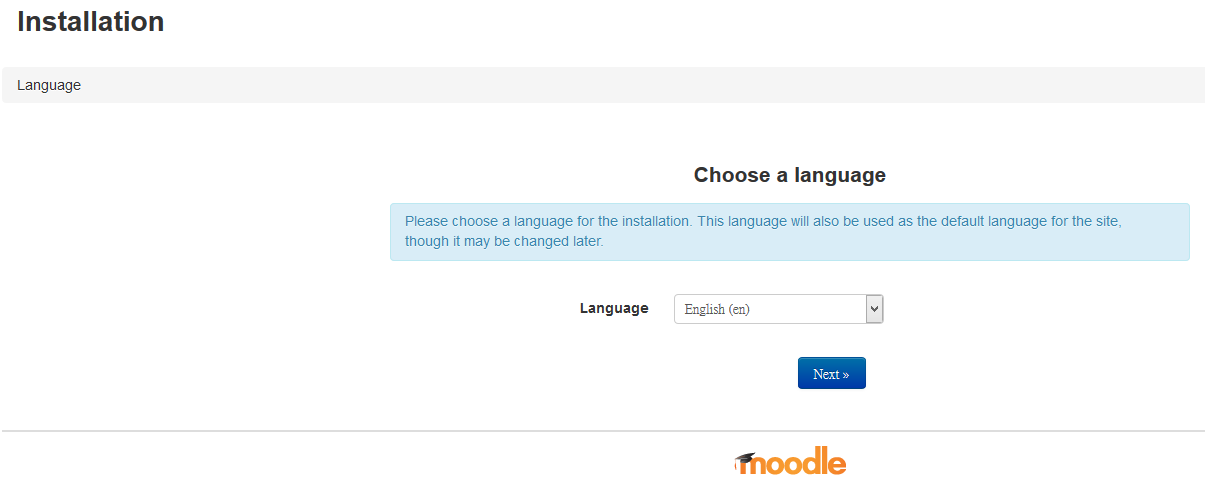
預設的語系是 英文

改成 正體中文

如果出現 Zip PHP 擴展的錯誤,請做下面的修改

修改 /etc/php/php.ini
# sed -i ‘s/;extension=zip.so/extension=zip.so/’ /etc/php/php.ini
重新啟動 Server
# systemctl restart php-fpm

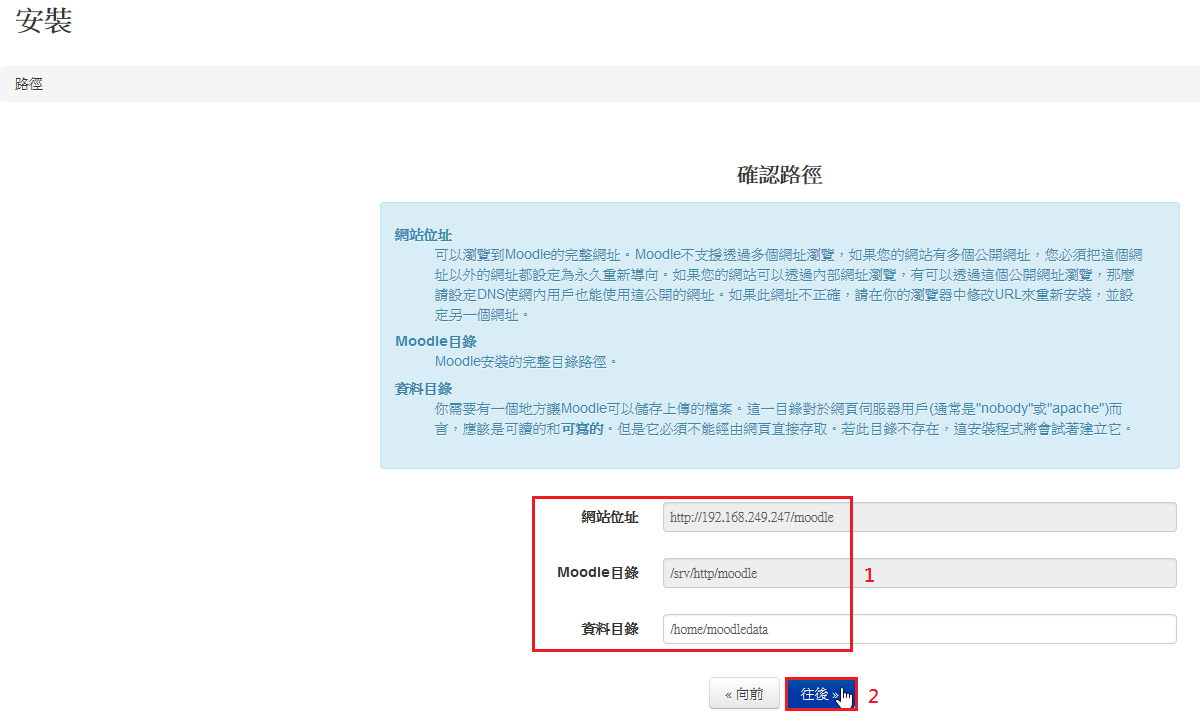
課程資料存放路徑

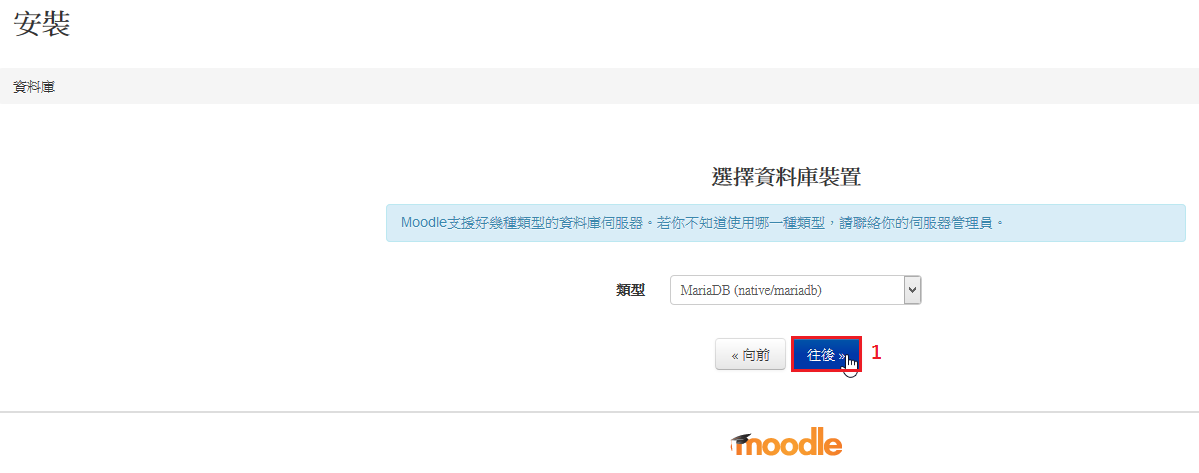
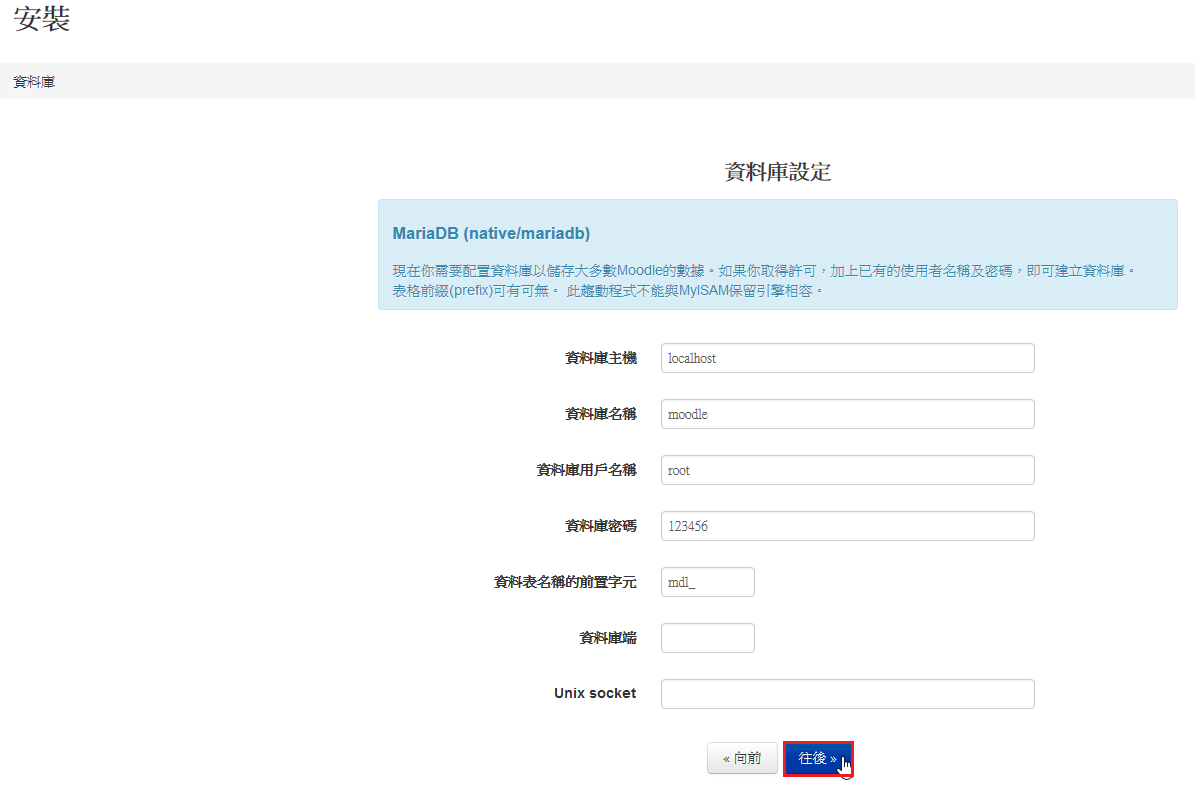
設定使用的 資料庫 MariaDB

資料庫設定

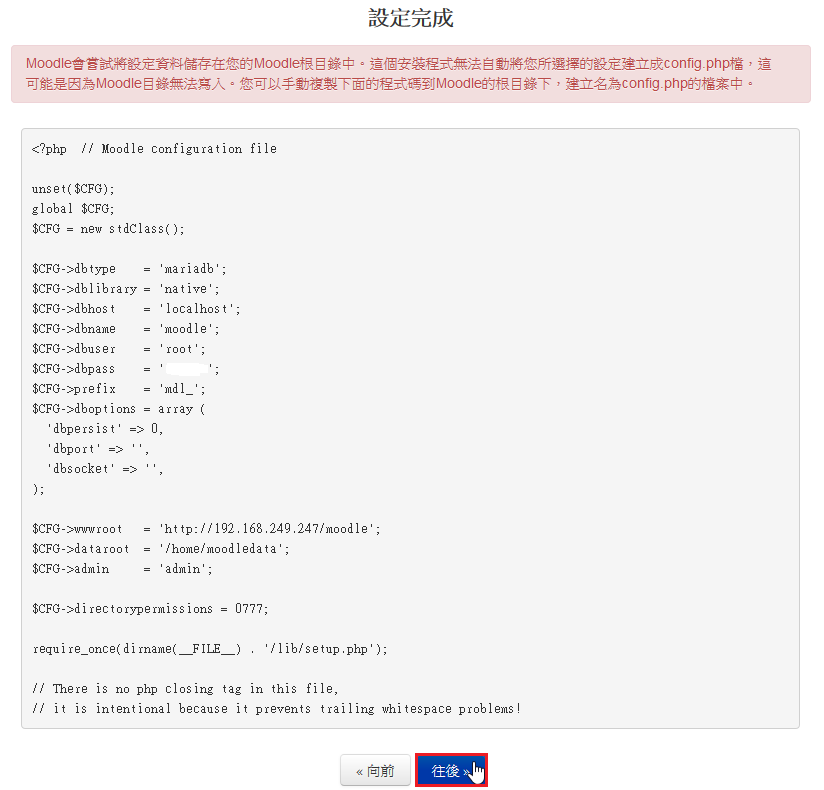
/srv/http/moodle/config.php 的設定

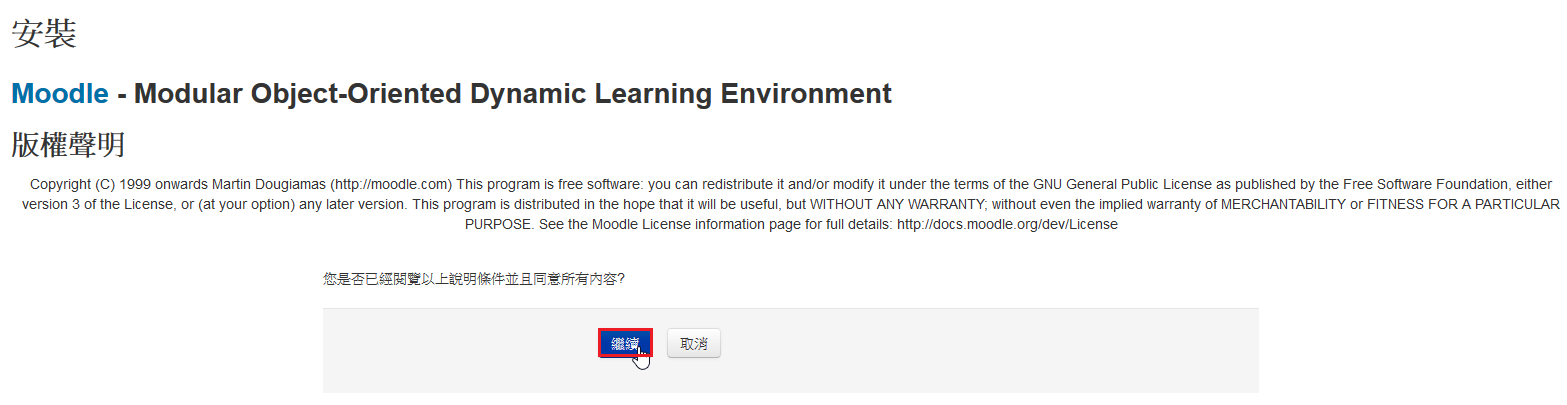
版權聲明

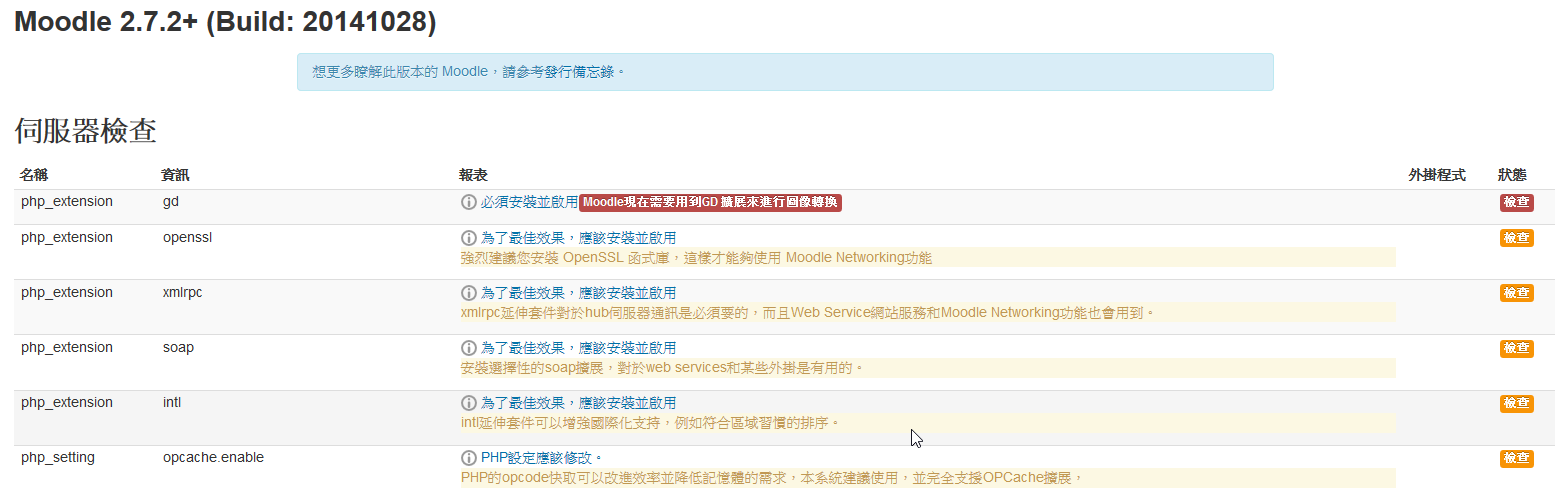
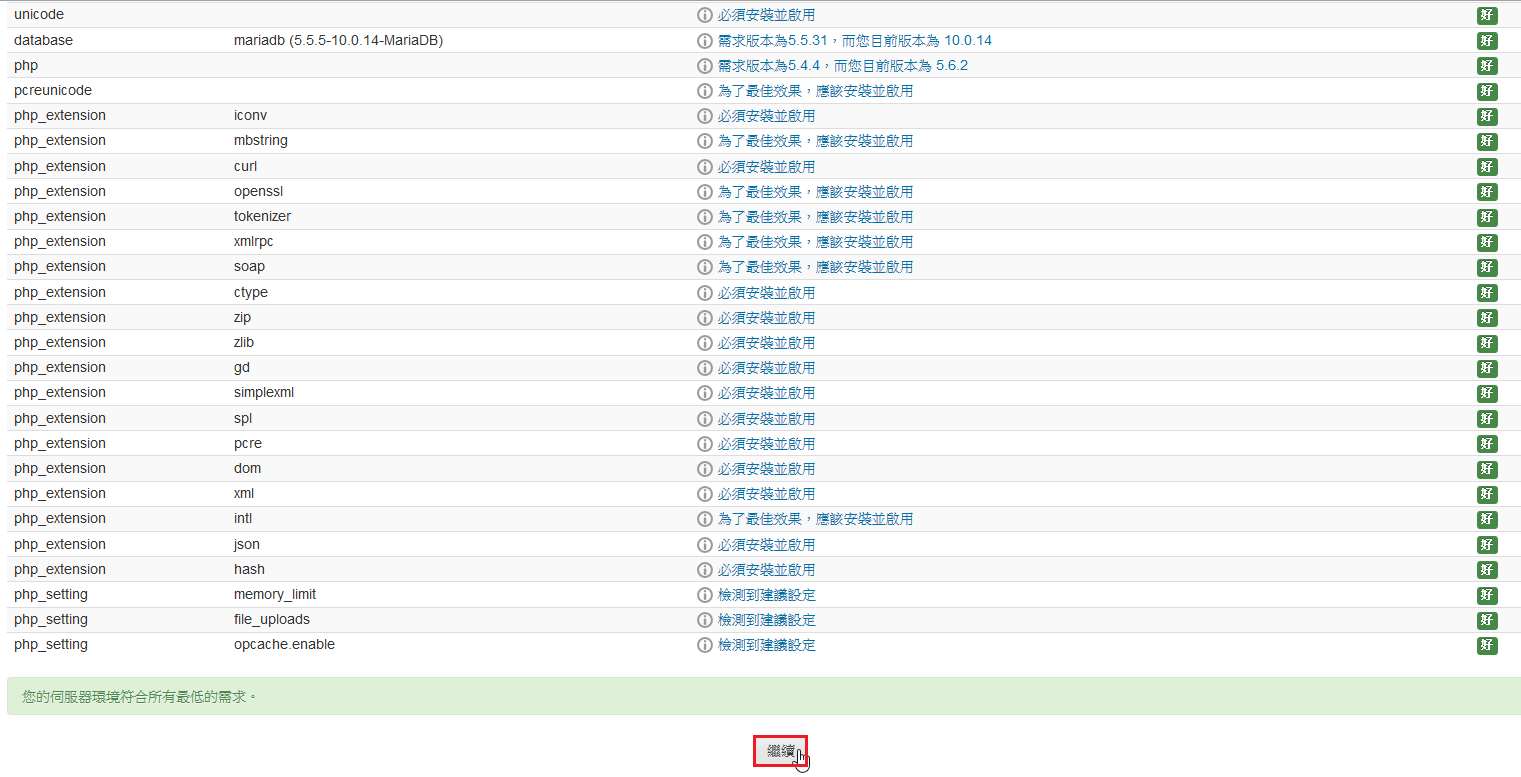
伺服器環境檢查,後面出現檢查,代表是要做修改的部分

修改 /etc/php/php.ini
# sed -i ‘s/;extension=gd.so/extension=gd.so/’ /etc/php/php.ini
# sed -i ‘s/;extension=openssl.so/extension=openssl.so/’ /etc/php/php.ini
# sed -i ‘s/;extension=xmlrpc.so/extension=xmlrpc.so/’ /etc/php/php.ini
# sed -i ‘s/;extension=soap.so/extension=soap.so/’ /etc/php/php.ini
# sed -i ‘s/;extension=intl.so/extension=intl.so/’ /etc/php/php.ini
# sed -i ‘s/;zend_extension=opcache.so/zend_extension=opcache.so/’ /etc/php/php.ini

修改完畢

重新啟動 Server
# systemctl restart php-fpm

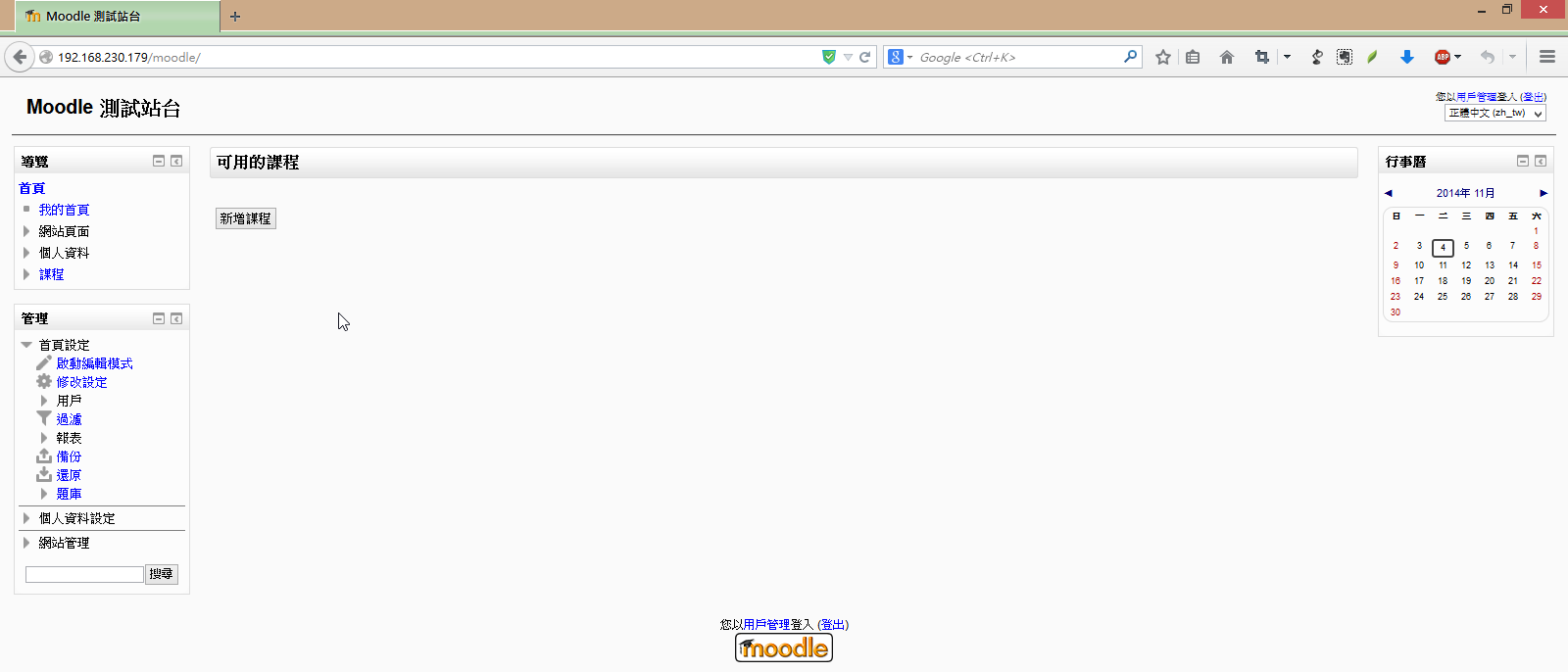
完成安裝

最後加入工作排程
# crontab -u http -e

加入下面一行
*/15 * * * * /usr/bin/php /srv/http/moodle/admin/cli/cron.php > /dev/null 2>&1

ArchLinux 安裝 XOOPS 2.5.7

使用的是 XOOPS 輕鬆架網站上的版本
XOOPS輕鬆架下載:http://campus-xoops.tn.edu.tw/modules/tad_uploader/index.php?of_cat_sn=11
[@more@]1.下載 XOOPS
# wget http://campus-xoops.tn.edu.tw/uploads/tad_uploader/tmp/61/my_xoops_base_20140701.tgz

2.解壓縮
# tar xvzf my_xoops_base_20140701.tgz -C /srv/http

3.更改目錄名稱及搬移目錄
# mv /srv/http/public_html /srv/http/xoops
# mv /srv/http/xoops_data /srv
# mv /srv/http/xoops_lib /srv

4. 更改目錄權限
# chown -R root:root /srv/http/xoops
# chown -R http:http /srv/http/xoops/uploads
# chmod 777 /srv/http/xoops/mainfile.php
# chmod 777 /srv/http/xoops/include/license.php
# chmod 777 /srv/http/xoops_data/caches
# chmod 777 /srv/http/xoops_data/caches/xoops_cache
# chmod 777 /srv/http/xoops_data/caches/smarty_cache
# chmod 777 /srv/http/xoops_data/caches/smarty_compile
# chmod 777 /srv/http/xoops_data/configs

5. 開啟瀏覽器進行安裝

6. 安裝完畢後的設定

# chmod 444 /srv/http/xoops/mainfile.php
# mkdir /home/xoops
# mv /srv/http/xoops_data /home/xoops
# mv /srv/http/xoops_lib /home/xoops
修改 /srv/http/xoops/mainfile.php
# vim /srv/http/xoops/mainfile.php
    // For forward compatibility
    // Physical path to the XOOPS library directory WITHOUT trailing slash
    define(‘XOOPS_PATH’, “/home/xoops/xoops_lib“);
    // Physical path to the XOOPS datafiles (writable) directory WITHOUT trailing slash
    define(‘XOOPS_VAR_PATH’, “/home/xoops/xoops_data“);
    // Alias of XOOPS_PATH, for compatibility, temporary solution
    define(“XOOPS_TRUST_PATH”, XOOPS_PATH);

ArchLinux 的工作排程

本來一直以為工作排程在 Linux 中是預設的服務,但在 ArchLinux 中才發現好像不是這樣。
# crontab -u http -e
-bash: crontab: command not found

參考網頁:cron – ArchWiki
目前在 ArchLinux 中常用工作排程有
core/cronie
community/fcron
community/incron
AUR/vixie-cron
https://aur.archlinux.org/packages/vixie-cron/
AUR/dcron
https://aur.archlinux.org/packages/dcron/
AUR/bcron
https://aur.archlinux.org/packages/bcron/[@more@]安裝 cronie
# pacman -S cronie

啟動 cronie
# systemctl start cronie
設定開機時啟動
# systemctl enable cronie

設定工作排程
# crontab -u http -e

加入下面一行
*/15 * * * * /usr/bin/php /srv/http/moodle/admin/cli/cron.php

ArchLinux – 網路設定

原本的 ArchLinux 是使用 DHCP 自動取得 IP 連線,但要當成可以正式連線的 Server,就要改成使用固定 IP。
原本的設定(dhcp)
# vim /etc/netctl/eth0
Description=’A basic dhcp ethernet connection’
Interface=eth0
Connection=ethernet
IP=dhcp
ExecUpPost=’/usr/bin/ntpd -gq || true’

## for DHCPv6
#IP6=dhcp
## for IPv6 autoconfiguration
#IP6=stateless[@more@]改成固定 IP
# vim /etc/netctl/eth0
Description=’A basic static ethernet connection’
Interface=eth0
Connection=ethernet
AutoWired=yes
IP=static
Address=(‘192.168.1.23/24’)
Gateway=’192.168.1.254′
DNS=(‘168.95.1.1’ ‘140.111.66.1’ ‘8.8.8.8’)

## For IPv6 autoconfiguration
#IP6=stateles
## For IPv6 static address configuration
#IP6=static
#Address6=(‘1234:5678:9abc:def::1/64’ ‘1234:3456::123/96’)
#Routes6=(‘abcd::1234’)
#Gateway6=’1234:0:123::abcd’

讓設定生效
# systemctl reboot

用指令設定
DHCP
# ip link set eth0 up
# dhcpcd eth0

Static
# link link set eth0 up
# ip addr add 192.168.1.105/24 dev eth0
# ip route add default via 192.168.1.254

# systemctl enable dhcpcd@interface_name.service
# systemctl enable dhcpcd@eth0.service

# cd /etc/netctl
# netctl enable eth0

另外一種方式
設定 Static IP
# systemctl disable dhcpcd
# vim /etc/systemd/network/eth0.network
[Match]
Name=eth0

[Network]
DNS=168.95.1.1 140.111.66.1
Address=192.168.1.94/24
Gateway=192.168.1.254

設定 DHCP
# systemctl enable dhcpcd
# vim /etc/systemd/network/eth0.network
[Match]
Name=eth0

[Network]
DHCP=yes

ArchLinux – 架設 DNS Server

參考網站:
Linux Pi的奇幻旅程(28)-DNS – iT邦幫忙::IT知識分享社群
BIND – ArchWiki
How to setup a DNS server master / slave with BIND
How to install and set-up Slave Named (BIND) DNS server in ArchLinux | Stavrovski.Net

安裝 bind 及 dnsutils 套件
# pacman -S bind dnsutils

備份設定檔
# cp /etc/named.conf /etc/named.conf.$(date +%F)[@more@]
修改設定檔 /etc/named.conf
# vim /etc/named.conf
//
// /etc/named.conf
//

options {
        directory “/var/named”;
        pid-file “/run/named/named.pid”;
        auth-nxdomain yes;
        datasize default;
// Uncomment these to enable IPv6 connections support
// IPv4 will still work:
//      listen-on-v6 { any; };
// Add this for no IPv4:
//      listen-on { none; };

        // Default security settings.
        allow-recursion { 127.0.0.1; };
        allow-transfer { none; };
        allow-update { none; };
    version none;
    hostname none;
    server-id none;
};

zone “localhost” IN {
        type master;
        file “localhost.zone”;
        allow-transfer { any; };
};

zone “0.0.127.in-addr.arpa” IN {
        type master;
        file “127.0.0.zone”;
        allow-transfer { any; };
};

zone “.” IN {
        type hint;
        file “root.hint”;
};

zone “test.ilc.edu.tw” IN {
          type master;
          file “test.ilc.edu.tw.zone”;
          allow-update { none; };
};

zone “1.168.192.in-addr.arpa” IN {
          type master;
          file “1.168.192.zone”;
          allow-update { none; };
};

//zone “example.org” IN {
//      type slave;
//      file “example.zone”;
//      masters {
//              192.168.1.100;
//      };
//      allow-query { any; };
//      allow-transfer { any; };
//};

logging {
        channel xfer-log {
                file “/var/log/named.log”;
                print-category yes;
                print-severity yes;
                print-time yes;
                severity info;
        };
        category xfer-in { xfer-log; };
        category xfer-out { xfer-log; };
        category notify { xfer-log; };
};

# 設定權限
# chown -R root:named /var/named

建立 log 檔
# touch /var/log/named.log

更改檔案擁有者及群組
# chown named:named /var/log/named.log

啟動 DNS Server
# systemctl start named

設定開機時啟動 DNS Server
# systemctl enable named
Created symlink from /etc/systemd/system/multi-user.target.wants/named.service to /usr/lib/systemd/system/named.service.

DNS Server 192.168.1.106
# cat /etc/resolv.conf
nameserver 192.168.1.106

測試
# host free.test.ilc.edu.tw
free.test.ilc.edu.tw has address 192.168.1.6

# host 192.168.1.6
6.1.168.192.in-addr.arpa domain name pointer free.test.ilc.edu.tw.

防火牆上的設定
# iptables -A INPUT -p udp -m state –state NEW -m udp –dport 53 -j ACCEPT