Cubie Truck 測試 – Arch Linux 安裝 OpenVPN Server

參考網頁:
OpenVPN – ArchWiki
Create a Public Key Infrastructure Using the easy-rsa Scripts – ArchWiki
頭城國小資訊組 | Banana Pi 測試 – Bananian 篇 安裝 OpenVPN Server

安裝 OpenVPN
# pacman -S openvpn easy-rsa

複製範例的設定檔到 /etc/openvpn 目錄
# cp -r /usr/share/easy-rsa /etc/openvpn

修改憑證預設資訊
# sed -i ‘s/KEY_COUNTRY=”US”/KEY_COUNTRY=”TW”/’ /etc/openvpn/easy-rsa/vars
# sed -i ‘s/KEY_PROVINCE=”CA”/KEY_PROVINCE=”Taiwan”/’ /etc/openvpn/easy-rsa/vars
# sed -i ‘s/KEY_CITY=”SanFrancisco”/KEY_CITY=”E-Land”/’ /etc/openvpn/easy-rsa/vars
# sed -i ‘s/KEY_ORG=”Fort-Funston”/KEY_ORG=”Home”/’ /etc/openvpn/easy-rsa/vars
[@more@]
切換目錄 /etc/openvpn/easy-rsa
# cd /etc/openvpn/easy-rsa

開始建立憑證
# source ./vars
NOTE: If you run ./clean-all, I will be doing a rm -rf on /etc/openvpn/easy-rsa/keys

清空舊有憑證
# ./clean-all

建立所需憑證
# ./build-ca
# ./build-key-server CubieTruck
# ./build-dh
# ./build-key Cubier

產生 ta.key
# openvpn –genkey –secret /etc/openvpn/easy-rsa/keys/ta.key

切換到 /etc/openvpn/easy-rsa/keys 目錄
# cd /etc/openvpn/easy-rsa/keys

複製 Server 端的檔案到 /etc/openvpn
# cp ta.key ca.crt ca.key dh2048.pem CubieTruck.crt CubieTruck.key /etc/openvpn

建立用來存放 Client 端所須檔案的目錄
# mkdir $HOME/openvpn-client-files
複製 Client 端所須檔案
# cp ca.crt Cubier.crt Cubier.key $HOME/openvpn-client-files

更改檔案名稱
# mv $HOME/openvpn-client-files/ca.crt $HOME/openvpn-client-files/capi.crt
更改檔案權限
# chmod +r $HOME/openvpn-client-files/Cubier.key

建立 /etc/openvpn/server.conf 設定檔
# vim /etc/openvpn/server.conf
port 1194
proto tcp
dev tun
;; Key File 設定
dh /etc/openvpn/dh2048.pem
ca /etc/openvpn/ca.crt
cert /etc/openvpn/CubieTruck.crt
key /etc/openvpn/CubieTruck.key
tls-auth /etc/openvpn/ta.key 0
;; vpn 使用網段
server 10.8.0.0 255.255.255.0
cipher AES-256-CBC
comp-lzo
persist-key
persist-tun
status openvpn-status.log
verb 3
tun-mtu 1500
tun-mtu-extra 32
mssfix 1450
;; 允許 client 間互相連接
;client-to-client
push “redirect-gateway def1”
;; DNS 設定
push “dhcp-option DNS 168.95.1.1”
push “dhcp-option DNS 140.111.66.1”
keepalive 5 30
;; 最大使用者量
max-clients 12
user nobody
group nobody

測試 /etc/openvpn/server.conf 設定檔語法是否正確
# openvpn /etc/openvpn/server.conf

防火牆上的設定,如果原本就有防火牆,就要將規則做整合
# vim /etc/firewall.vpn
#!/bin/bash
# Enable ip_forward
echo “1” > /proc/sys/net/ipv4/ip_forward
iptables -t filter -F
iptables -t nat -F
iptables -A FORWARD -m state –state RELATED,ESTABLISHED -j ACCEPT
iptables -A FORWARD -s “10.8.0.0/24” -j ACCEPT
iptables -A FORWARD -j REJECT
iptables -t nat -A POSTROUTING -s “10.8.0.0/24” -j MASQUERADE

更改檔案權限
# chmod 700 /etc/firewall.vpn

設定開機時執行
/etc/rc.local 檔案最後面加入執行防火牆規則的設定
# sed -i ‘$a # OpenVPN 防火牆nsh /etc/firewall.vpn’ /etc/rc.local

執行 OpenVPN Server
# systemctl start openvpn@server.service

設定開機時執行 OpenVPN Server
# systemctl enable openvpn@server.service

檢查 OpenVPN Server 執行狀態
# systemctl status openvpn@server.service

檢查 OpenVPN Server 是否有正常執行
# netstat -antpul | grep openvpn
tcp        0      0 0.0.0.0:1194            0.0.0.0:*               LISTEN      3682/openvpn

tun0 介面資訊
# ip addr show tun0
7: tun0: <POINTOPOINT,MULTICAST,NOARP,UP,LOWER_UP> mtu 1500 qdisc pfifo_fast state UNKNOWN group default qlen 100
    link/none
    inet 10.8.0.1 peer 10.8.0.2/32 scope global tun0

解決出現 Failed to read PID from file /run/openvpn@server.pid: Invalid argument 的訊息
# chown nobody:nobody /var/run/openvpn@server.pid

Cubie Truck 測試 – ArchLinux 成為無線 AP

參考網頁:
dhcpd – ArchWiki

安裝 hostapd
# pacman -S hostapd

安裝 DHCP Server
# pacman -S dhcp

備份原設定檔
# mv /etc/dhcpd.conf /etc/dhcpd.conf.$(date +%F)

建立 DHCP Server 設定檔
# vim /etc/dhcpd.conf
ddns-update-style none;
option domain-name “example.org”;
option domain-name-servers ns1.example.org, ns2.example.org;
default-lease-time 600;
max-lease-time 7200;
log-facility local7;
subnet 172.16.0.0 netmask 255.255.255.0 {
    range 172.16.0.1 172.16.0.10;
    option domain-name-servers 168.95.1.1;
    option domain-name-servers 8.8.8.8;
    option routers 172.16.0.254;
}[@more@]

# vim /etc/systemd/system/dhcpd4@.service
[Unit]
Description=IPv4 DHCP server on %I
Wants=network.target
After=network.target

[Service]
Type=forking
PIDFile=/run/dhcpd4.pid
ExecStart=/usr/bin/dhcpd -4 -q -pf /run/dhcpd4.pid %I
KillSignal=SIGINT

[Install]
WantedBy=multi-user.target

修改 wlan0 網路卡設定
# cat /etc/netctl/wlan0
Description=’A simple WPA encrypted wireless connection using a static IP’
Interface=wlan0
Connection=ethernet
AutoWired=yes
IP=static
Address=’172.16.0.254/24′
DNS=(‘168.95.1.1’ ‘140.111.66.1’ ‘8.8.8.8’)
# Uncomment this if your ssid is hidden
#Hidden=yes

重新啟動 wlan0
# netctl restart wlan0

# ifconfig wlan0
wlan0: flags=4163<UP,BROADCAST,RUNNING,MULTICAST>  mtu 1500
        inet 172.16.0.254  netmask 255.255.255.0  broadcast 172.16.0.255
        inet6 fe80::9a3b:16ff:fe1e:67d8  prefixlen 64  scopeid 0x20<link>
        ether 98:3b:16:1e:67:d8  txqueuelen 1000  (Ethernet)
        RX packets 15  bytes 1914 (1.8 KiB)
        RX errors 0  dropped 0  overruns 0  frame 0
        TX packets 69  bytes 7236 (7.0 KiB)
        TX errors 0  dropped 0 overruns 0  carrier 0  collisions 0

啟動 DHCP Server
# systemctl start dhcpd4@wlan0.service

設定開機時啟動 DHCP Server
# systemctl enable dhcpd4@wlan0.service
Created symlink from /etc/systemd/system/multi-user.target.wants/dhcpd4@wlan0.service to /etc/systemd/system/dhcpd4@.service.

設定防火牆
# vim /etc/firewall.wifiap
#!/bin/bash
IPTABLES=/sbin/iptables
$IPTABLES -F
$IPTABLES -F -t nat
$IPTABLES -X

$IPTABLES -P INPUT ACCEPT
$IPTABLES -P OUTPUT ACCEPT
$IPTABLES -P FORWARD ACCEPT

modprobe ip_conntrack
modprobe iptable_nat
modprobe ip_conntrack_ftp
modprobe ip_nat_ftp

echo 1 > /proc/sys/net/ipv4/ip_forward
$IPTABLES -t nat -A POSTROUTING -j MASQUERADE

執行防火牆規則
# sh /etc/firewall.wifiap

在 /etc/rc.local  檔案最後面加入執行防火牆規則的設定
# sed -i ‘$a # NAT 防火牆nsh /etc/firewall.wifiap’ /etc/rc.local

設定 hostapd
# cat /etc/hostapd/hostapd.conf
interface=wlan0
driver=nl80211
ssid=CubieTruck
channel=11
hw_mode=g
macaddr_acl=0
auth_algs=1
ignore_broadcast_ssid=0
wpa=2
wpa_psk=ee07bee15c9c33bf7bcc53d84aac17e2b83f82476f96e32efcd03d716d99a4d2
wpa_key_mgmt=WPA-PSK
rsn_pairwise=CCMP

執行 hostapd
# systemctl start hostapd

查詢執行狀態
# systemctl status hostapd
● hostapd.service – Hostapd IEEE 802.11 AP, IEEE 802.1X/WPA/WPA2/EAP/RADIUS Authenticator
   Loaded: loaded (/usr/lib/systemd/system/hostapd.service; enabled)
   Active: active (running) since Tue 2014-10-14 13:23:38 CST; 1s ago
  Process: 353 ExecStart=/usr/bin/hostapd /etc/hostapd/hostapd.conf -P /run/hostapd.pid -B (code=exited, status=0/SUCCESS)
 Main PID: 354 (hostapd)
   CGroup: /system.slice/hostapd.service
           └─354 /usr/bin/hostapd /etc/hostapd/hostapd.conf -P /run/hostapd.pid -B

直接使用命令列執行
# /usr/bin/hostapd /etc/hostapd/hostapd.conf -P /run/hostapd.pid -B
Configuration file: /etc/hostapd/hostapd.conf
Using interface wlan0 with hwaddr 98:3b:16:1e:67:d8 and ssid “CubieTruck”
wlan0: interface state UNINITIALIZED->ENABLED
wlan0: AP-ENABLED

設定開機時執行
# systemctl enable hostapd

Cubie Truck 測試 – ArchLinux 使用無線網路

檢查是否有載入無線網路模組
# lsmod | grep bcmdhd
bcmdhd                497637  0

如果沒有的話
# echo bcmdhd >> /etc/modules-load.d/cubie.conf

建立無線網路設定檔
# cp /etc/netctl/examples/wireless-wpa /etc/netctl/wlan0[@more@]

修改設定檔
# egrep -v ‘^#|^$’ /etc/netctl/wlan0
Description=’A simple WPA encrypted wireless connection’
Interface=wlan0
Connection=wireless
Security=wpa
IP=dhcp
ESSID=’CHTN_T07AW’
Key=’123456789′

連上無線網路
# cd /etc/netctl
# netctl start wlan0

查看無線網路
# ifconfig wlan0
wlan0: flags=4163<UP,BROADCAST,RUNNING,MULTICAST>  mtu 1500
        inet 10.0.1.3  netmask 255.255.255.0  broadcast 10.0.1.255
        inet6 fe80::9a3b:16ff:fe1e:67d8  prefixlen 64  scopeid 0x20<link>
        ether 98:3b:11:1e:67:d8  txqueuelen 1000  (Ethernet)
        RX packets 10  bytes 1276 (1.2 KiB)
        RX errors 0  dropped 0  overruns 0  frame 0
        TX packets 30  bytes 3512 (3.4 KiB)
        TX errors 0  dropped 0 overruns 0  carrier 0  collisions 0

先切換有線網路 eth0
# ifconfig eth0 down

測試是否能連上網路
# ping -c 4 140.111.66.1
PING 140.111.66.1 (140.111.66.1) 56(84) bytes of data.
64 bytes from 140.111.66.1: icmp_seq=1 ttl=54 time=37.3 ms
64 bytes from 140.111.66.1: icmp_seq=2 ttl=54 time=349 ms
64 bytes from 140.111.66.1: icmp_seq=3 ttl=54 time=11.5 ms
64 bytes from 140.111.66.1: icmp_seq=4 ttl=54 time=11.9 ms

— 140.111.66.1 ping statistics —
4 packets transmitted, 4 received, 0% packet loss, time 3004ms
rtt min/avg/max/mdev = 11.581/102.619/349.571/142.959 ms

中斷無線網路
# netctl stop waln0

Cubie Truck 測試 – Arch Linux 開機執行的檔案

在 Fedora / CentOS Linux 可以在 /etc/rc.d/rc.local,在 Debian / Ubuntu Linux 可以在 /etc/rc.local 中設定開機要執行的一些功能,如:防火牆的設定之類的功能,不過在 Arch Linux 中似乎沒有這一個檔案的存在,但可以用替代的方式,達到這種功能。
參考網頁:
ArchLinux Systemd 增加rc-local自运行 – 羽毛の家
arch linux – systemd does not run /etc/rc.local? – Super User
Install Arch Linux on Cubietruck (Cubieboard 3) | Tom’s blog

方法一:
# vim /usr/lib/systemd/system/rc-local.service
[Unit]
Description=/etc/rc.local Compatibility
ConditionPathExists=/etc/rc.local
[Service]
Type=forking
ExecStart=/etc/rc.local
TimeoutSec=0
StandardOutput=tty
RemainAfterExit=yes
SysVStartPriority=99
[Install]
WantedBy=multi-user.target[@more@]開機時啟動 rc.local 此項功能
# systemctl enable rc-local.service
ln -s ‘/usr/lib/systemd/system/rc-local.service’ ‘/etc/systemd/system/multi-user.target.wants/rc-local.service’

建立 /etc/rc.local
關閉 Cubie Truck 上的 LED 燈號
# vim /etc/rc.local
#!/bin/sh
echo 0 > /sys/class/leds/blue:ph21:led1/brightness
echo 0 > /sys/class/leds/orange:ph20:led2/brightness
echo 0 > /sys/class/leds/white:ph11:led3/brightness
echo 0 > /sys/class/leds/green:ph07:led4/brightness

更改檔案執行權限
# chmod +x /etc/rc.local

方法二:
# vim /usr/bin/cubietruck_leds_off.sh
#!/bin/sh
echo 0 > /sys/class/leds/blue:ph21:led1/brightness
echo 0 > /sys/class/leds/orange:ph20:led2/brightness
echo 0 > /sys/class/leds/white:ph11:led3/brightness
echo 0 > /sys/class/leds/green:ph07:led4/brightness

更改檔案執行權限
# chmod +x /usr/bin/cubietruck_leds_off.sh

# vim /etc/systemd/system/cubietruck_leds_off.service
[Unit]
Description=Disable the LEDs of Cubietruck
[Service]
ExecStart=/usr/bin/cubietruck_leds_off.sh
[Install]
WantedBy=multi-user.target

啟動 cubietruck_leds_off 功能
# systemctl start cubietruck_leds_off

設定開機時啟動
# systemctl enable cubietruck_leds_off
ln -s ‘/etc/systemd/system/cubietruck_leds_off.service’ ‘/etc/systemd/system/multi-user.target.wants/cubietruck_leds_off.service’

Cubie Truck 測試 – 安裝 Arch Linux

下載網址
http://dl.cubieboard.org/software/a20-cubietruck/archlinux/ct-arch-v2/

參考網站:
Install Arch Linux on Cubietruck (Cubieboard 3) | Tom’s blog
http://www.fanninger.at/thomas/blog/2014/05/install-arch-linux-on-cubietruck-cubieboard-3/

預設登入的帳號及密碼:root / root[@more@]更改 root 密碼
# passwd
Enter new UNIX password:
Retype new UNIX password:
passwd: password updated successfully

Nand Flash 分割狀態
# nand-part
check partition table copy 0: mbr: version 0x00000200, magic softw411
magic softw411 is not softw311
check partition table copy 1: mbr: version 0x00000000, magic
magic          is not softw311
check partition table copy 2: mbr: version 0x00000000, magic
magic          is not softw311
check partition table copy 3: mbr: version 0x00000000, magic
magic          is not softw311
all partition tables are bad!
check partition table copy 0: mbr: version 0x00000200, magic softw411
OK
check partition table copy 1: mbr: version 0x00000200, magic softw411
OK
check partition table copy 2: mbr: version 0x00000200, magic softw411
OK
check partition table copy 3: mbr: version 0x00000200, magic softw411
OK
mbr: version 0x00000200, magic softw411
3 partitions
partition  1: class =         DISK, name =   bootloader, partition start =    32768, partition size =   131072 user_type=0
partition  2: class =         DISK, name =       rootfs, partition start =   163840, partition size =  8388608 user_type=0
partition  3: class =         DISK, name =        UDISK, partition start =  8552448, partition size = 22380544 user_type=0
check partition table copy 0: mbr: version 0x00000200, magic softw411
OK
check partition table copy 1: mbr: version 0x00000200, magic softw411
OK
check partition table copy 2: mbr: version 0x00000200, magic softw411
OK
check partition table copy 3: mbr: version 0x00000200, magic softw411
OK
mbr: version 0x00000200, magic softw411
3 partitions
partition  1: class =         DISK, name =   bootloader, partition start =    32768, partition size =   131072 user_type=0
partition  2: class =         DISK, name =       rootfs, partition start =   163840, partition size =  8388608 user_type=0
partition  3: class =         DISK, name =        UDISK, partition start =  8552448, partition size = 22380544 user_type=0

擴展 root 分割區
# nand-part -f a20 /dev/nand 32768 ‘boot 131072’ ‘rootfs 30769152’

完成之後,重新啟動電腦
# reboot

原本分割區
# df -h
Filesystem      Size  Used Avail Use% Mounted on
/dev/root       4.0G  1.1G  2.8G  28% /
devtmpfs        888M     0  888M   0% /dev
tmpfs           985M     0  985M   0% /dev/shm
tmpfs           985M  368K  984M   1% /run
tmpfs           985M     0  985M   0% /sys/fs/cgroup
tmpfs           985M     0  985M   0% /tmp

重新設定 /dev/nandb 分割區大小
# resize2fs /dev/nandb
resize2fs 1.42.8 (20-Jun-2013)
Filesystem at /dev/nandb is mounted on /; on-line resizing required
old_desc_blocks = 1, new_desc_blocks = 1
The filesystem on /dev/nandb is now 3870720 blocks long.

擴展之後的分割區
# df -h
Filesystem      Size  Used Avail Use% Mounted on
/dev/root        15G  1.1G   13G   8% /
devtmpfs        888M     0  888M   0% /dev
tmpfs           985M     0  985M   0% /dev/shm
tmpfs           985M  368K  984M   1% /run
tmpfs           985M     0  985M   0% /sys/fs/cgroup
tmpfs           985M     0  985M   0% /tmp

更改時區設定
# date
Sun Oct 12 08:52:43 MDT 2014

刪除舊有設定
# rm -rf /etc/localtime

設定成 Asis/Taipei
# timedatectl set-timezone Asia/Taipei

# date
Sun Oct 12 22:53:21 CST 2014

更換成台灣的 Server
# sed -i ‘s/^Server/#Server/’ /etc/pacman.d/mirrorlist
# sed -i ’54s/# Server/Server/g’ /etc/pacman.d/mirrorlist

進行套件庫更新
# pacman -Syy
:: Synchronizing package databases…
 core                     205.1 KiB  2.95M/s 00:00 [#####################] 100%
 extra                      2.2 MiB  5.12M/s 00:00 [#####################] 100%
 community                  2.4 MiB  4.51M/s 00:01 [#####################] 100%
 alarm                     66.6 KiB  2.50M/s 00:00 [#####################] 100%
 aur                       60.5 KiB  4.22M/s 00:00 [#####################] 100%
 
 設定中文化環境,加入 en_US.UTF-8 和 zh-TW.UTF-8
# sed -i ‘s/#en_US.UTF-8/en_US.UTF-8/’ /etc/locale.gen
# sed -i ‘s/#zh_TW.UTF-8/zh_TW.UTF-8/’ /etc/locale.gen

產生 locale.gen 內指定的語系
locale-gen
Generating locales…
  en_US.UTF-8… done
  zh_TW.UTF-8… done
Generation complete.

設定預設語系
# echo ‘LANG=”en_US.UTF-8″‘ > /etc/locale.conf

檢視設定
# grep -v ^# /etc/locale.gen
en_US.UTF-8 UTF-8
zh_TW.UTF-8 UTF-8

更新已安裝的套件
# pacman -Syu

安裝所須套件(視須求)
# pacman -S vim mlocate dnsutils

(2/2) installing wget                                                                                                                          [#######################################################################################] 100%
warning: directory permissions differ on /usr/
filesystem: 775  package: 755

在 ArchLinux – 利用 yaourt 來安裝套件

yaourt 使用語法
$ yaourt -h
Usage: yaourt <operation> […]
operations:
        yaourt (search pattern|package file)
        yaourt {-h –help}
        yaourt {-V –version}
        yaourt {-Q –query}       [options] [package(s)]
        yaourt {-R –remove}      [options] <package(s)>
        yaourt {-S –sync}        [options] [package(s)]
        yaourt {-U –upgrade}     [options] <package(s)>
        yaourt {-C –clean}       [options]
        yaourt {-B –backup}      [save directory|restore file]
        yaourt {-G –getpkgbuild} [options] <package(s)>
        yaourt {–stats}

yaourt 設定檔
/etc/yaourtrc
$HOME/.yaourtrc[@more@]開啟顏色上的變化
$ sudo sed -i ‘s/#USECOLOR=1/USECOLOR=1/’ /etc/yaourtrc

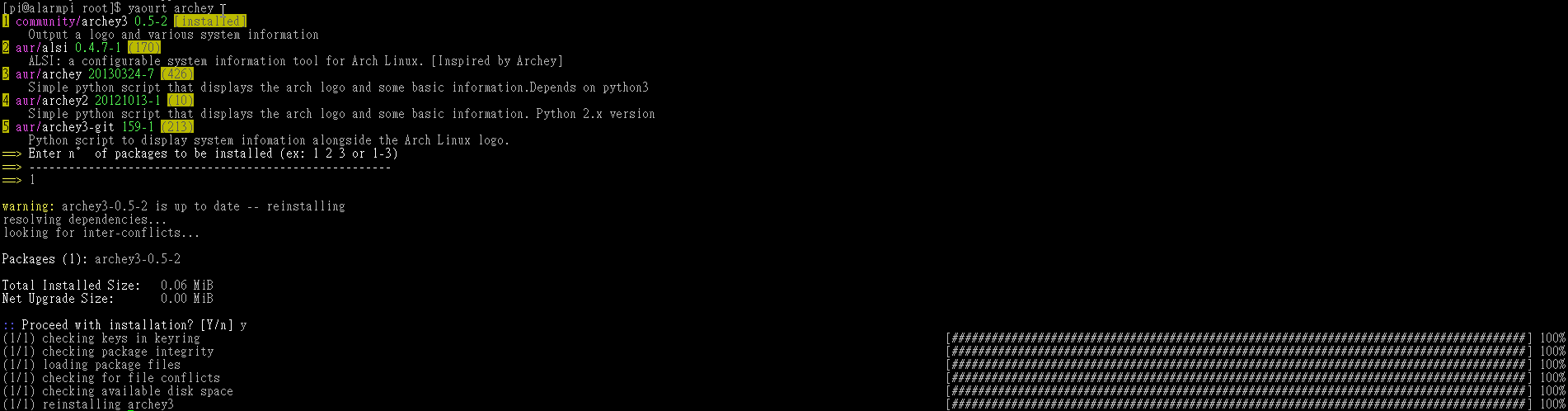
以安裝 archey 為例:
$ yaourt archey

選擇 1

安裝完成
$ which archey3
/usr/bin/archey3

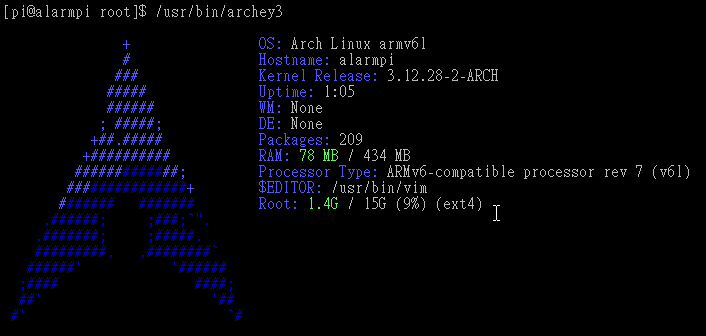
執行一次
$ /usr/bin/archey3

在 ArchLinux 上安裝 yaourt

底下資料引自 Yaourt (正體中文) – ArchWiki
Yaourt (Yet AnOther User Repository Tool),是 pacman 的一個外殼。在 pacman 的基礎上,它增加了對 AUR 支持,幫助用戶輕鬆從 AUR 的海量套件中選擇需要的軟體進行編譯安裝。

安裝編譯時所須套件
# pacman -S –needed base-devel
:: There are 25 members in group base-devel:
:: Repository core
   1) autoconf  2) automake  3) binutils  4) bison  5) fakeroot  6) file  7) findutils  8) flex  9) gawk  10) gcc
   11) gettext  12) grep  13) groff  14) gzip  15) libtool  16) m4  17) make  18) pacman  19) patch
   20) pkg-config  21) sed  22) sudo  23) texinfo  24) util-linux  25) which

Enter a selection (default=all):[@more@]
建立一個 root 之外的使用者
# useradd -m -g users -s /bin/bash pi

設定 pi 的密碼
# passwd pi

將 pi 加入可以執行 sudo
# visudo

root ALL=(ALL) ALL
後面加入
pi ALL=(ALL) ALL

切換成為 pi
# su pi

切換到 pi 的家目錄
# cd /home/pi
ArchLinux  AUR 網站
下載 yaourt
$ wget https://aur.archlinux.org/packages/ya/yaourt/yaourt.tar.gz
解壓縮
$ tar xvzf yaourt.tar.gz
切換目錄
$ cd yaourt
進行套件編譯及打包
$ makepkg
==> Making package: yaourt 1.5-1 (Sun Oct  5 13:06:17 CST 2014)
==> Checking runtime dependencies…
==> Missing dependencies:
  -> package-query>=1.4
==> Checking buildtime dependencies…
==> ERROR: Could not resolve all dependencies.

好像缺少了 package-query 套件
使用 pacman -Ss 指令查詢,發現沒有 package-query 這一個套件
$ sudo pacman -Ss package-query

ArchLinux  AUR 網站
下載 package-query
$ wget https://aur.archlinux.org/packages/pa/package-query/package-query.tar.gz
解壓縮
$ tar xvzf package-query.tar.gz
切換目錄
$ cd package-query
進行套件編譯及打包
$ makepkg
==> Making package: package-query 1.4-1 (Sun Oct  5 13:23:51 CST 2014)
==> Checking runtime dependencies…
==> Missing dependencies:
  -> yajl>=2.0
==> Checking buildtime dependencies…
==> ERROR: Could not resolve all dependencies.

好像缺少了 yajl
使用 pacman -Ss 可以查詢的到
$ sudo pacman -Ss yajl
extra/yajl 2.1.0-1
    Yet Another JSON Library

直接進行安裝
$ sudo pacman -S yajl
再進行一次 套件編譯及打包
$ makepkg
進行套件安裝
$ sudo pacman -U /home/pi/package-query/package-query-1.4-1-armv6h.pkg.tar.xz

可以編譯完成後安裝
$ makepkg -si

切換回 ../yaourt 目錄
$ cd ../yaourt
再進行一次 套件編譯及打包
$ makepkg
進行套件安裝
$ sudo pacman -U /home/pi/yaourt/yaourt-1.5-1-any.pkg.tar.xz

Raspberry Pi – 在 Arch linux 改變記憶體的配置

參考文章:Cortex-A/M: Raspberry Pi: changing the memory split on Arch linux

# grep gpu_mem /boot/config.txt
gpu_mem_512=64
gpu_mem_256=64

gpu_mem_512 是指 512MB 的 Raspberry Pi
gpu_mem_256 提指 256MB 的 Raspberry Pi

gpu_mem_512 最小設定 16MB,最大到 448MB
gpu_mem_256 最小設定 16MB,最大到 192MB

如果是使用圖形介面,可以把數字設大,如果是文字介面,可以把數字設小

修改完畢後,重新啟動電腦,讓設定生效!
# reboot

Raspberry Pi 測試 – ArchLinux Server 篇 dropbear

dropbear 是一個輕量級的 SSH Server 的替代程式,之前在使用其它的 Linux 時,並沒有特別注意到這個套件。
會注意到的原因是,在使用 Hayden James 製作的 Arch Linux Raspberry Pi WiFi Access Point Image 時,發現竟然沒有 scp 這個程式可以使用,要使用 scp 時,要另外安裝 pssh  套件,但安裝 pssh 套件時,又要加裝 openssh 套件,造成系統上安裝了二個 ssh server。
安裝 dropbear
# pacman -S dropbear

設定開機時啟動
# systemctl enable dropbear
Created symlink from /etc/systemd/system/multi-user.target.wants/dropbear.service to /usr/lib/systemd/system/dropbear.service.

啟動 dropbear
# systemctl start dropbear
[@more@]
dropbear 套件相關資訊
# pacman -Qi dropbear
Name           : dropbear
Version        : 2014.65-1
Description    : Lightweight replacement for sshd
Architecture   : armv6h
URL            : http://matt.ucc.asn.au/dropbear/dropbear.html
Licenses       : MIT
Groups         : None
Provides       : None
Depends On     : zlib
Optional Deps  : None
Required By    : None
Optional For   : None
Conflicts With : None
Replaces       : None
Installed Size : 625.00 KiB
Packager       : Arch Linux ARM Build System <builder+xu0@archlinuxarm.org>
Build Date     : Mon Aug 11 04:56:02 2014
Install Date   : Thu Oct 2 00:44:36 2014
Install Reason : Explicitly installed
Install Script : No
Validated By   : SHA256 Sum

dropbear 安裝路徑
# pacman -Ql dropbear
dropbear /etc/
dropbear /etc/dropbear/
dropbear /usr/
dropbear /usr/bin/
dropbear /usr/bin/dbclient
dropbear /usr/bin/dropbear
dropbear /usr/bin/dropbearconvert
dropbear /usr/bin/dropbearkey
dropbear /usr/lib/
dropbear /usr/lib/systemd/
dropbear /usr/lib/systemd/system/
dropbear /usr/lib/systemd/system/dropbear.service
dropbear /usr/share/
dropbear /usr/share/licenses/
dropbear /usr/share/licenses/dropbear/
dropbear /usr/share/licenses/dropbear/LICENSE
dropbear /usr/share/man/
dropbear /usr/share/man/man1/
dropbear /usr/share/man/man1/dbclient.1.gz
dropbear /usr/share/man/man1/dropbearconvert.1.gz
dropbear /usr/share/man/man1/dropbearkey.1.gz
dropbear /usr/share/man/man8/
dropbear /usr/share/man/man8/dropbear.8.gz