ownCloud 使用 https 連線

ownCloud 在安裝完成後,在管理者登入後的管理畫面,會出現二個警告訊息
第一個警告訊息是連線時,沒有使用 https 連線,使用 https 連線,連線資料會經過加密處理,會比較安全一些
第二個警告訊息是指 PHP 的版本過舊,建議要使用到 5.3.8,而 CentOS 6.x 上最新的版本是 5.3.3-27

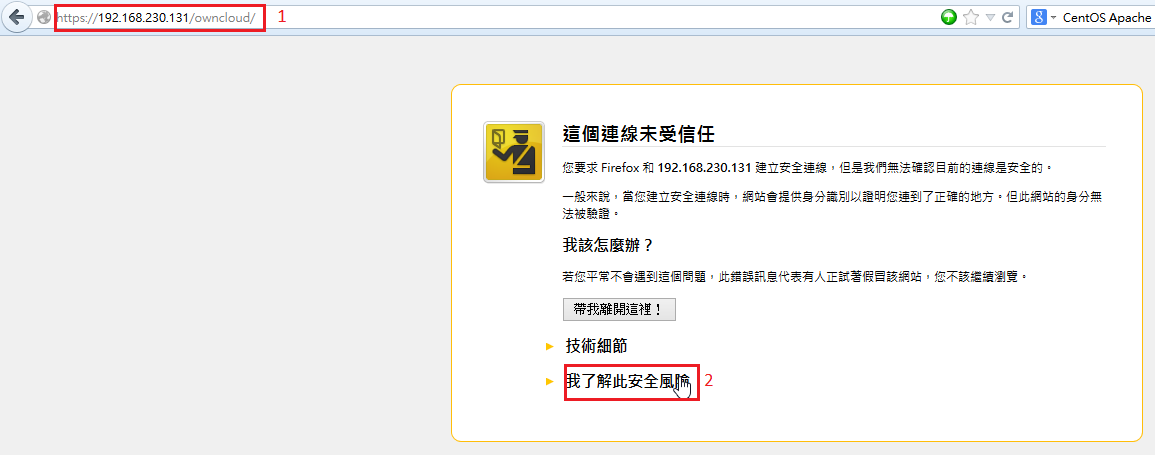
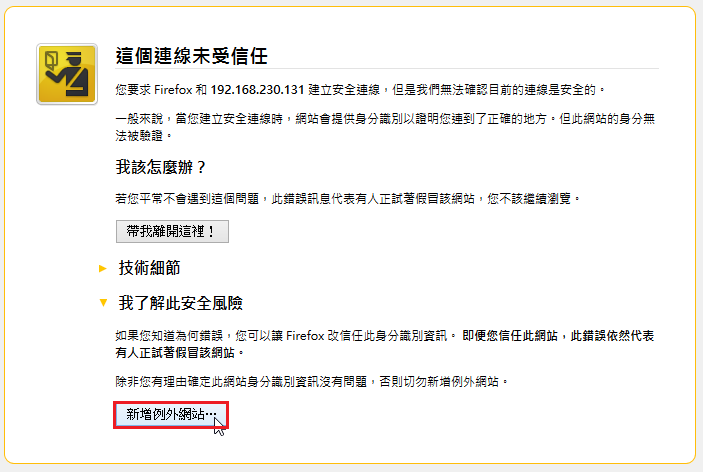
改用 https 連線的方式,選擇 我了解此安全風險
[@more@]選擇 新增例外網站
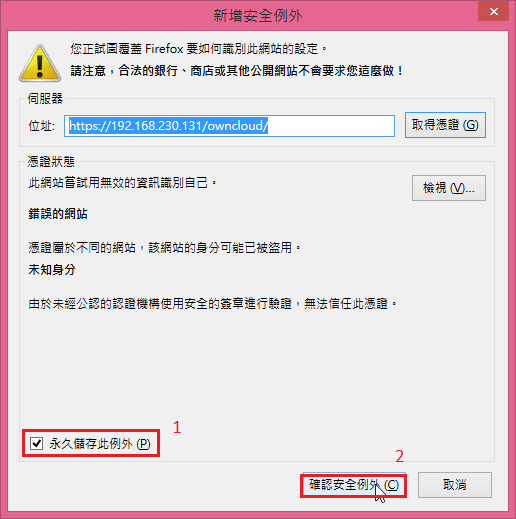
選擇 確認安全例外
底下參考 鳥哥的 Linux 私房菜 — WWW 伺服器 Apache

# cd /etc/pki/tls/certs
# make tcesownCloud.key
umask 77 ;
        /usr/bin/openssl genrsa -aes128 2048 > tcesownCloud.key
Generating RSA private key, 2048 bit long modulus
………………………+++
……………………………………………………………………..+++
e is 65537 (0x10001)
Enter pass phrase:
Verifying – Enter pass phrase:

# mv tcesownCloud.key tcesownCloud.key.raw
# openssl rsa -in tcesownCloud.key.raw -out tcesownCloud.key
Enter pass phrase for tcesownCloud.key.raw:
writing RSA key

# rm -f tcesownCloud.key.raw
# chmod 400 tcesownCloud.key

# make tcesownCloud.crt SERIAL=20140307
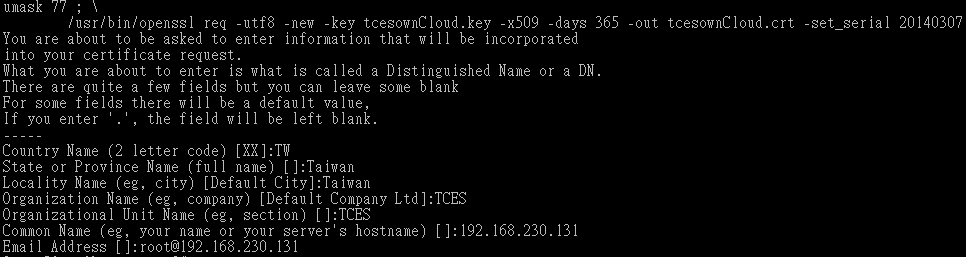
# ls -l tcesownCloud.*
-rw——-. 1 root root 1415 2014-03-07 14:16 tcesownCloud.crt
-r——–. 1 root root 1679 2014-03-07 14:05 tcesownCloud.key

修改 SSL 設定檔
# cp /etc/httpd/conf.d/ssl.conf /etc/httpd/conf.d/ssl.conf.`date +%F`
# sed -i ‘s,SSLCertificateFile /etc/pki/tls/certs/localhost.crt,SSLCertificateFile /etc/pki/tls/certs/tcesownCloud.crt,’ /etc/httpd/conf.d/ssl.conf
# sed -i ‘s,SSLCertificateKeyFile /etc/pki/tls/private/localhost.key,SSLCertificateKeyFile /etc/pki/tls/certs/tcesownCloud.key,’ /etc/httpd/conf.d/ssl.conf

重新啟動 Apache Web Server
# service httpd restart

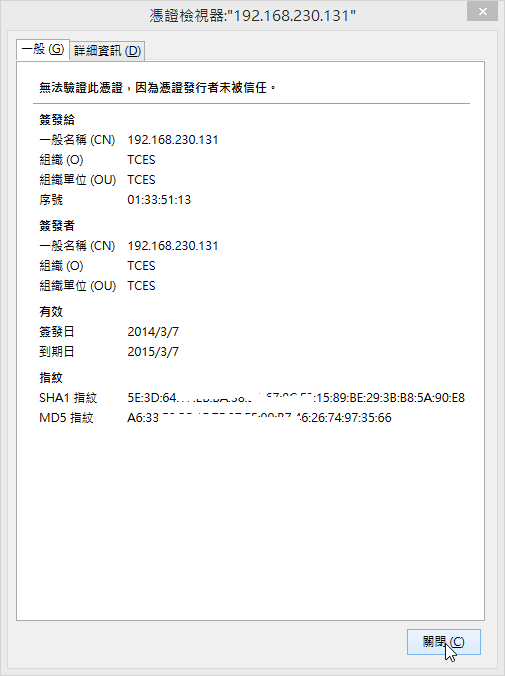
檢視憑證

在 CentOS 6.x 上安裝 Lighttpd Web Server

Lighttpd Web Server 是另外一套輕量級的 Web Server,更詳細的介紹可以參考 lighttpd – 維基百科,自由的百科全書

lighttpd Web Server 官方網站: http://www.lighttpd.net/
[@more@]

在 CentOS 6.x 下安裝
# yum install lighttpd lighttpd-fastcgi  lighttpd-mod_mysql_vhost –enablerepo=epel

lighttpd Web Server 設定檔
設定檔在 /etc/lighttpd
網頁根目錄 在 /var/www/lighttpd

# rpm -qc lighttpd
/etc/lighttpd/conf.d/access_log.conf
/etc/lighttpd/conf.d/auth.conf
/etc/lighttpd/conf.d/cgi.conf
/etc/lighttpd/conf.d/cml.conf
/etc/lighttpd/conf.d/compress.conf
/etc/lighttpd/conf.d/debug.conf
/etc/lighttpd/conf.d/dirlisting.conf
/etc/lighttpd/conf.d/evhost.conf
/etc/lighttpd/conf.d/expire.conf
/etc/lighttpd/conf.d/fastcgi.conf
/etc/lighttpd/conf.d/geoip.conf
/etc/lighttpd/conf.d/magnet.conf
/etc/lighttpd/conf.d/mime.conf
/etc/lighttpd/conf.d/mod.template
/etc/lighttpd/conf.d/mysql_vhost.conf
/etc/lighttpd/conf.d/proxy.conf
/etc/lighttpd/conf.d/rrdtool.conf
/etc/lighttpd/conf.d/scgi.conf
/etc/lighttpd/conf.d/secdownload.conf
/etc/lighttpd/conf.d/simple_vhost.conf
/etc/lighttpd/conf.d/ssi.conf
/etc/lighttpd/conf.d/status.conf
/etc/lighttpd/conf.d/trigger_b4_dl.conf
/etc/lighttpd/conf.d/userdir.conf
/etc/lighttpd/conf.d/webdav.conf
/etc/lighttpd/lighttpd.conf
/etc/lighttpd/modules.conf
/etc/lighttpd/vhosts.d/vhosts.template
/etc/logrotate.d/lighttpd
/var/www/lighttpd/index.html

修改設定檔
開啟模組
# vim /etc/lighttpd/modules.conf
##
## mod_userdir
##
include “conf.d/userdir.conf”
##
## FastCGI (mod_fastcgi)
##
include “conf.d/fastcgi.conf”

開啟 PHP 功能
# vim /etc/lighttpd/conf.d/fastcgi.conf
fastcgi.server = ( “.php” =>
                   ( “php-local” =>
                     (
                       “socket” => “/var/run/lighttpd/php-fastcgi.socket”
                       “bin-path” => “/usr/bin/php-cgi”,
                       “max-procs” => 1,
                       “broken-scriptfilename” => “enable”,
                     )
                    )
                  )
#                   ),
#                   ( “php-tcp” =>
#                     (
#                       “host” => “127.0.0.1”,
#                       “port” => 9999,
#                       “check-local” => “disable”,
#                       “broken-scriptfilename” => “enable”,
#                     )
#                   ),
#
#                   ( “php-num-procs” =>
#                     (
#                       “socket” => socket_dir + “/php-fastcgi-2.socket”,
#                       “bin-path” => server_root + “/cgi-bin/php5”,
#                       “bin-environment” => (
#                         “PHP_FCGI_CHILDREN” => “16”,
#                         “PHP_FCGI_MAX_REQUESTS” => “10000”,
#                       ),
#                       “max-procs” => 5,
#                       “broken-scriptfilename” => “enable”,
#                     )
#                   ),
#                )

設定網頁預設編碼
# vim /etc/lighttpd/conf.d/mime.conf
  “.css”          =>      “text/css; charset=utf-8”,
  “.html”         =>      “text/html; charset=utf-8”,
  “.htm”          =>      “text/html; charset=utf-8”,
  “.js”           =>      “text/javascript; charset=utf-8”,

安裝 php-cli 套件
# yum install php-cli

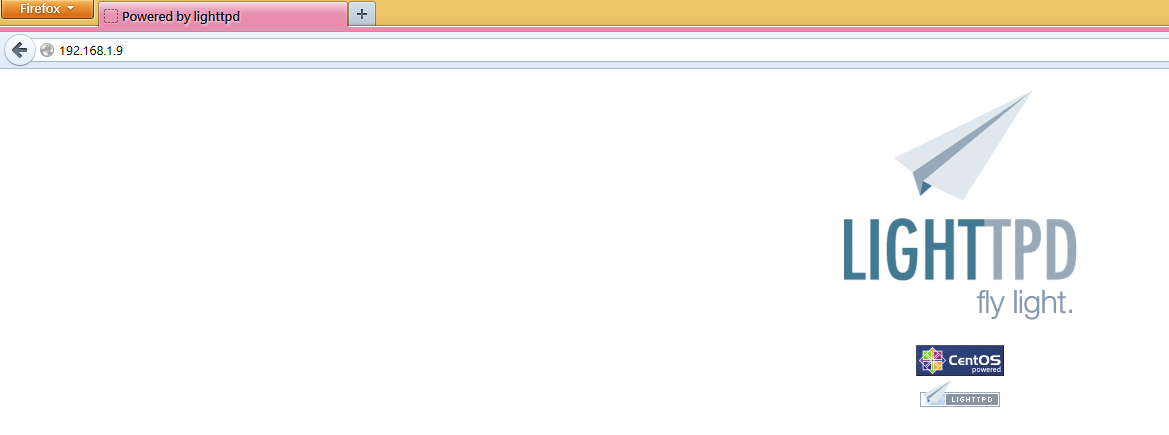
啟動 lighttpd Web Server
# service lighttpd start

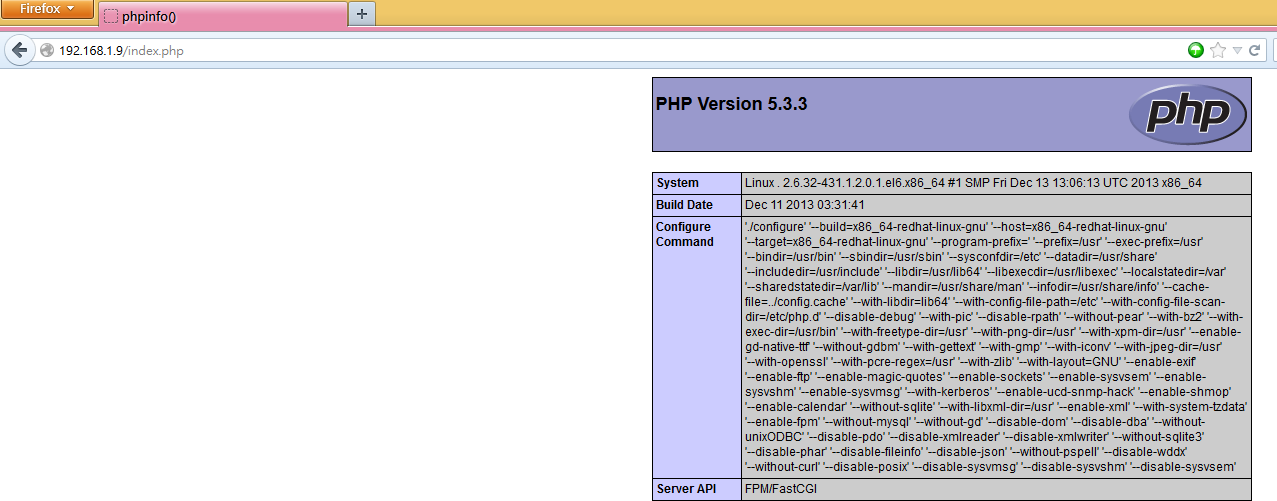
# vim /var/www/lighttpd/index.php
測試 PHP 功能

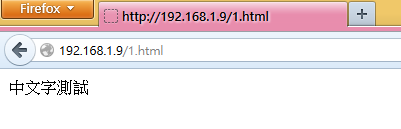
測試中文顯示

設定 Nginx Web Server

Nginx Web Server 設定檔
# rpm -qc nginx
/etc/logrotate.d/nginx
/etc/nginx/conf.d/default.conf
/etc/nginx/conf.d/example_ssl.conf
/etc/nginx/fastcgi_params
/etc/nginx/koi-utf
/etc/nginx/koi-win
/etc/nginx/mime.types
/etc/nginx/nginx.conf
/etc/nginx/scgi_params
/etc/nginx/uwsgi_params
/etc/nginx/win-utf
/etc/sysconfig/nginx
[@more@]設定 Nginx Web Server
# vim /etc/nginx/nginx.conf
# 啟動 Nginx 的使用者
user  nginx;
worker_processes  1;

# Nginx Web Server Error Log 位置和記錄的層級
error_log  /var/log/nginx/error.log warn;
pid        /var/run/nginx.pid;

# 連線數量
events {
    worker_connections  1024;
}

http {
    include       /etc/nginx/mime.types;
    default_type  application/octet-stream;
# log 檔記錄的格式
    log_format  main  ‘$remote_addr – $remote_user [$time_local] “$request” ‘
                      ‘$status $body_bytes_sent “$http_referer” ‘
                      ‘”$http_user_agent” “$http_x_forwarded_for”‘;
# 連線記錄檔的位置
    access_log  /var/log/nginx/access.log  main;

    sendfile        on;
    #tcp_nopush     on;
# 保持連線的 timeout 時間
    keepalive_timeout  65;

    #gzip  on;
# 其它的設定檔在 /etc/nginx/conf.d 目錄之下
    include /etc/nginx/conf.d/*.conf;
}

修改 /etc/nginx/conf.d/default.conf 設定檔
# vim /etc/nginx/conf.d/default.conf
# 開啟的連線埠和主機名稱
server {
    listen       80;
    server_name  localhost;
# 編碼設定
    #charset koi8-r;
    #access_log  /var/log/nginx/log/host.access.log  main;
# 網頁根目錄 /usr/share/nginx/html 和預設首頁的檔案名稱
    location / {
        root   /usr/share/nginx/html;
        index  index.html index.htm;
    }
# 發生找不到檔案 404 錯誤編碼時,可以導引至
    #error_page  404              /404.html;

    # redirect server error pages to the static page /50x.html
    #
    error_page   500 502 503 504  /50x.html;
    location = /50x.html {
        root   /usr/share/nginx/html;
    }

    # proxy the PHP scripts to Apache listening on 127.0.0.1:80
    #
    #location ~ .php$ {
    #    proxy_pass   http://127.0.0.1;
    #}
# 開啟 PHP 功能
    # pass the PHP scripts to FastCGI server listening on 127.0.0.1:9000
    #
    location ~ .php$ {
        root           /usr/share/nginx/html;
        fastcgi_pass   127.0.0.1:9000;
        fastcgi_index  index.php;
        fastcgi_param  SCRIPT_FILENAME $document_root$fastcgi_script_name;
#        fastcgi_param  SCRIPT_FILENAME  /scripts$fastcgi_script_name;
        include        fastcgi_params;
    }

    # deny access to .htaccess files, if Apache’s document root
    # concurs with nginx’s one
    #
    #location ~ /.ht {
    #    deny  all;
    #}
}

安裝 php-fpm 套件
# yum install php-fpm

啟動 php-fpm
# /etc/init.d/php-fpm start
Starting php-fpm:                                          [  OK  ]

php-fpm 會使用到 tcp 9000 埠
# netstat -antulp | grep 9000
tcp        0      0 127.0.0.1:9000              0.0.0.0:*                   LISTEN      3769/php-fpm

設定開機時啟動 php-fpm
# chkconfig –list php-fpm
php-fpm         0:off   1:off   2:off   3:off   4:off   5:off   6:off
# chkconfig –level 3 php-fpm on

重新啟動 Nginx Web Server
# service nginx restart
Stopping nginx:                                            [  OK  ]
Starting nginx:                                            [  OK  ]

在防火牆上打開 9000 埠
-A INPUT -m state –state NEW -m tcp -p tcp –dport 9000 -j ACCEPT

測試 PHP 功能
# vim /usr/share/nginx/html/index.php
<?php
phpinfo();
?>

中文字顯示正常

在 CentOS 6.x 安裝 Nginx Light Web Server

Nginx 是一套輕量級的 Web Server,和 Apache Web Server 比起來,由俄羅斯程式設計師 Igor Sysoev 所開發輕量級的網頁伺服器,軟體以 BSD-like 授權,可以在 UNIX、GNU/Linux、BSD、Mac OS X、Solaris,以及Microsoft Windows 等作業系統中執行。

Nginx 官方網站:http://nginx.org/

目前有人在 Linux 使用它來取代 Apache Web Server,並把這個組合稱為 LNMP(Linux + Nginx + MySQL + PHP)[@more@]安裝方式:
因為 Nginx 並不是 CentOS 官方套件,所以必須先新增 Nginx 官方所提供的第三方套件庫
# vim /etc/yum.repos.d/nginx.repo
[nginx]
name=nginx repo
baseurl=http://nginx.org/packages/centos/$releasever/$basearch/
gpgcheck=0
enabled=1

匯入憑證
# rpm –import http://nginx.org/keys/nginx_signing.key


# wget http://nginx.org/packages/centos/6/noarch/RPMS/nginx-release-centos-6-0.el6.ngx.noarch.rpm
# rpm -ivh http://nginx.org/packages/centos/6/noarch/RPMS/nginx-release-centos-6-0.el6.ngx.noarch.rpm

更新套件庫
# yum update

安裝 Nginx Web Server
# yum install nginx

執行 Nginx Web Server
# service nginx start
Starting nginx:                                            [  OK  ]

設定開機預設啟動 Nginx 和關閉 Apache Web Server
# chkconfig –level 3 nginx on
# chkconfig –level 3 httpd off

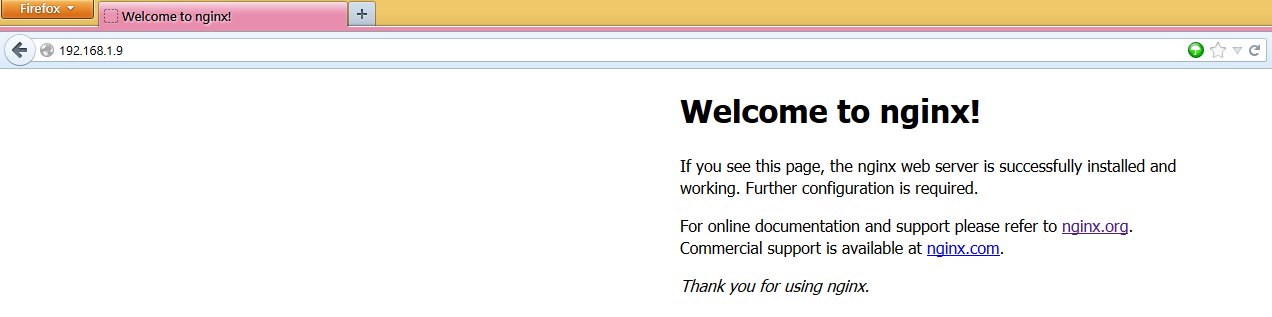
開啟瀏覽器,連線到 Nginx Web Server

以 fail2ban 偵測網頁連線攻擊

使用 Apache / MySQL / PHP 來架設網站的人,可能都會有安裝 phpMyAdmin 來管理網頁資料庫,但因為 phpMyAdmin 這一個套件可能存在一些安全性上的漏洞,所以有些攻擊方式,就會搜尋網頁上是否有安裝 phpMyAdmin,並嘗試進行攻擊。
來自網頁上的攻擊
# grep admin /var/log/httpd/error_log
[error] [client 70.87.15.74] File does not exist: /var/www/html/admin
[error] [client 70.87.15.74] File does not exist: /var/www/html/dbadmin
[error] [client 70.87.15.74] File does not exist: /var/www/html/myadmin
[error] [client 70.87.15.74] File does not exist: /var/www/html/mysqladmin
[error] [client 70.87.15.74] File does not exist: /var/www/html/phpadmin
[error] [client 70.87.15.74] File does not exist: /var/www/html/phpmyadmin
[error] [client 70.87.15.74] File does not exist: /var/www/html/php-my-admin
[error] [client 70.87.15.74] File does not exist: /var/www/html/phpmyadmin1
[error] [client 70.87.15.74] File does not exist: /var/www/html/phpmyadmin2[@more@]阻擋的方式
底下文章內容參考 網路系統組 / Network Systems [security:fail2ban]
修改 fail2ban 設定檔,加入下面的設定檔
# vim /etc/fail2ban/jail.conf
[apache-notexist]

enabled  = true
filter   = apache-notexist
action   = iptables[name=HTTP, port=http, protocol=tcp]
logpath  = /var/log/httpd/*error_log
maxretry = 3
bantime  = 600

新增 fail2ban 的 apache-noexist filter 設定檔
# vim /etc/fail2ban/filter.d/apache-notexist.conf
[Definition]

# Option:  failregex
# Notes.:  regex to match the password failure messages in the logfile. The
#          host must be matched by a group named “host”. The tag “<HOST>” can
#          be used for standard IP/hostname matching and is only an alias for
#          (?:::f{4,6}:)?(?P<host>S+)
# Values:  TEXT
#
failregex = [[]client <HOST>[]] (File does not exist): .*

# Option:  ignoreregex
# Notes.:  regex to ignore. If this regex matches, the line is ignored.
# Values:  TEXT
#
ignoreregex =

# service fail2ban restart
Stopping fail2ban:                                         [  OK  ]
Starting fail2ban:                                         [  OK  ]

# fail2ban-client status
Status
|- Number of jail:      3
`- Jail list:           apache-notexist, pure-ftpd, ssh-iptables

嘗試幾次錯誤連線

# fail2ban-client status apache-notexist
Status for the jail: apache-notexist
|- filter
|  |- File list:        /var/log/httpd/ssl_error_log /var/log/httpd/error_log
|  |- Currently failed: 0
|  `- Total failed:     3
`- action
   |- Currently banned: 1
   |  `- IP list:       192.168.1.1
   `- Total banned:     1

# iptables -t filter -L fail2ban-HTTP -n
Chain fail2ban-HTTP (1 references)
target     prot opt source               destination
DROP       all  —  192.168.1.1          0.0.0.0/0
RETURN     all  —  0.0.0.0/0            0.0.0.0/0

Apache 伺服器使用 LDAP 認證

Apache 網頁除了可以使用 .htaccess 和 MySQL 的認證外,也可以使用 LDAP Server 來做使用者的認證。

1. 安裝所需的套件
# yum install mod_authz_ldap php-ldap

2. 建立測試目錄及檔案
# mkid /var/www/html/testldap
# echo “Test LDAP” > /var/www/html/testldap/index.html
[@more@]3. 修改設定檔
# vim /etc/httpd/conf.d/authz_ldap.conf
LoadModule authz_ldap_module modules/mod_authz_ldap.so

<IfModule mod_authz_ldap.c>

<Directory “/var/www/html/testldap”>
      AuthzLDAPMethod ldap
      # 192.168.154.167 為 LDAP Server IP
      AuthzLDAPServer 192.168.154.167
      AuthzLDAPUserBase ou=Teacher,dc=ldap,dc=tces.ilc.edu.tw
      AuthzLDAPUserKey uid
      AuthzLDAPUserScope base
#
      AuthType Basic
      AuthName “Test LDAP”
      require valid-user
#
</Directory>

4. 重新啟動 Apache Web Server
# service httpd restart

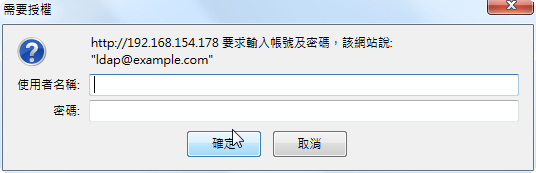
5. 進行測試

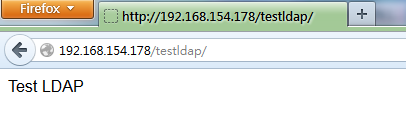
輸入正確的帳號及密碼,就可以看到測試的網頁