使用 esd 格式來縮減 Windows 7 / 8.1 的光碟容量

當時在製作 Windows 7 / 8.1 的光碟時,因為考慮到可以使用 esd 格式來縮減光碟容量,所以就以 Windows 8.1 x86 為底,製作完成之後,整個光碟的大小是 7.38G,但這是沒有整合修正程式,如果整合的話,光碟可能還會更大,所以參考之前的文章,把 install.wim 轉換成 install.esd 格式。

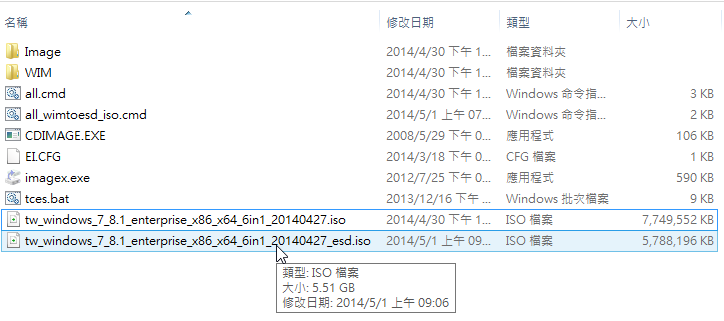
[@more@]轉換完成之後,光碟剩下 5.51G,大概少了 1.87G
轉換是成功了,但不知道 Windows 7 的部分是否能正常安裝,Windows 8.1 則應該是沒有這樣的問題,因為在某些 ISO 檔的 install.wim 就已經轉換成 esd 格式了!

經過測試,Windows 7 的部分可以正常安裝

使用 esd 的格式可以減少光碟的容量,如果說要找缺點的話,可能就是整體安裝的時間會比較長一些,因為 esd 格式是 wim  格式經過一些壓縮等處理,所以在安裝時會稍微比較慢,但是是在可以接受的範圍。

整合 Windows 7 / 8.1 安裝光碟

閒來無事做的,實用性可能不高,因為 Windows 7 / 8.1 在安裝上有些差異,無法做到完全客製化。
Windows 7 會有二種版本是因為目前有些行政人員使用的 Internet Explorer 版本不能升級到最新版本
[@more@]製作方式:
1. 先準備好所有版本的 ISO 檔,Windows 7 SP1 IE11 的 ISO  是自行整合的

先用虛擬光碟軟體將 ISO 檔掛載起來

建立 Image 目錄,用來存放各 ISO 光碟中的 sourcesinstall.wim 和 Windows 8.1 x86 ISO 的全部檔案
WIM 是用來做為臨時掛載用的目錄

Image 目錄內容,x86 目錄是放置 Windows 8.1 Enterprise x86 所有光碟的內容

前面的 6 個目錄中,另外建立一個 sources 目錄,目錄下放置各 ISO 檔中 sources 目錄下的 install.wim

修改 Imagex86sources 目錄下的 ei.cfg
把原本的內容
[EditionID]
Enterprise

[Channel]
Volume

[VL]
1

改成
[Channel]
Retail

[VL]
1

建立 all.cmd

imagex /info ImageWin7IE8_x86sourcesinstall.wim 1 “Windows 7 SP1 IE8 企業版 x86” “Windows 7 SP1 IE8 企業版 x86”
imagex /export /compress maximum ImageWin7IE8_x86sourcesinstall.wim 1 Imagex86sourcesinstall-all.wim
imagex /info ImageWin7IE8_x64sourcesinstall.wim 1 “Windows 7 SP1 IE8 企業版 x64” “Windows 7 SP1 IE8 企業版 x64”
imagex /export /compress maximum ImageWin7IE8_x64sourcesinstall.wim 1 Imagex86sourcesinstall-all.wim
imagex /info ImageWin7IE11_x86sourcesinstall.wim 1 “Windows 7 SP1 IE11 企業版 x86” “Windows 7 SP1 IE11 企業版 x86”
imagex /export /compress maximum ImageWin7IE11_x86sourcesinstall.wim 1 Imagex86sourcesinstall-all.wim
imagex /info ImageWin7IE11_x64sourcesinstall.wim 1 “Windows 7 SP1 IE11 企業版 x64” “Windows 7 SP1 IE11 企業版 x64”
imagex /export /compress maximum ImageWin7IE11_x64sourcesinstall.wim 1 Imagex86sourcesinstall-all.wim
imagex /info ImageWin81_x86sourcesinstall.wim 1 “Windows 8.1 企業版 x86” “Windows 8.1 企業版 x86”
imagex /export /compress maximum ImageWin81_x86sourcesinstall.wim 1 Imagex86sourcesinstall-all.wim
imagex /info ImageWin81_x64sourcesinstall.wim 1 “Windows 8.1 企業版 x64” “Windows 8.1 企業版 x64”
imagex /export /compress maximum ImageWin81_x64sourcesinstall.wim 1 Imagex86sourcesinstall-all.wim
del /f /q Imagex86sourcesinstall.wim
ren Imagex86sourcesinstall-all.wim install.wim

cdimage -l”ILC_Win7_81_Ent_ZH-TW_DV9″ -t3/18/2014,07:52:10 -u2 -h -bImagex86bootetfsboot.com -o -m “Imagex86” “tw_windows_7_8.1_enterprise_x86_x64_6in1_20140427.iso”

以系統管理員身份執行

執行過程

完成之後,ISO 檔大小是 7.38G

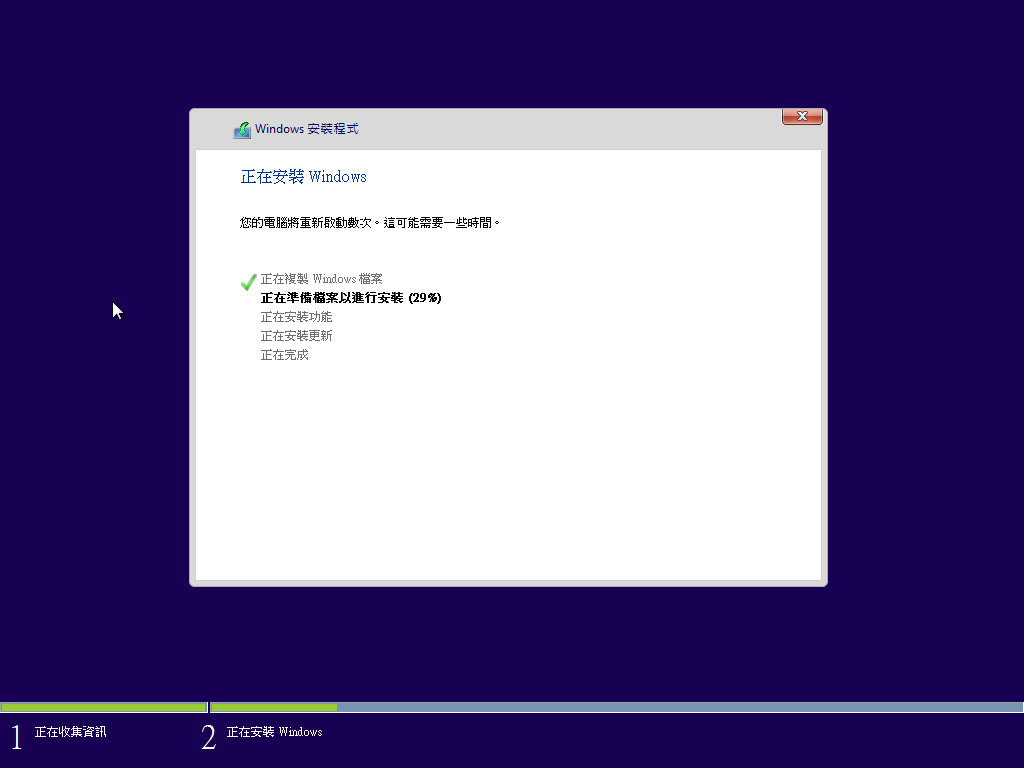
以虛擬機器軟體進行測試,因為是使用 Windows 8.1 x86 為底,所以出現的是 Windows 8.1  的開機畫面

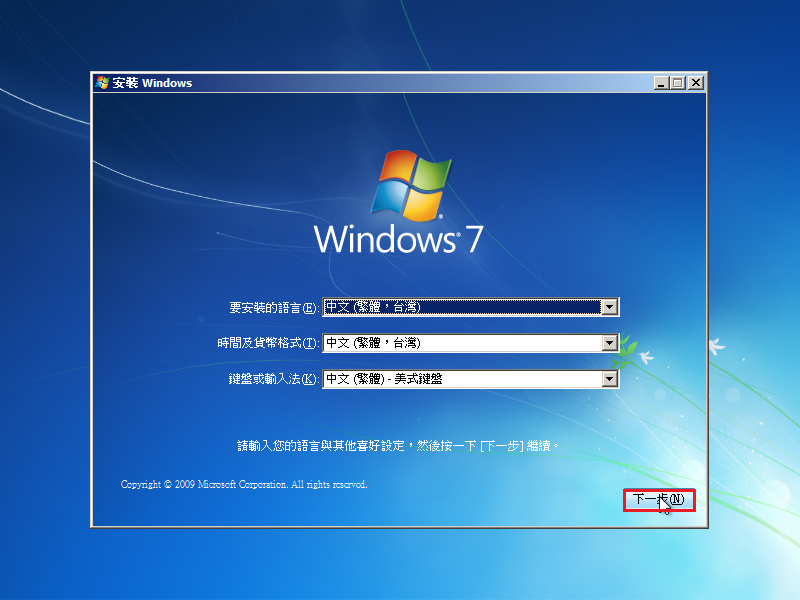
直接選擇 下一步

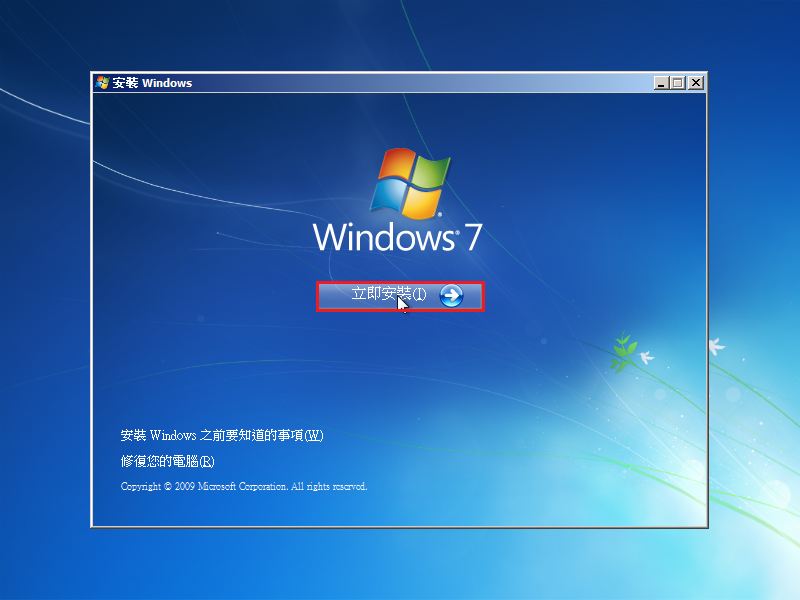
選擇 立即安裝

出現可以安裝的版本

以安裝 Windows 7 企業版為例

可以正常安裝

安裝後的桌面

客製化 Windows 8.1 x86 / x64 安裝光碟

整合方式和 Windows 7 一樣,主要是整合 Windows 8.1 Update 1 的更新檔,再加上一些會用到的軟體及啟動 Windows 8.1 的 KMS 設定檔到桌面。
預設安裝一些常用的程式:
    Easy 7-Zip
    Adobe Flash Player 最新版 for IE
    Adobe PDF Reader XI(11) 並升級到 11.06 版
    Oracle Java Runtime Environment 7u55
    ClassicShell 4.1.0
    Silverlight
    Adblock Plus for Internet Explorer
 
光碟開機畫面

[@more@]
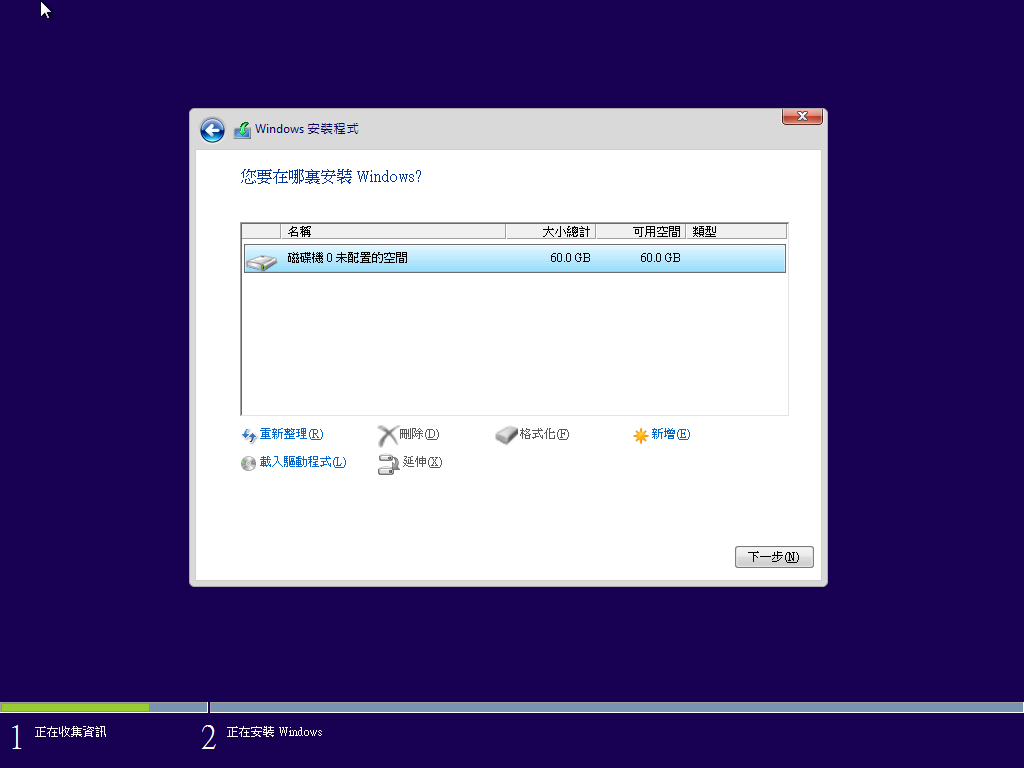
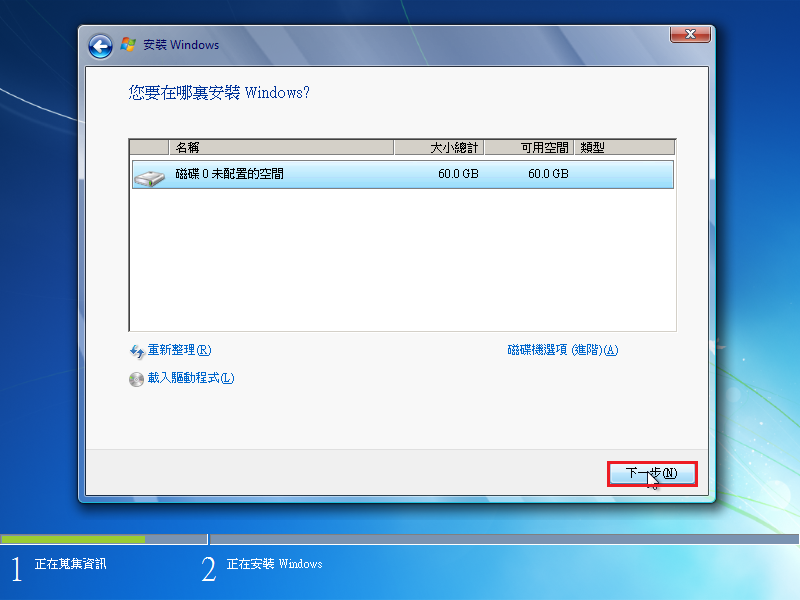
硬碟分割畫面

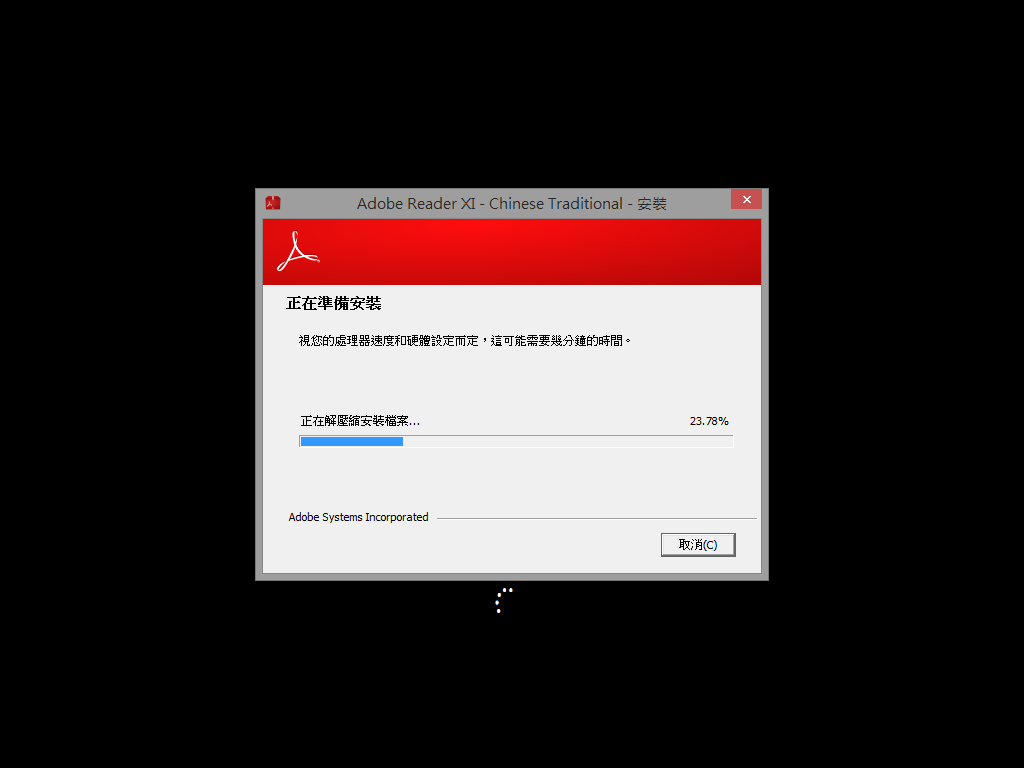
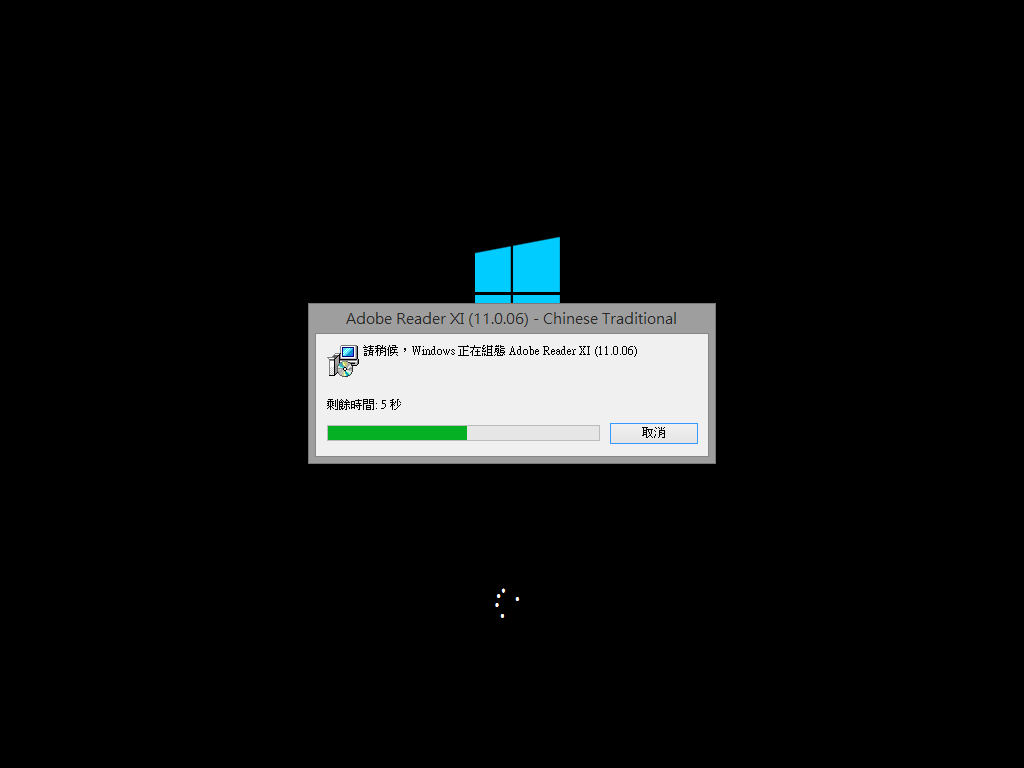
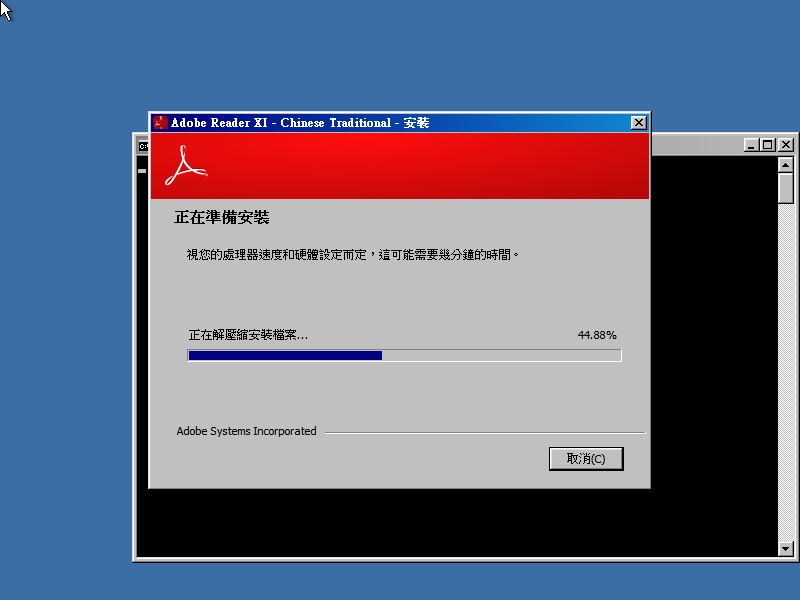
安裝 Adobe PDF Reader

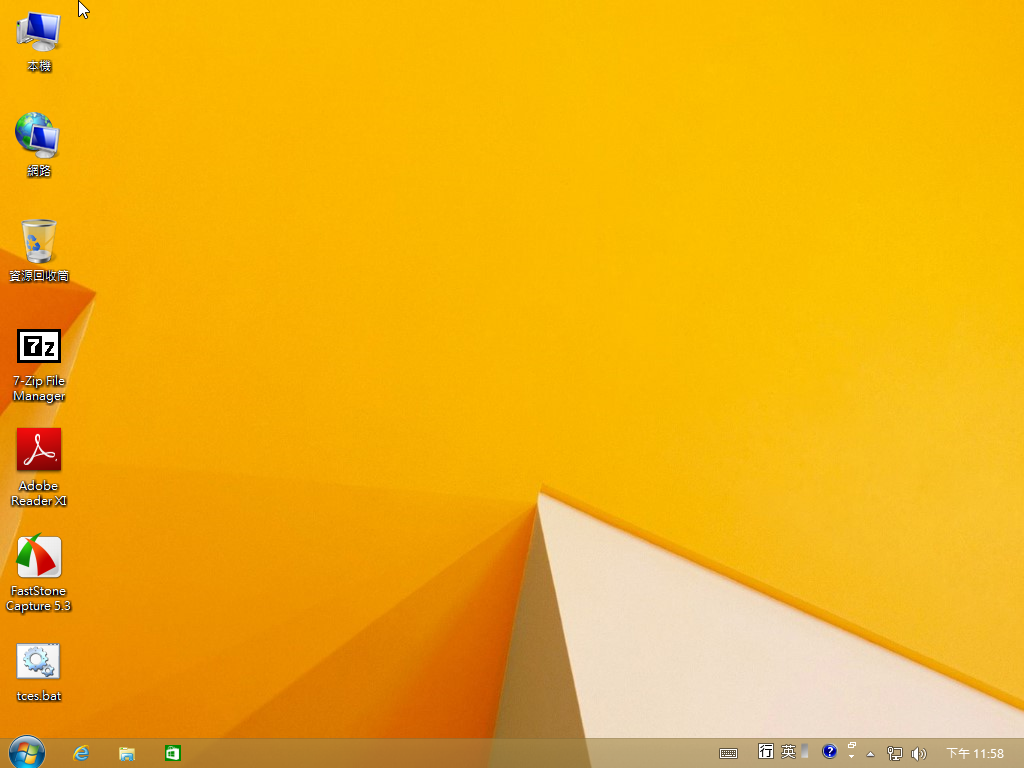
安裝完成畫面

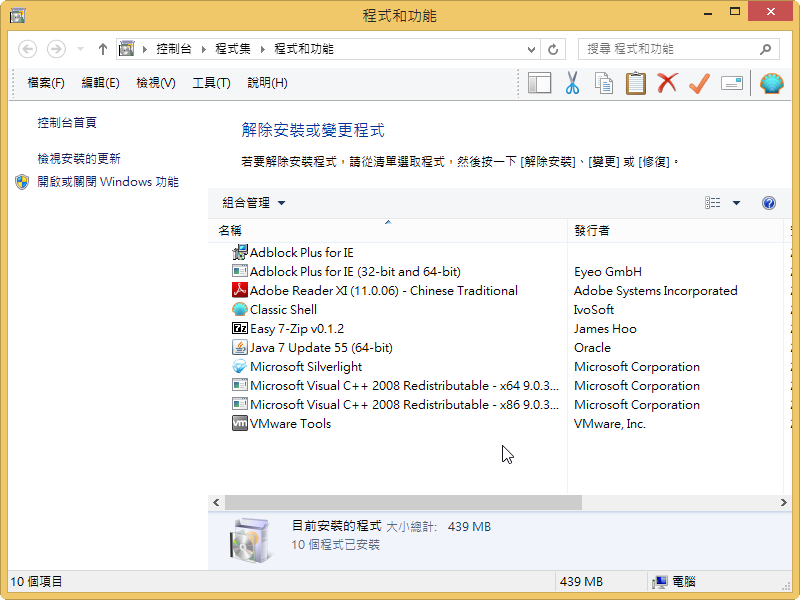
預先安裝的軟體

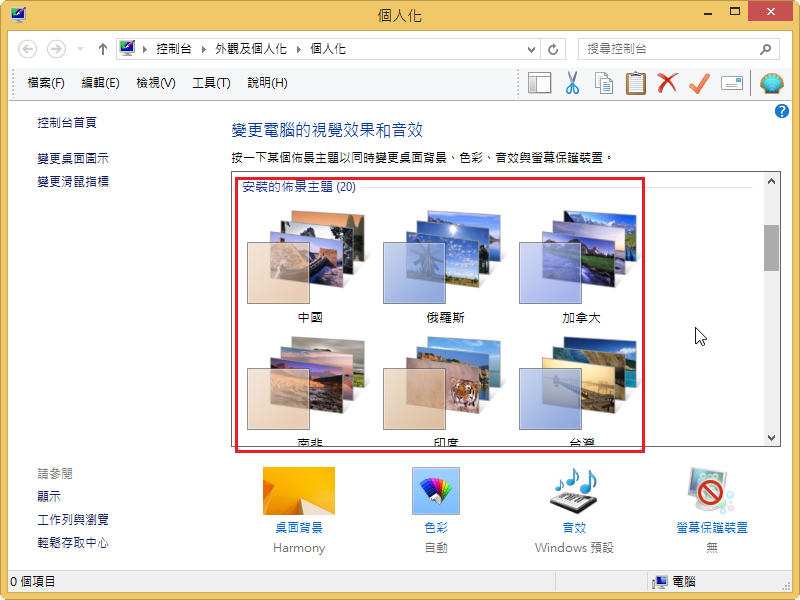
整合 Windows 7  的 20 國佈景主題

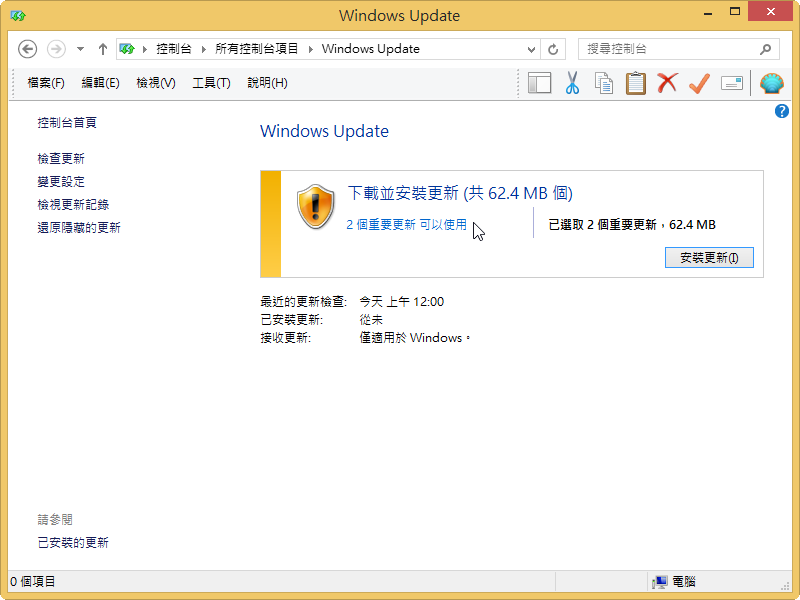
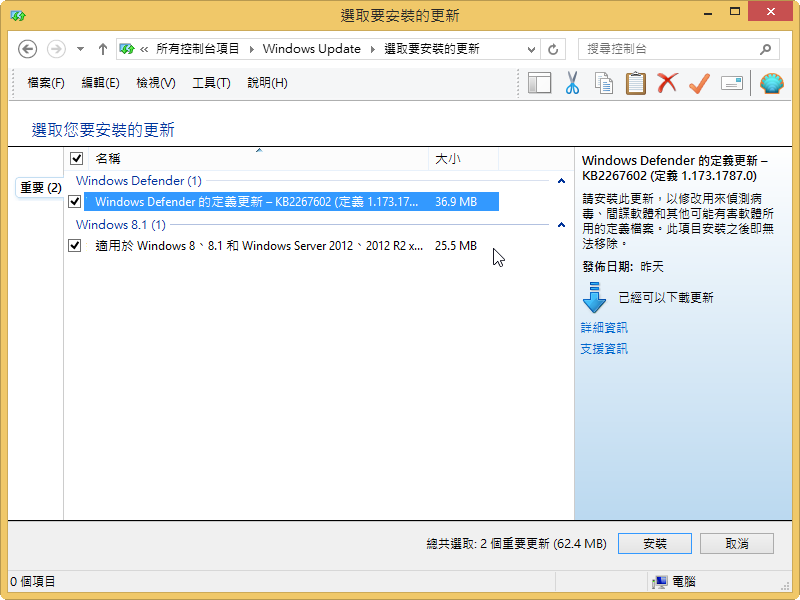
剩下還未安裝的更新檔

客製化 Windows Server 2012 r2 安裝光碟

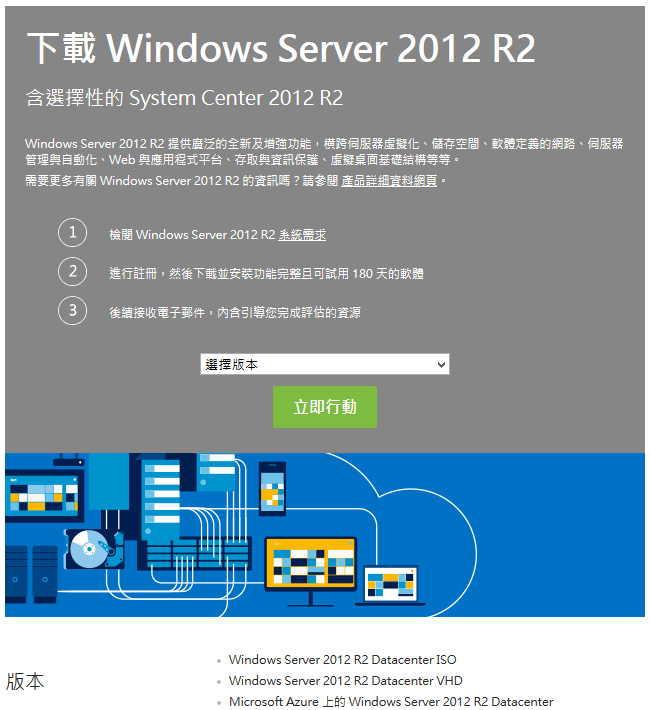
Windows Server 2012 r2 180 天試用版註冊下載: http://technet.microsoft.com/zh-tw/evalcenter/dn205286.aspx

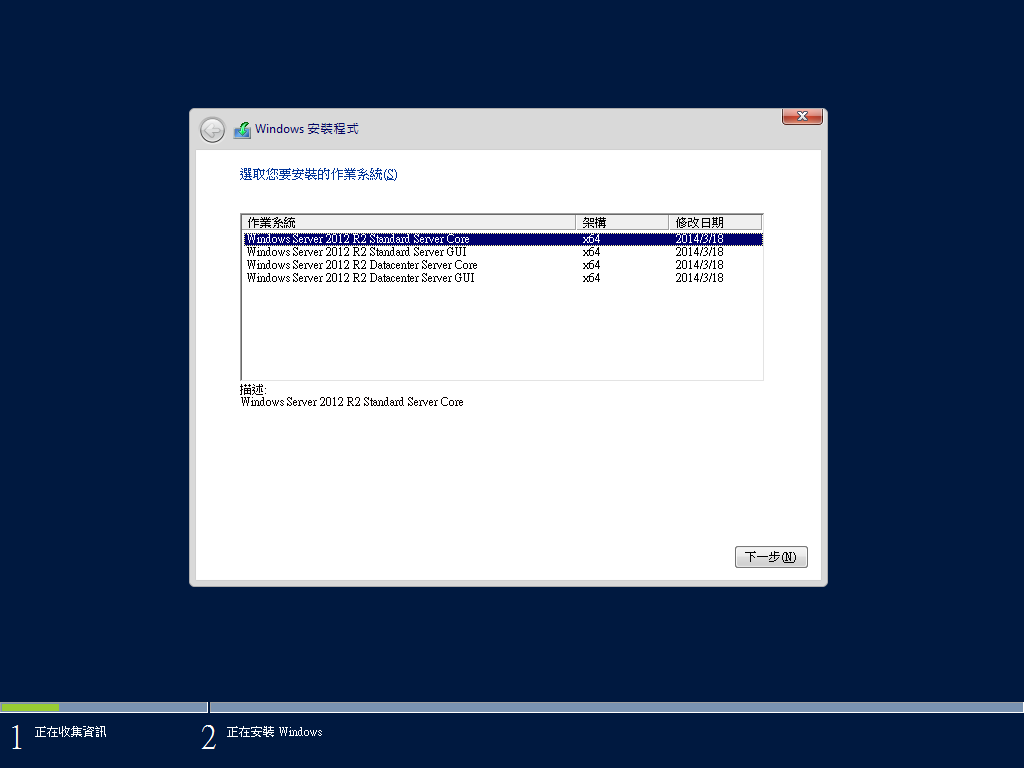
客製化完成的光碟安裝畫面

[@more@]製作方法:
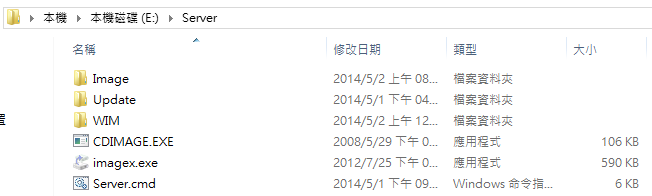
建立 ImageServer / WIM / Update 等目錄
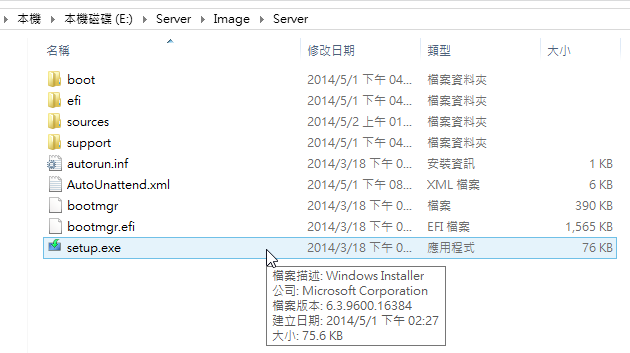
ImageServer 目錄用來放置原 Windows Server 2012 r2 安裝光碟內的所有內容
WIM 用來做為臨時掛載的目錄
Update 用來存放更新檔案

Server.cmd

FOR /L %%a IN (1,1,4) DO (DISM /Mount-Wim /WimFile:ImageServersourcesinstall.wim /Index:%%a /MountDir:WIM
DISM /Image:WIM /enable-feature /featurename:NetFX3 /All /Source:.ImageServersourcessxs /LimitAccess
DISM /Image:WIM /Add-Package /PackagePath:”Update”
DISM /Unmount-Wim /MountDir:WIM /commit)

imagex /info ImageServersourcesinstall.wim 1 “Windows Server 2012 R2 Standard Server Core” “Windows Server 2012 R2 Standard Server Core”
imagex /export /compress maximum ImageServersourcesinstall.wim 1 ImageServersourcesinstall-Server.wim
imagex /info ImageServersourcesinstall.wim 2 “Windows Server 2012 R2 Standard Server GUI” “Windows Server 2012 R2 Standard Server GUI”
imagex /export /compress maximum ImageServersourcesinstall.wim 2 ImageServersourcesinstall-Server.wim
imagex /info ImageServersourcesinstall.wim 3 “Windows Server 2012 R2 Datacenter Server Core” “Windows Server 2012 R2 Datacenter Server Core”
imagex /export /compress maximum ImageServersourcesinstall.wim 3 ImageServersourcesinstall-Server.wim
imagex /info ImageServersourcesinstall.wim 4 “Windows Server 2012 R2 Datacenter Server GUI” “Windows Server 2012 R2 Datacenter Server GUI”
imagex /export /compress maximum ImageServersourcesinstall.wim 4 ImageServersourcesinstall-Server.wim
del /f /q ImageServersourcesinstall.wim
ren ImageServersourcesinstall-Server.wim install.wim

cdimage -l”IR3_SSS_X64FRE_ZH-TW_DV9″ -t3/18/2014,08:18:10 -u2 -h -bImageServerbootetfsboot.com -o -m “ImageServer” “tw_windows_server_2012_r2_with_update_dvd_4in1_20140427.iso”
pause

建立 ei.cfg 放置在 ImageServersources 目錄之下
[Channel]
Retail

以系統管理員身份執行 Server.cmd 即可

安裝完成後稍做調整

使用登錄檔來阻擋 Internet Explorer 的更新

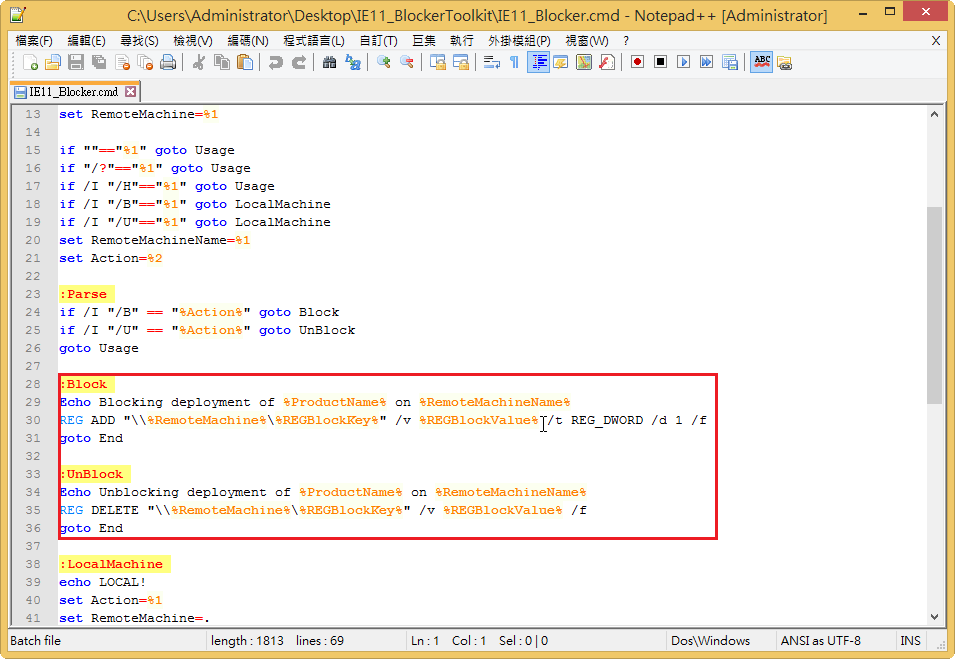
除了可以使用 Internet Explorer  BlockerToolkit 來阻擋 Internet Explorer 升級到最新版本外,其實也可以直接透過修改登錄檔來達到這樣的目的。
Internet Explorer  BlockerToolkit  程式

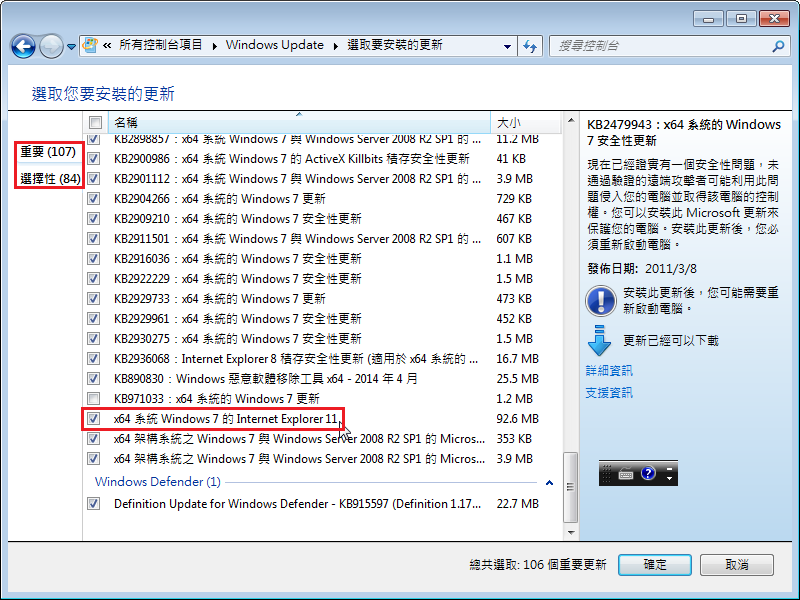
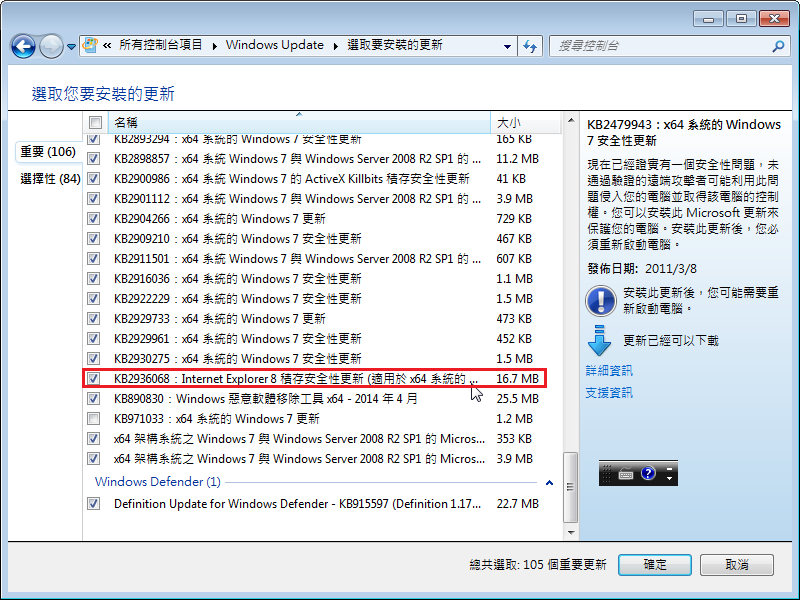
[@more@]Windows 7 SP1 安裝完成之後,有 Internet Explorer 11 可以升級

執行阻擋的登錄檔後,就找不到 Internet Explorer 9 / 10 / 11 的更新

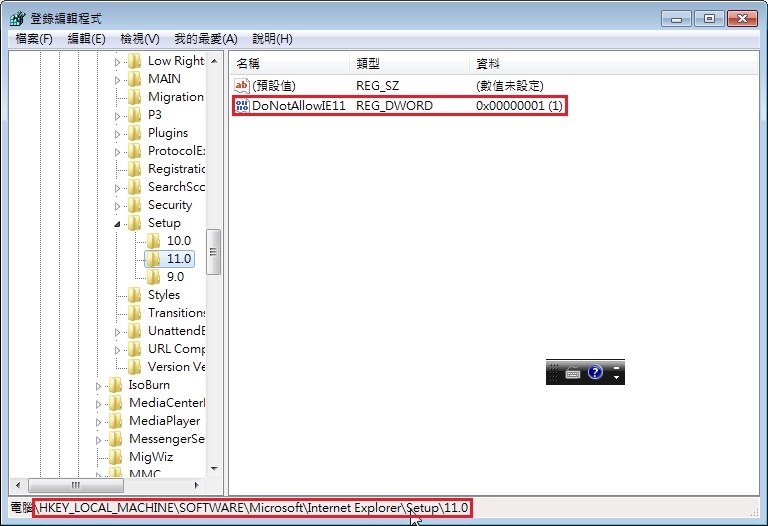
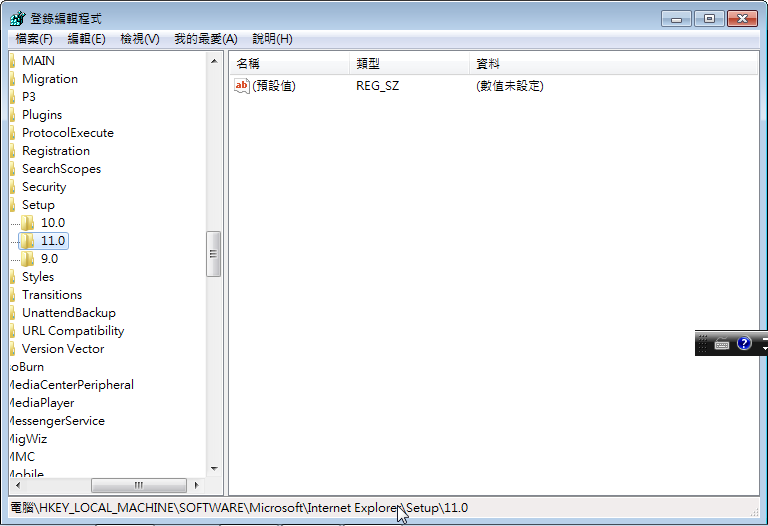
設定的地方是在 HKEY_LOCAL_MACHINESOFTWAREMicrosoftInternet ExplorerSetup
以 Internet Explorer 11 為例,阻擋時機碼 DoNotAllowIE11 的值為 1
                                               

如果不阻擋時,就刪除 DoNotAllowIE11

阻擋 Internet Explorer 升級到 9 /10 / 11:
Block_Internet_Explorer_BlockerToolkit.reg 登錄檔

允許 Internet Explorer 升級到 9 /10 / 11:
UnBlock_Internet_Explorer_BlockerToolkit.reg 登錄檔

下載之後,使用 7zip 解壓縮後,再行匯入即可!

整合 Windows 7 SP1 x86 / x64 IE8 光碟

這個版本和 整合 Windows 7 SP1 x86 / x64 光碟 在內容上幾乎是一樣的,差別在於這一個版本的 Internet Explorer 版本是 8,而不是最新版本的 11,而且安裝完成之後,啟用 Internet Explorer 9 /10 / 11 BlockerToolkit,讓 Windows Update 自動更新時,不會升級到 Internet Explorer 的最新版本。

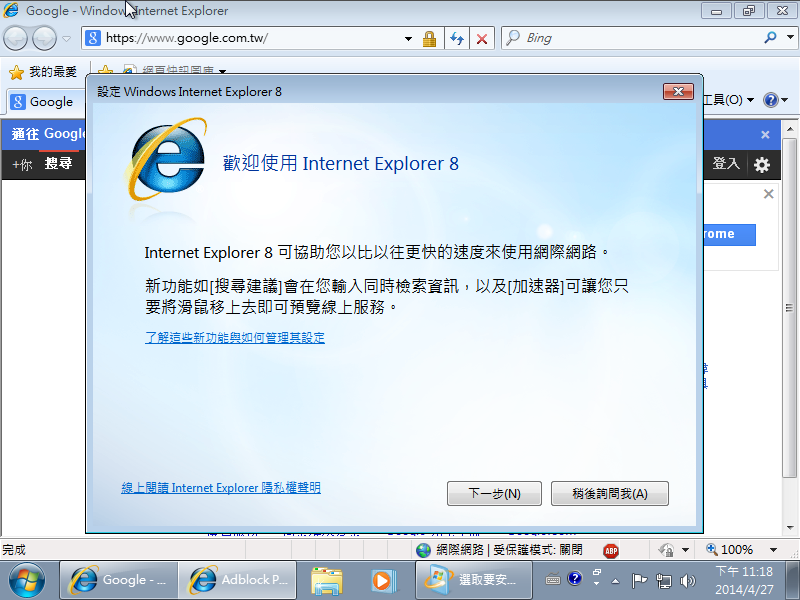
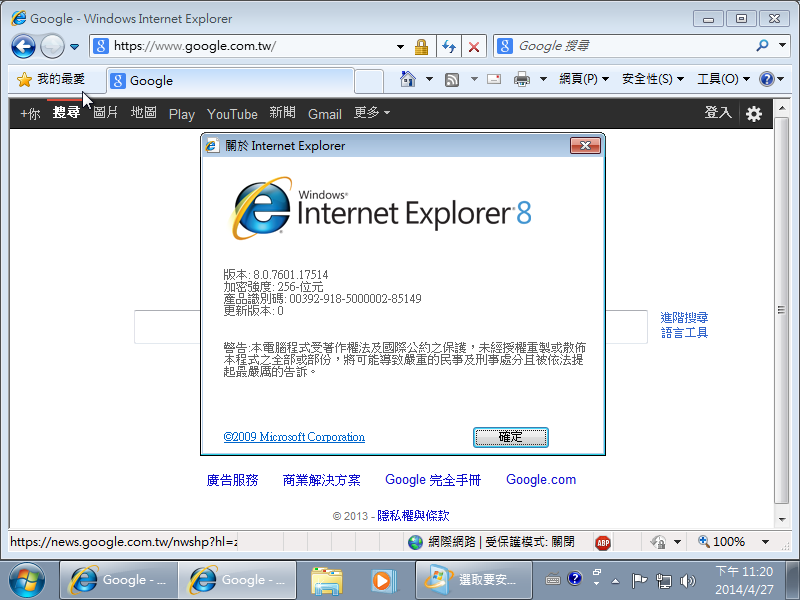
安裝完成之後是 Internet Explorer 8

Internet Explorer 8 的版本

在 Windows Update 中不會有 Internet Explorer 9 / 10 / 11 的更新

整合 Windows 7 SP1 x86 / x64 光碟

☆這一篇文章已經超過留言的最大篇數

為了安裝 Windows 7 可以更加方便快速,所以自己動手製作了 x86 / x64 的安裝光碟。
主要是更新部分:
1. Windows 7 SP1 之後的 Windows Update 重要及選用的更新 (到 2014-04-27 止)
    x86 159 個更新
    x64 162 個更新
2. Internet Explorer 升級到 11
3. 預設安裝一些常用的程式:
    Easy 7-Zip
    Adobe Flash Player 最新版 for IE
    Adobe PDF Reader XI(11) 並升級到 11.06 版
    Oracle Java Runtime Environment 7u55
    ClassicShell 4.1.0
    .NET Framework 4.5.1
    Silverlight
    Adblock Plus for Internet Explorer
4. 一些 Windows 7 登錄檔的優化
5. 整合 KMS 設定檔到桌面

製作參考網站方式:
Win7無人值守光碟製作三部曲之二:整合修補檔 @ 無病呻吟 :: 隨意窩 Xuite日誌
Win7無人值守光碟製作三部曲之三:製作回應檔 @ 無病呻吟 :: 隨意窩 Xuite日誌
實戰Win7無人值守光碟製作 @ 無病呻吟 :: 隨意窩 Xuite日誌
頭城國小資訊組 | 整合 Windows 7 Enterprise SP1 x86 & x64 & IE11 & 最新更新 [@more@]製作完成的安裝畫面:
1. 選擇 下一步 安裝

2. 選擇 立即安裝

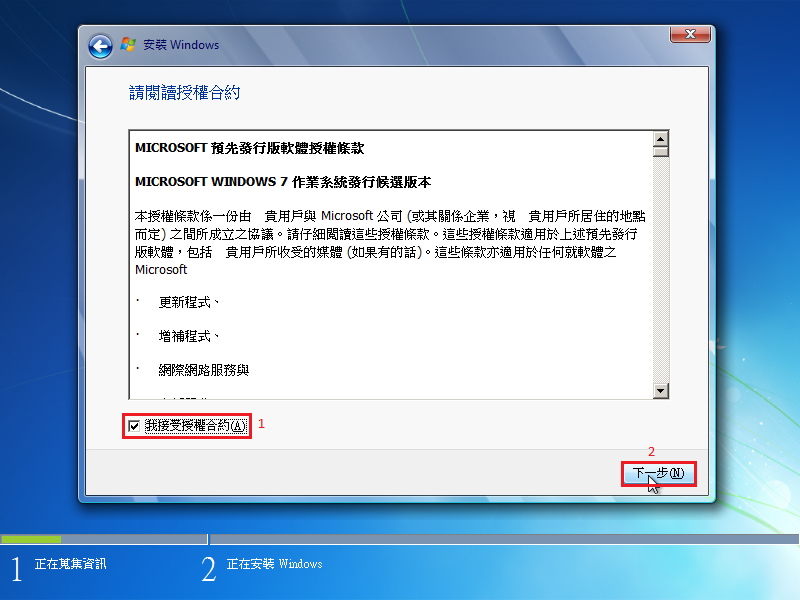
3. 選擇 我接受授權合約 ,並按 下一步

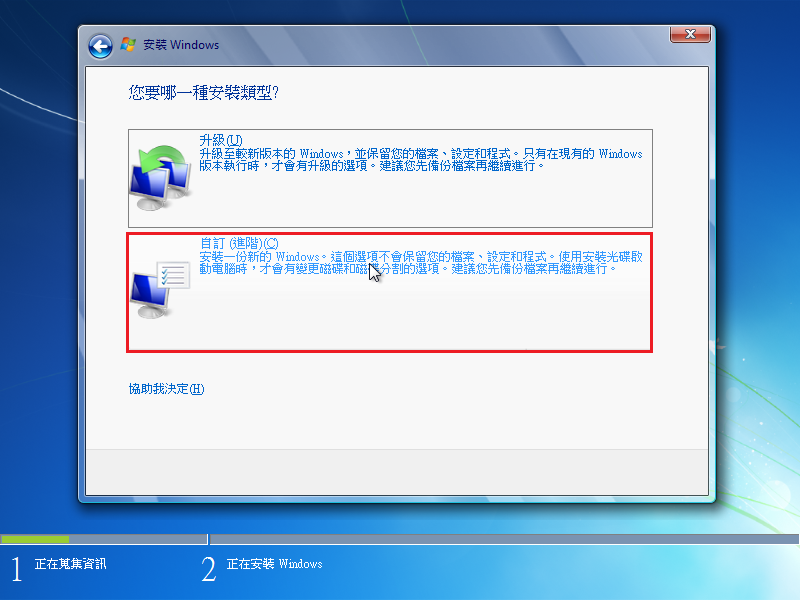
4. 選擇 自訂 安裝

5. 硬碟分割 畫面,按 下一步

6. 安裝 Adobe PDF Reader 畫面

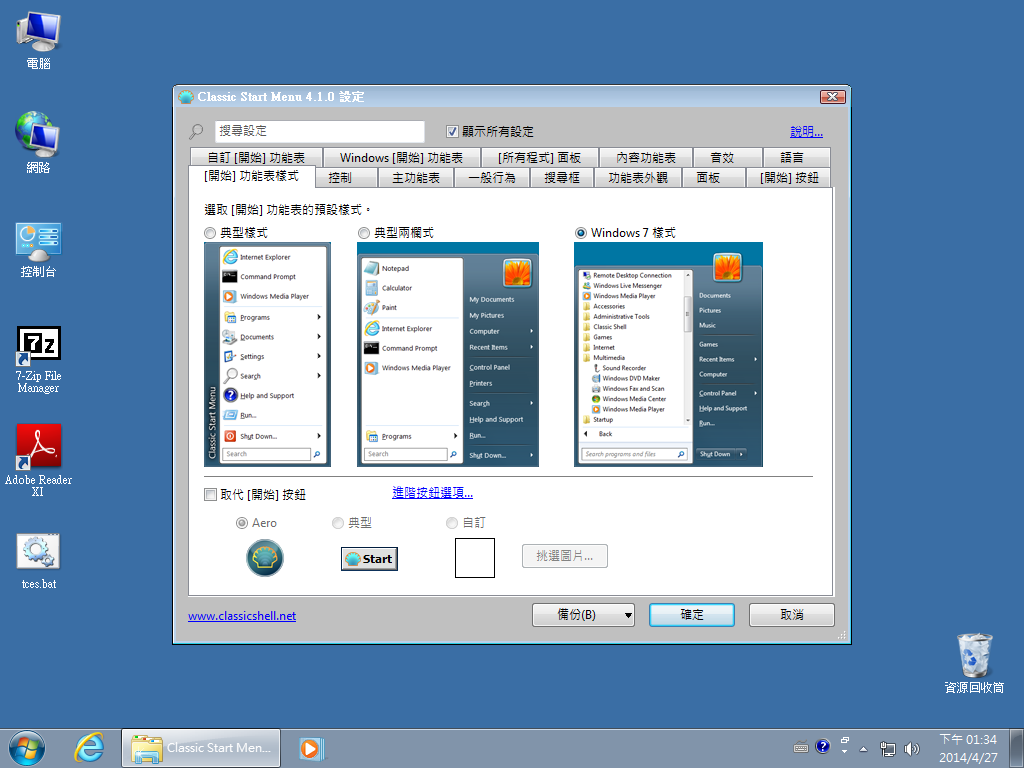
7. ClassicShell 設定畫面

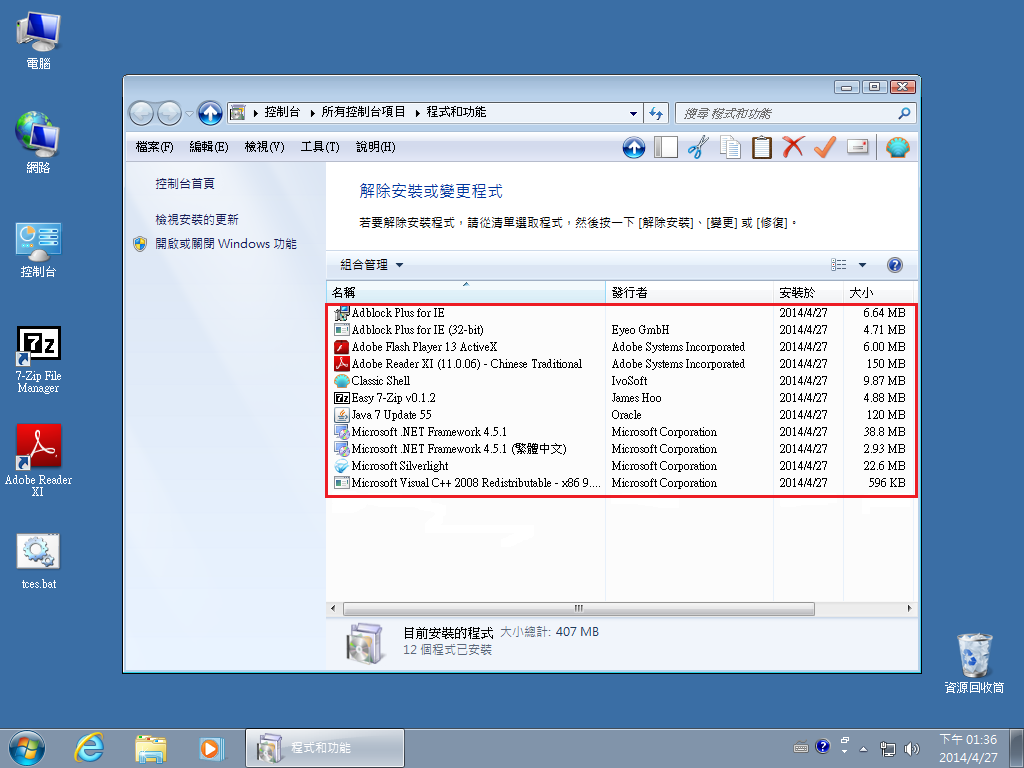
8. 預設安裝的軟體

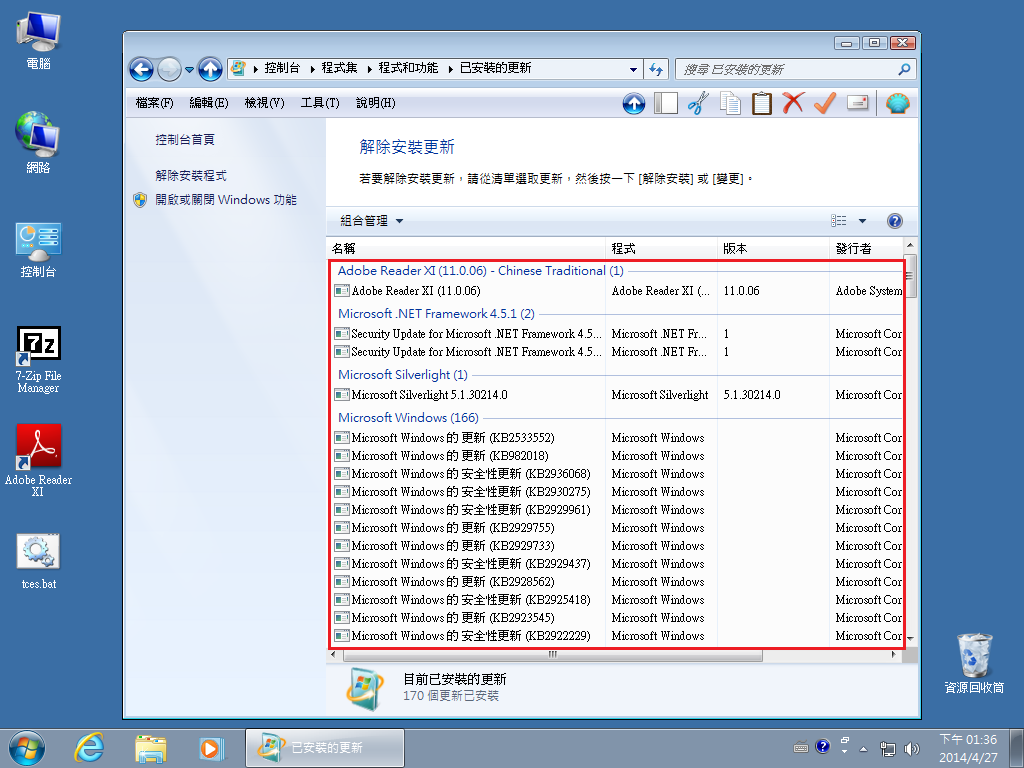
9. 預設安裝的更新

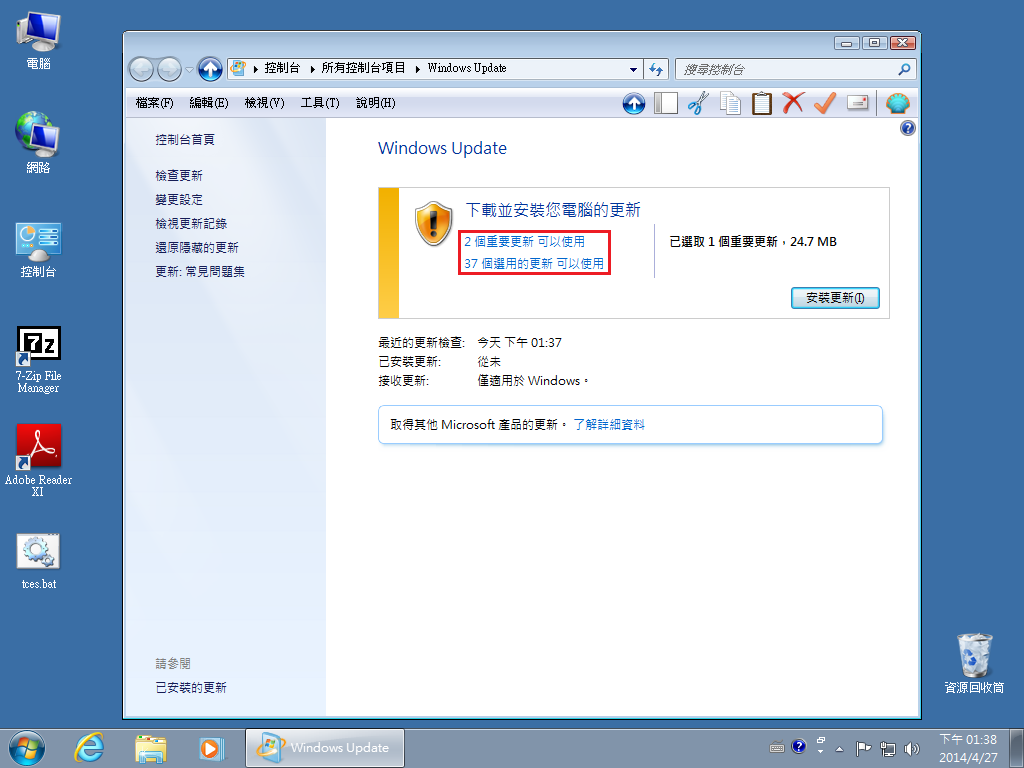
10. 安裝完成之後可以更新的修正檔

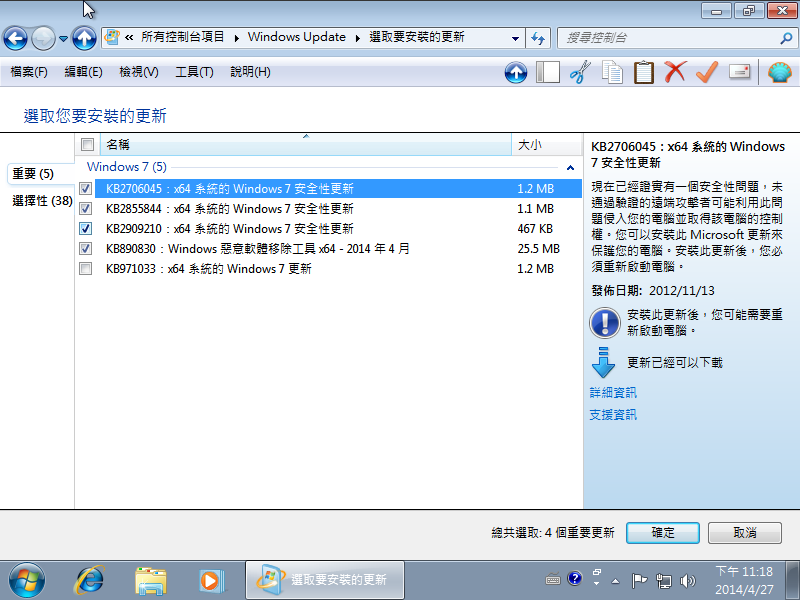
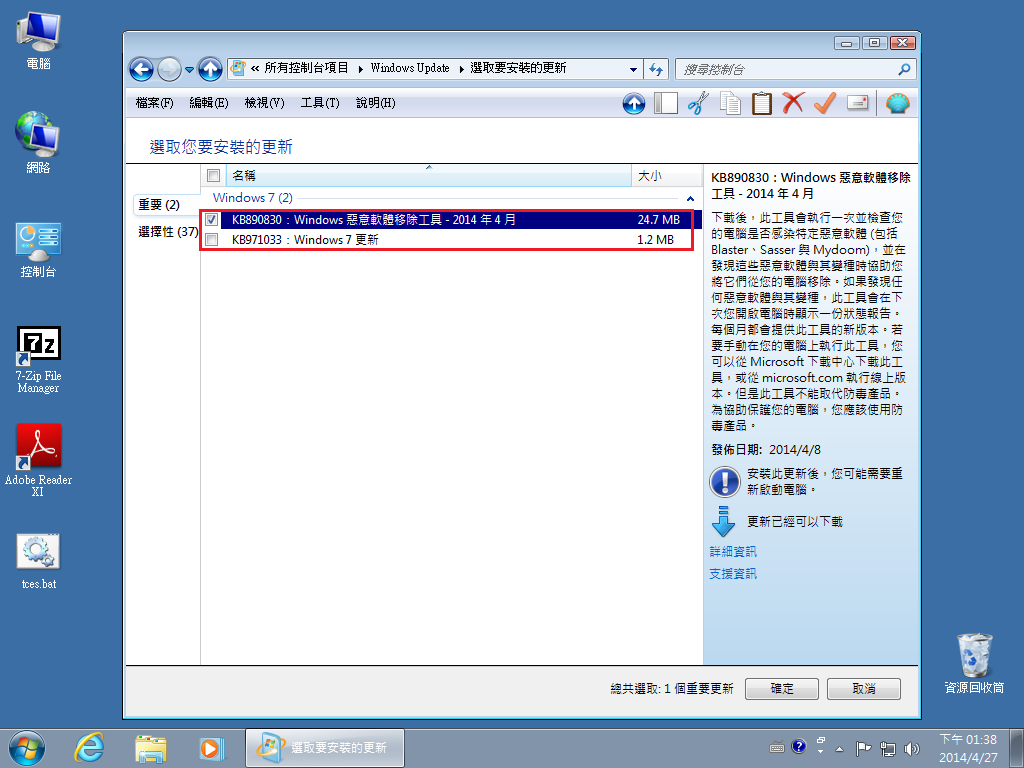
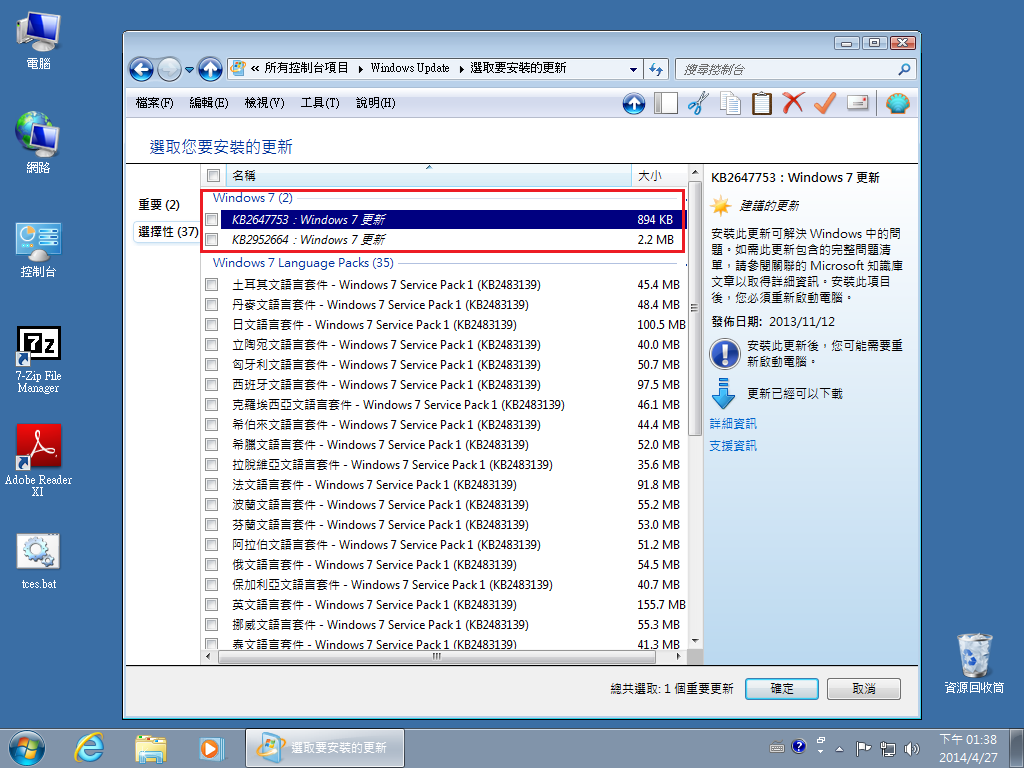
11. 2 個重要更新

12. 2 個選用的更新

Internet Explorer BlockerToolkit

學校行政人員在使用 Windows 7 時,常常會因為 Internet Explorer 的版本升級之後,造成一些無法使用的困擾,雖然常用的公文系統在 IE 10/11 上都可以解決,但仍有些系統(文書/人事/主計…)等的系統,可能還是無法使用新版本的 IE。
因為一些資安的問題,所以都會請使用者要常常做 Windows Update,甚至開啟自動更新,但這會造成 Internet Explorer 自動升級到最新版本,如果要使用者在安裝更新時,略過新版本的 IE,對使用者來說,要有些困擾,就時候就可以使用 Internet Explorer BlockerToolkit 來阻擋 Internet Explorer 自動升級到最新版本。
Internet Explorer 9 BlockerToolkit:下載網址
Internet Explorer 10 BlockerToolkit: 下載網址
Internet Explorer 11 BlockerToolkit: 下載網址
[@more@]這裡以 Windows 7 x64 SP1 為例,將下載下來的 Internet Explorer 9/10/11 BlockerToolkit 先行解壓縮
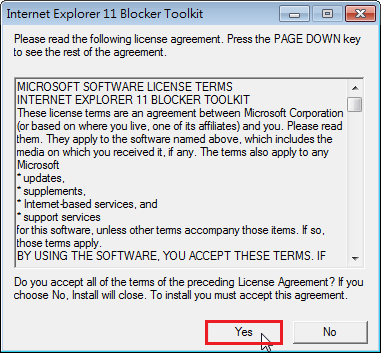
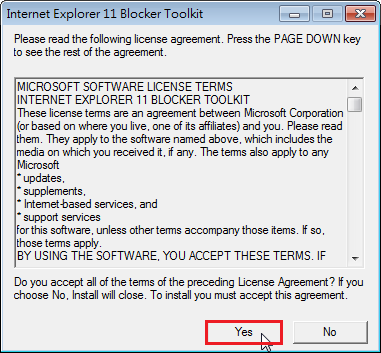
1. 這裡以 Internet Explorer 11 BlockerToolkit 為例,按二下程式,出現授權協定,請按下方的 Yes
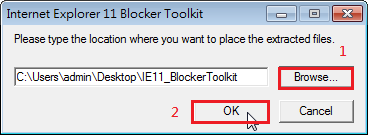
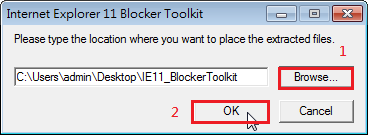
2. 選擇要解壓縮的路徑,然後按 OK
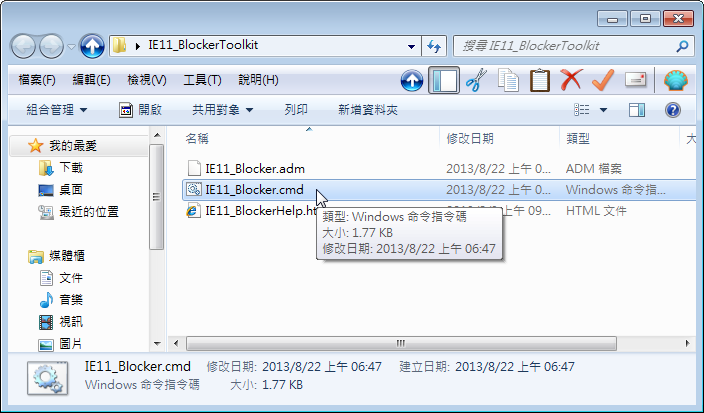
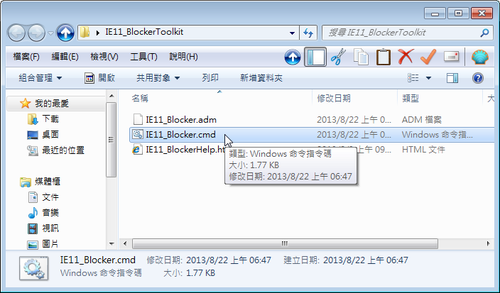
3. 解壓縮完成的目錄
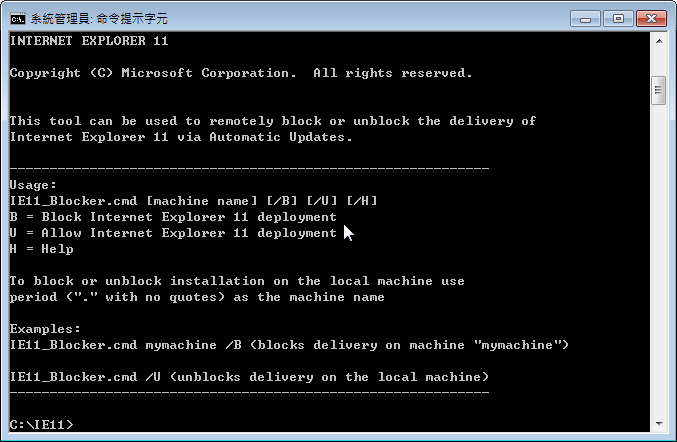
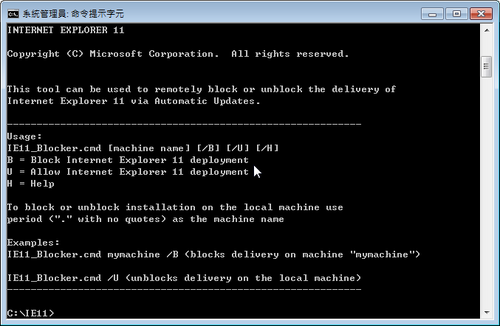
4. 程式執行的參數
     /B  是阻擋系統升級到 Internet Explorer 11
     /U  是同意系統可以升級到 Internet Explorer 11
     /H  顯示 Help 使用參數
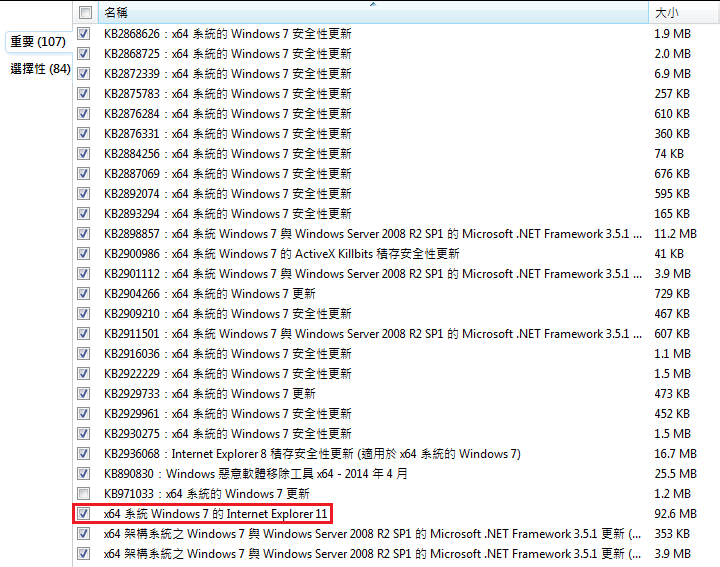
5. 原本的 Windows 7 x64 SP1 安裝完成是 Internet Explorer 8,所以有 Internet Explorer 11 可以升級
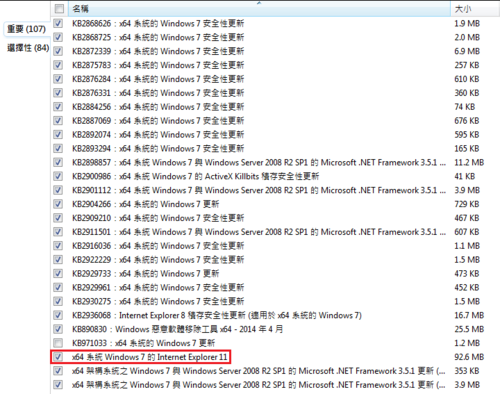
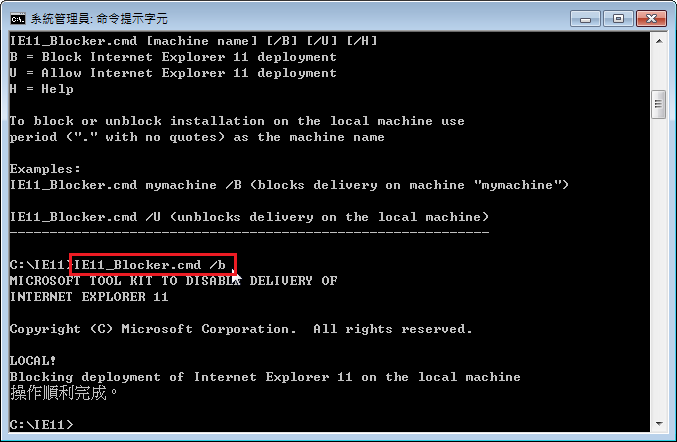
6. 以系統管理者身份執行命令提示字元,切換到 Internet Explorer BlockerToolkit 目錄,執行
c:IE11>IE11_Blocker.cmd /b
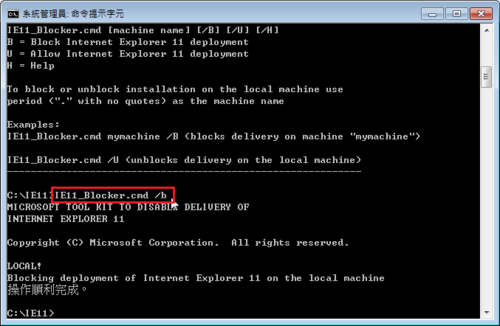
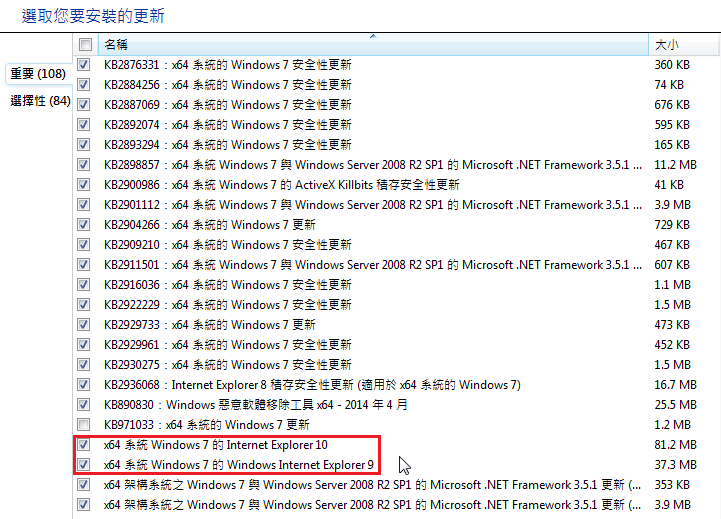
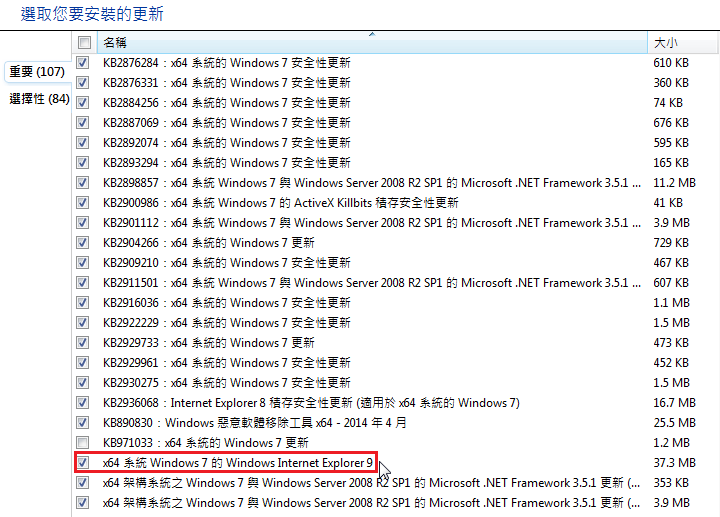
這時候,Internet Explorer 11 就會不在更新清單之中,取而代之的是 Internet Explorer 9/10
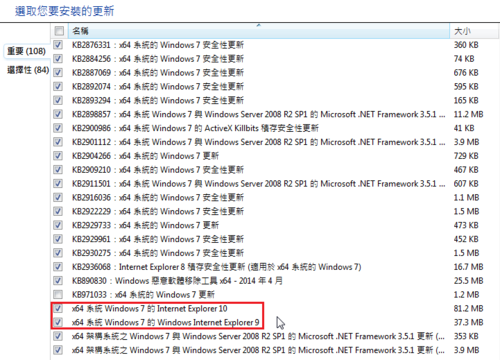
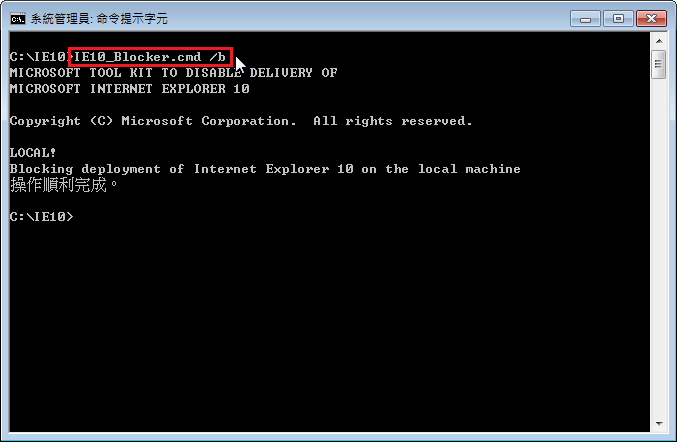
執行 Internet Explorer10 BlockerToolkit
c:IE10>IE10_Blocker.cmd /b
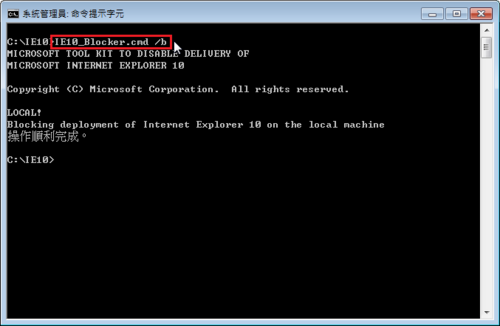
這時候,Internet Explorer 11/10 就會不在更新清單之中,剩下的是 Internet Explorer 9
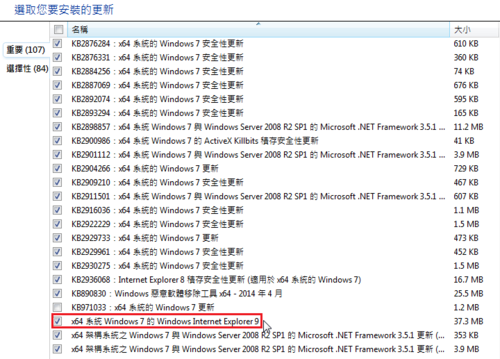
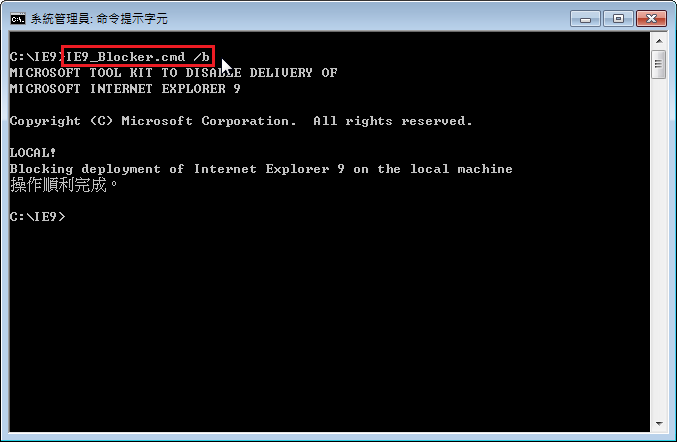
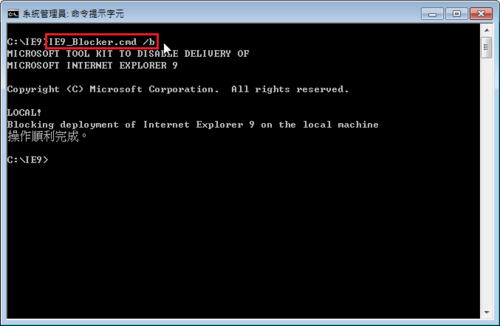
執行 Internet Explorer 9 BlockerToolkit
c:IE9>IE9_Blocker.cmd /b
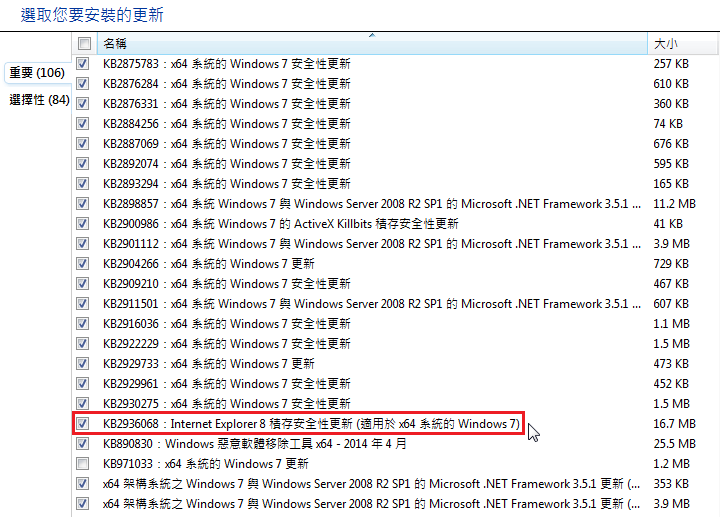
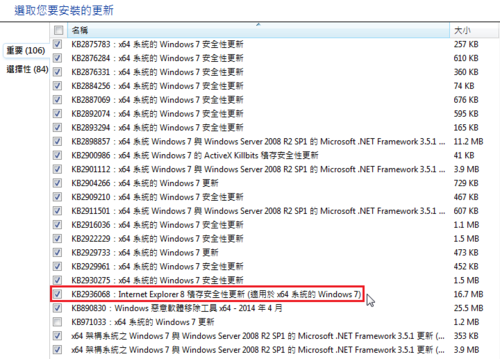
更新清單中就只剩下 Internet Explorer 8 的更新了!
下一步就可以考慮把 Internet Explorer BlockerToolkit 加入到安裝光碟,讓 Windows 7 SP1 安裝完成時即完成設定。

將 install.esd 轉換成 install.wim

製作好的 ESD 安裝映像檔如果要修改的話,就要轉換成 WIM 檔,才能進行掛載及修改。
以下的做法參考:
esd 及 wim 轉換問題

底下是進行的步驟:
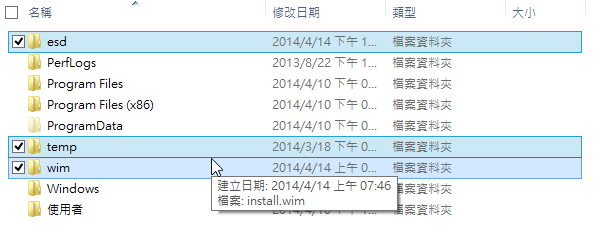
1. 首先先建立三個子目錄,這裡以 C 磁碟機為例

esd 目錄是放置 install.esd
temp 目錄是轉換時的暫存目錄
wim 目錄是放置轉換完成的 install.wim [@more@]
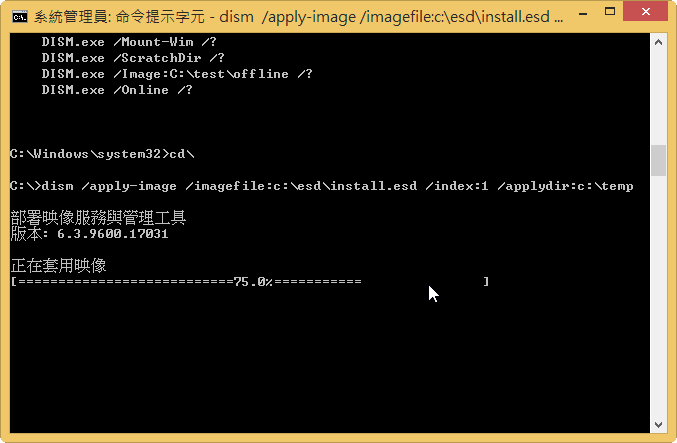
2. 將 install.esd 檔案的映像套用到指定的目錄,不過要特別注意的是 dism 的版本不能太舊,要 6.3.9600.16610 以上版本
目前我用的版本是 6.3.9600.17031 就是 Windows 8.1 Update 1 的版本

dism /apply-image /imagefile:c:esdinstall.esd /index:1 /applydir:c:temp

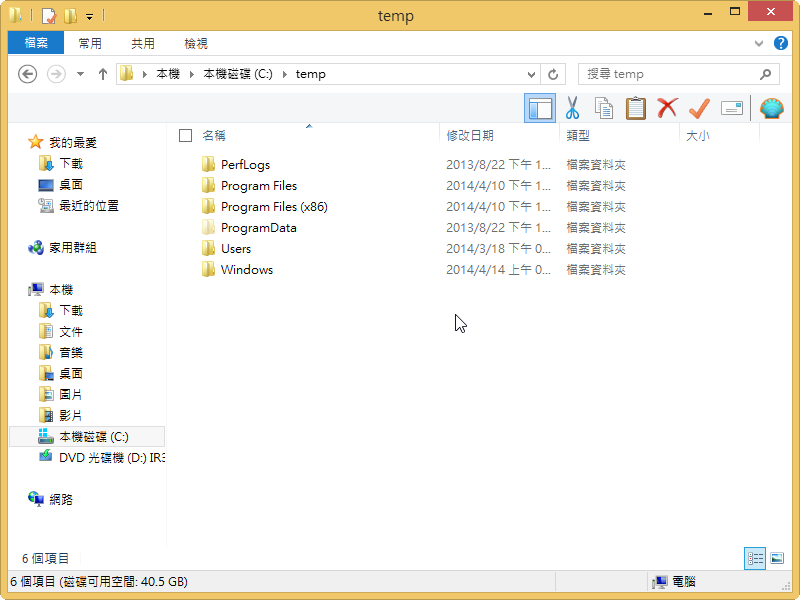
3. 檢查 temp 的目錄,可以發現目錄中的檔案及目錄,就是 install.esd 中的內容

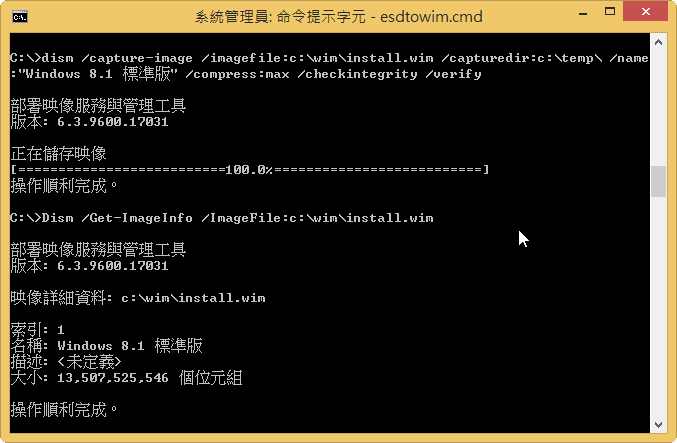
5.  將 temp 目錄中的檔案及目錄擷取成 install.wim
dism /capture-image /imagefile:c:wiminstall.wim /capturedir:c:temp /name:”Windows 8.1 標準版” /compress:max /checkintegrity /verify

執行完成後,可以執行下面指令來進行檢查,是否有轉換成功
Dism /Get-ImageInfo /ImageFile:c:wiminstall.wim

將 install.wim 轉換成 install.esd

ESD 格式是 Windows 8 / 8.1 新推出的一種高度壓縮的映射檔案格式,可以把 WIM 安裝映像檔壓縮的更小,而且沒有經過特別處理,會無法被掛載及更新,但在 ISO 光碟中還是可以正常進行系統安裝工作。
有關 ESD 格式的說明,可以參考下面網頁:
縮減一鍵重設映像
[@more@]底下是轉換方式:
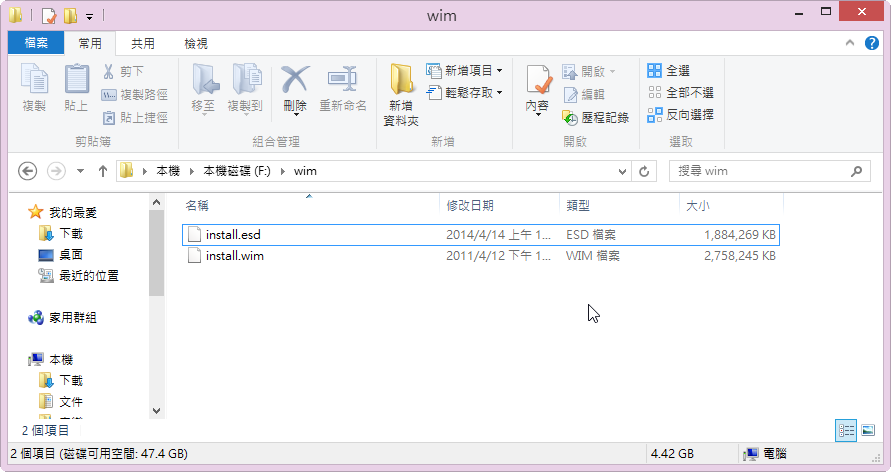
1. 先將光碟 ISO 中 sources 目錄下的 install.wim 先複製到一個目錄
    這裡以複製到 F: 磁碟的 wim 目錄為例

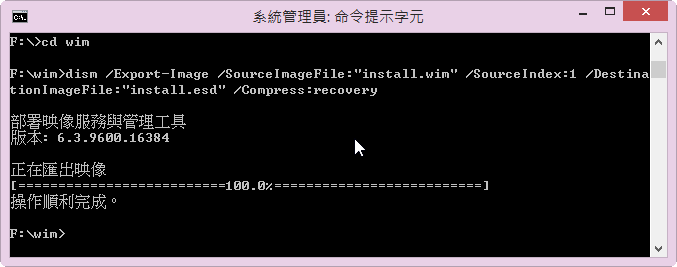
2. 以系統管理者身份執行 命令提示字元,並執行
dism /Export-Image /SourceImageFile:”f:wiminstall.wim” /SourceIndex:1 /DestinationImageFile:”f:wiminstall.esd” /Compress:recovery

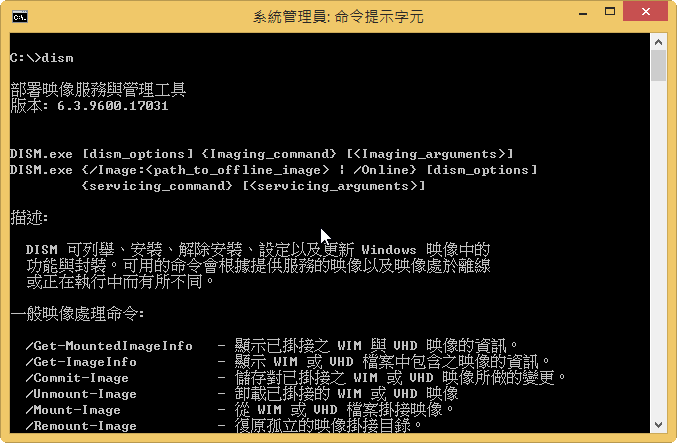
關於 dism 的語法,執行 dism 即可以列出詳細的語法

或參閱微軟網站:
DISM 映像管理命令列選項

3. 轉換成功後,
本來
install.wim 是 2.62G
轉換完成後
install.esd 是 1.79G