nVIDIA GeForce Driver 340.52 驅動程式

nVIDIA GeForce Driver 340.52
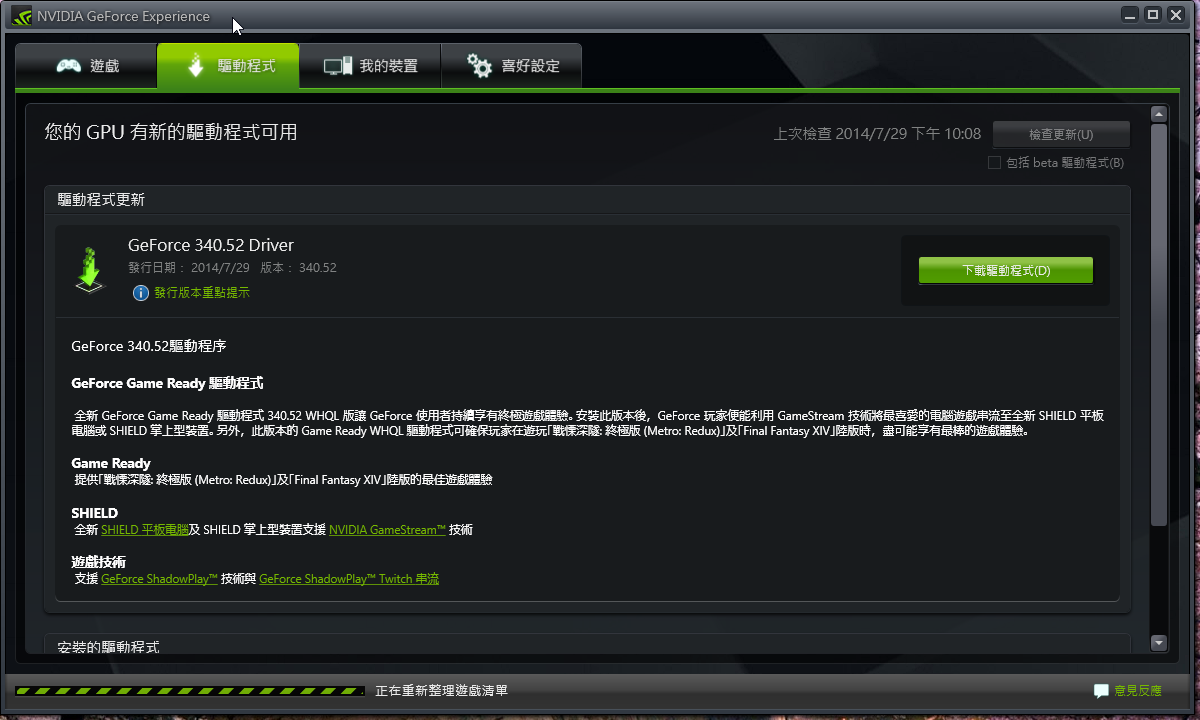
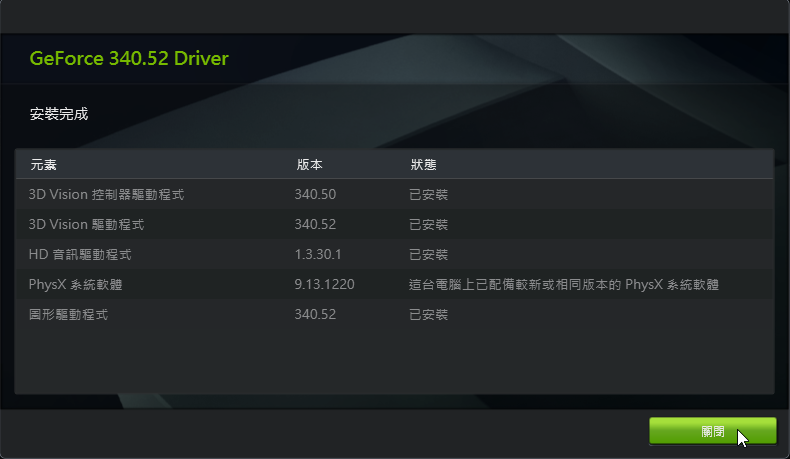
32Bit:
http://tw.download.nvidia.com/Windows/340.52/340.52-desktop-win8-win7-winvista-32bit-international-whql.exe
64Bit:
http://tw.download.nvidia.com/Windows/340.52/340.52-desktop-win8-win7-winvista-64bit-international-whql.exe

NoteBook
32Bit:
http://tw.download.nvidia.com/Windows/340.52/340.52-notebook-win8-win7-32bit-international-whql.exe
64Bit:
http://tw.download.nvidia.com/Windows/340.52/340.52-notebook-win8-win7-64bit-international-whql.exe
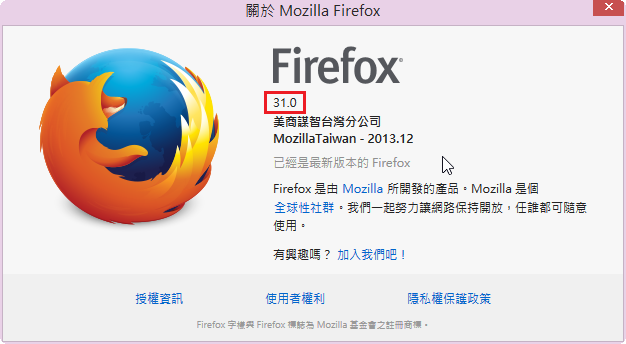
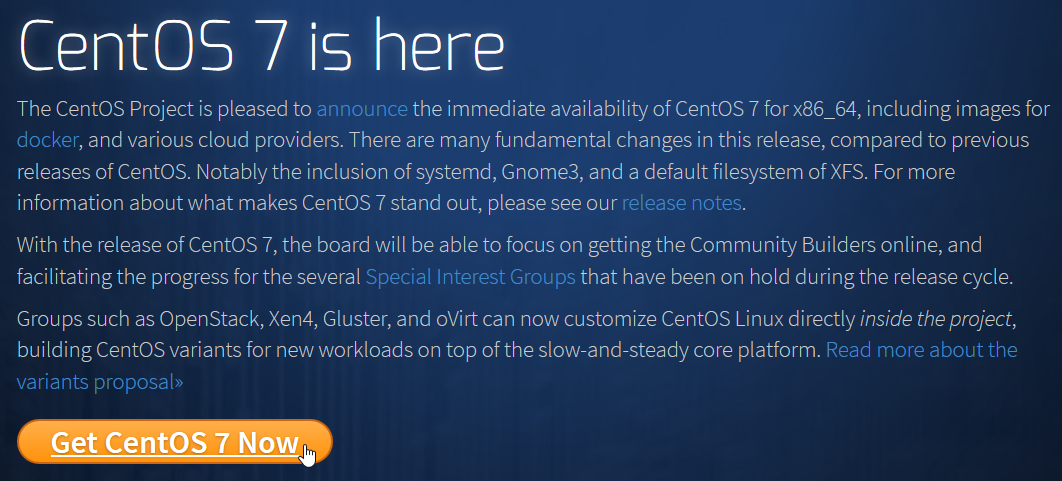
CentOS 7.0.1406 版

CentOS 7.0.1406 版,目前只有 x86_64 版本
CentOS 官方網站:https://www.centos.org/
更多關於 CentOS 7 的介紹:CentOS 7 首个版本发布——Docker强势来袭
[@more@]
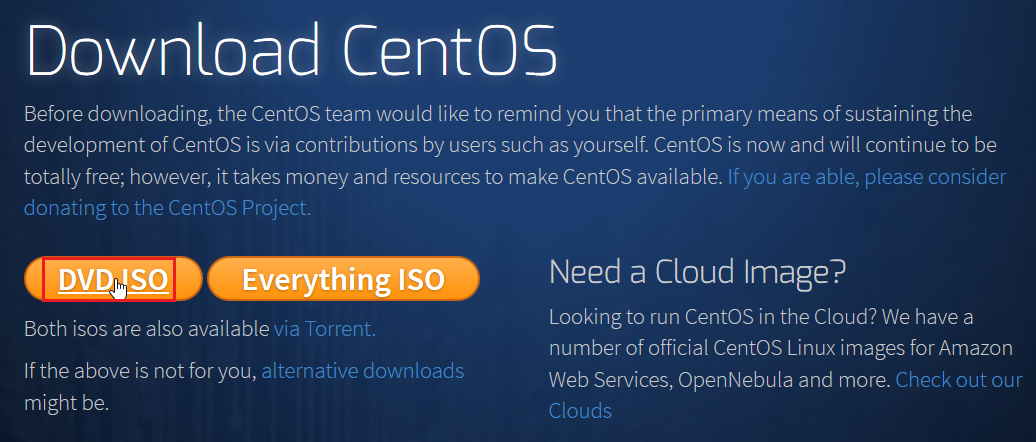
點選 DVD ISO

下載網站
http://ftp.nsysu.edu.tw/CentOS/7.0.1406/isos/x86_64/CentOS-7.0-1406-x86_64-DVD.iso
http://ftp.tc.edu.tw/Linux/CentOS/7.0.1406/isos/x86_64/CentOS-7.0-1406-x86_64-DVD.iso
http://mirror01.idc.hinet.net/CentOS/7.0.1406/isos/x86_64/CentOS-7.0-1406-x86_64-DVD.iso
http://ftp.isu.edu.tw/pub/Linux/CentOS/7.0.1406/isos/x86_64/CentOS-7.0-1406-x86_64-DVD.iso
http://ftp.stu.edu.tw/Linux/CentOS/7.0.1406/isos/x86_64/CentOS-7.0-1406-x86_64-DVD.iso
http://ftp.stust.edu.tw/pub/Linux/CentOS/7.0.1406/isos/x86_64/CentOS-7.0-1406-x86_64-DVD.iso

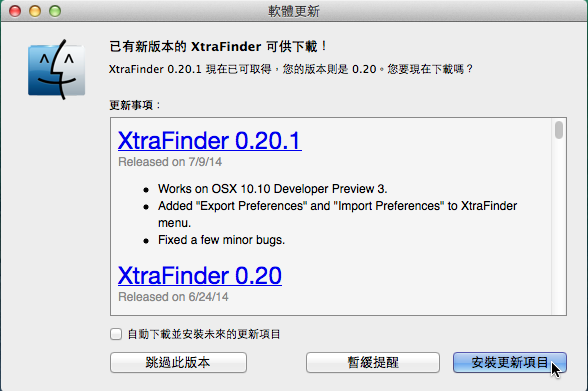
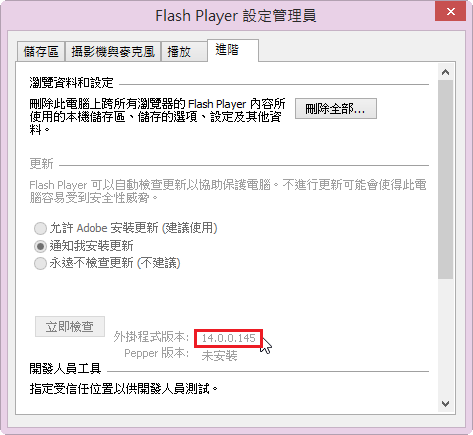
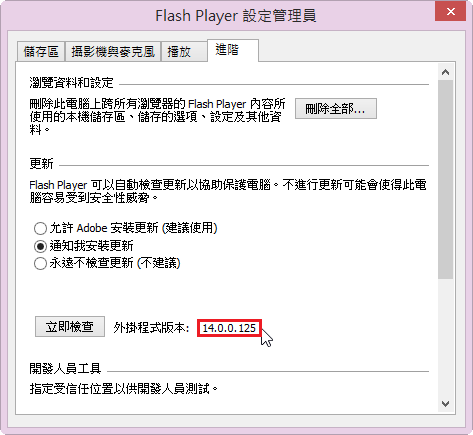
Adobe Flash Player 14.0.0.145

Adobe Flash Player 更新到 14.0.0.145 版

Windows 平台
Internet Explorer:
http://download.macromedia.com/pub/flashplayer/current/support/install_flash_player_ax.exe
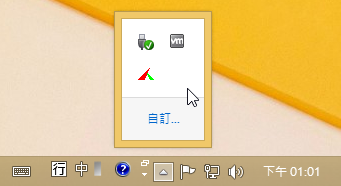
Windows 8  8.1 版則要從 Windows Update 中更新

All Other Browsers(Firefox,Safari & Opera):
http://download.macromedia.com/pub/flashplayer/current/support/install_flash_player.exe
Mac 版本:
http://download.macromedia.com/pub/flashplayer/current/support/install_flash_player_osx.dmg

Toolwiz Time Freeze 2014 介面中文化
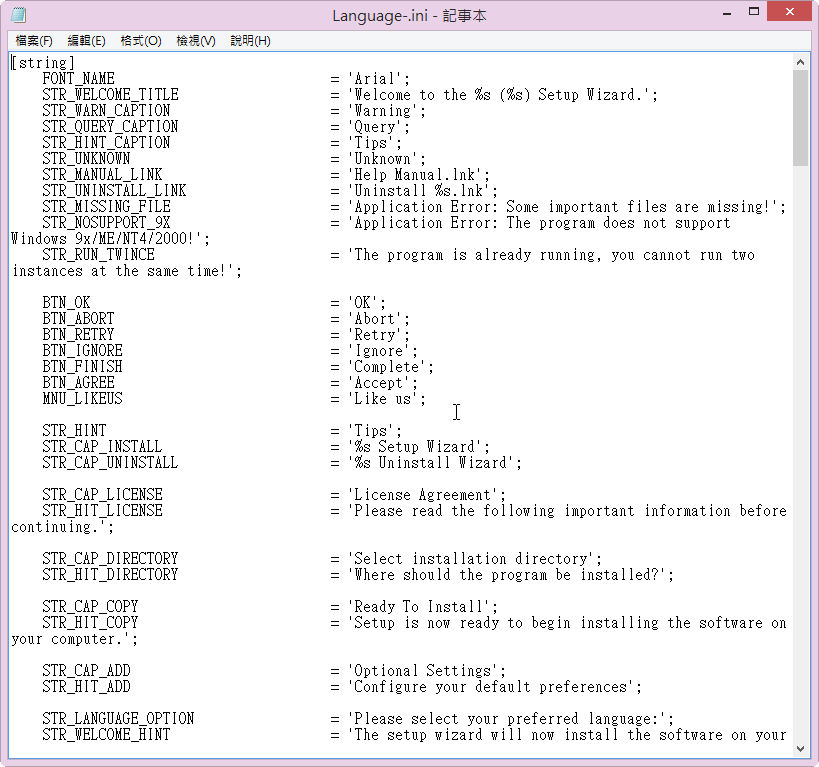
Toolwiz Time Freeze 2014 是一套免費的還原軟體,不過操作介面是英文的,對英文不太熟悉的我,也看的很吃力,後來發現它的語言檔 Language.ini,是純文字檔,項目也不多,所以就大概翻譯了一下。

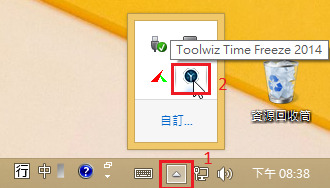
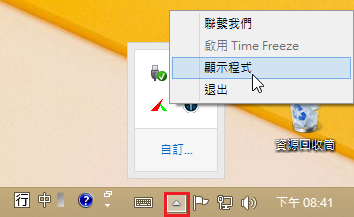
[@more@]1. 選擇隱藏圖示中的 Toolwiz Time Freeze 2014

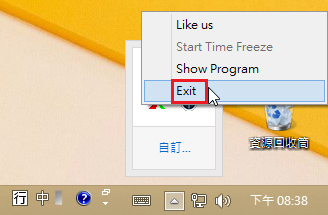
2. 在圖示上按滑鼠右鍵,選擇 Exit

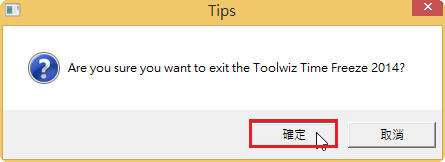
3. 確認要退出

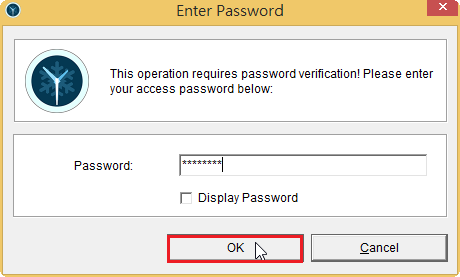
4. 如果有設定密碼,則要輸入正確密碼後,才能退出

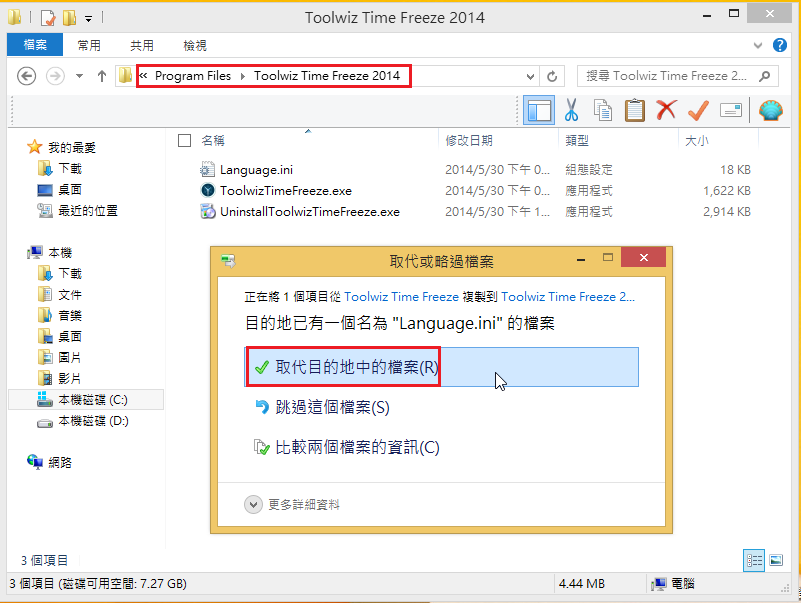
5. 將下載下來的 Language.ini 的 7-zip 壓縮檔解壓縮後,複製到 C:Program FilesToolwiz Time Freeze 2014 目錄之下,並覆蓋原檔
不過還是建議先備份原檔,免得覺得我翻譯的很差,看不下去。

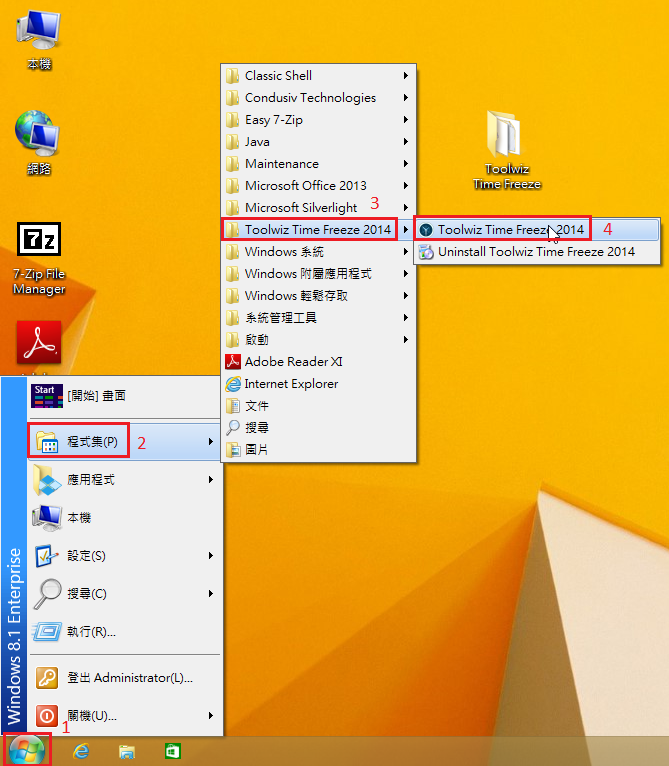
6. 重新執行 Toolwiz Time Freeze 2014

7. 成果

免費的還原軟體 Toolwiz Time Freeze 2014

Toolwiz Time Freeze 2014 也是一套免費的即時還原軟體,功能比 Reboot Restore Rx 2.0 更加強大,支援密碼保護 / 排除的資料夾或檔案,系統也更加的隱密,不會隨便被發現並關閉。
Toolwiz Time Freeze 2014 官方網站:http://www.toolwiz.com/products/toolwiz-time-freeze/

[@more@]1. 安裝過程
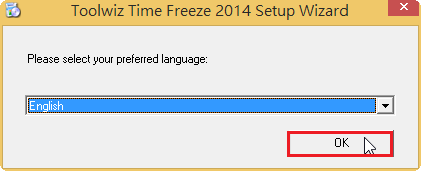
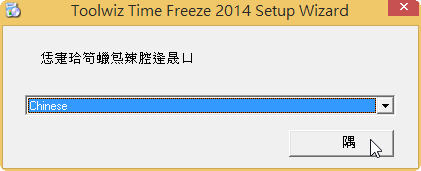
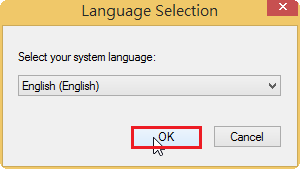
選擇語言,這裡選的是 English(英文),並按 OK 繼續

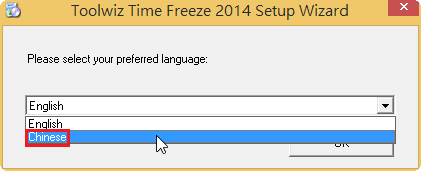
雖然看起來有支援中文

但應該是簡體中文

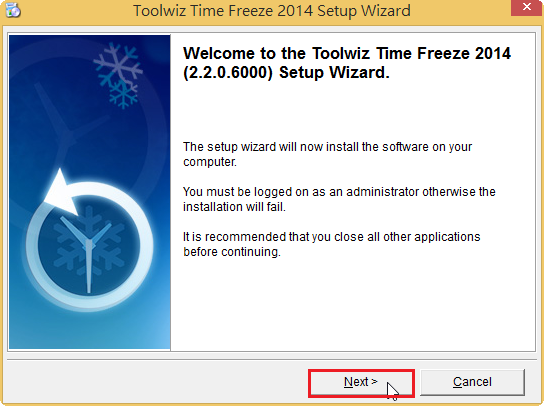
按 Next 繼續安裝

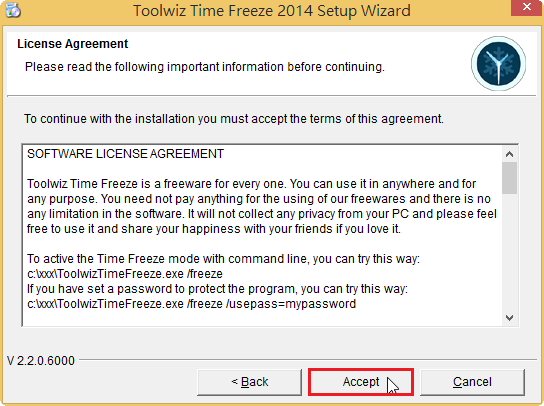
軟體授權,請按 Accept 繼續

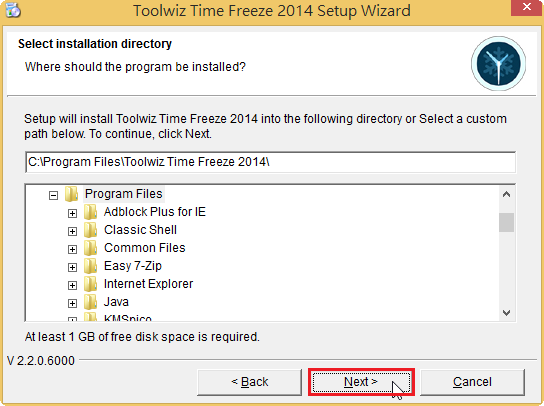
選擇安裝的路徑,按 Next 繼續

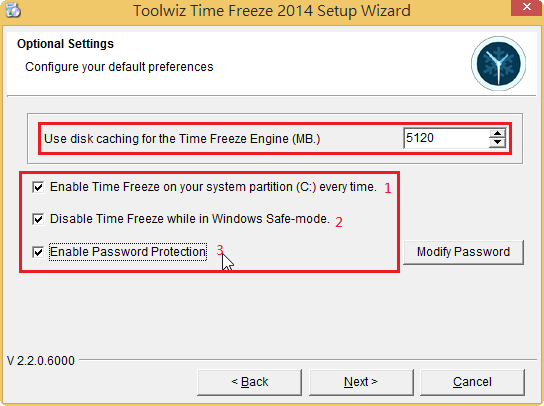
上方是設定 Time Freeze 可以使用的 Cache 容量
1. 是每次開機時都要還原系統分割區 C 磁碟
2. 在 Windows 安全模式時取消 Time Freeze 的功能
3. 設定密碼保護,如果在這裡沒有設定,也可以在安裝完後設定

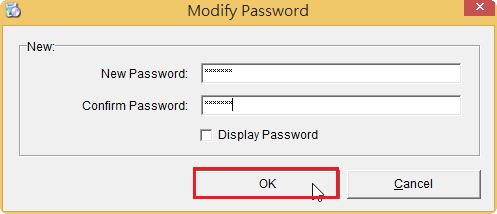
設定密碼,按 OK 繼續

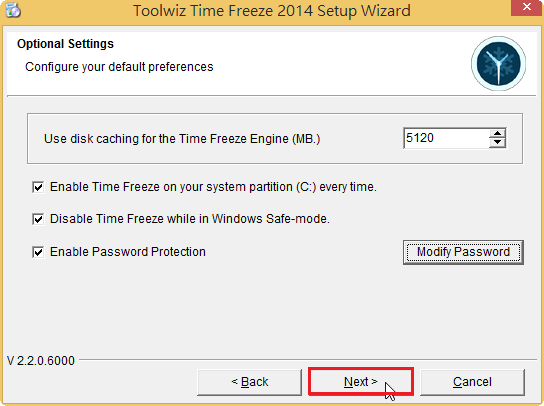
完成選擇性設定,按 Next 繼續

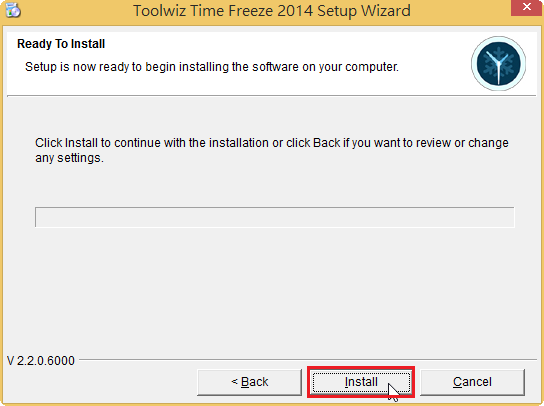
按 Install 繼續安裝

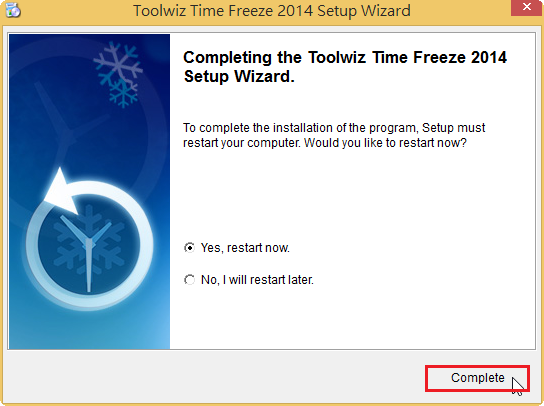
安裝完成

2. 設定 Toolwiz Time Freeze 2014
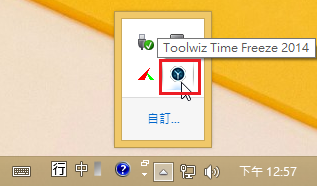
在隱藏圖示中,可以找到 Toolwiz Time Freeze 2014

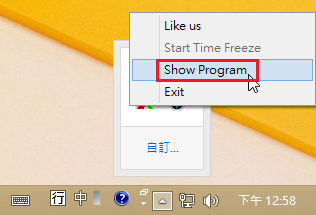
按滑鼠右鍵,選擇 Show Program

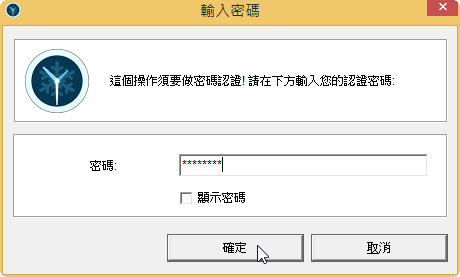
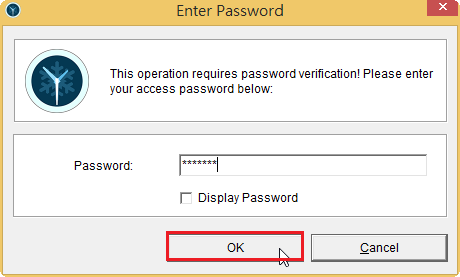
如果在安裝時有設定密碼,這裡就須要輸入密碼

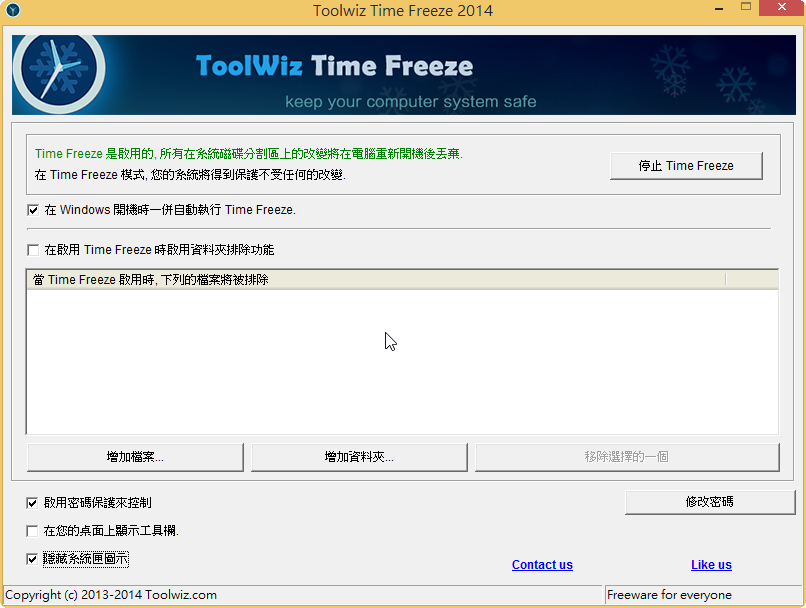
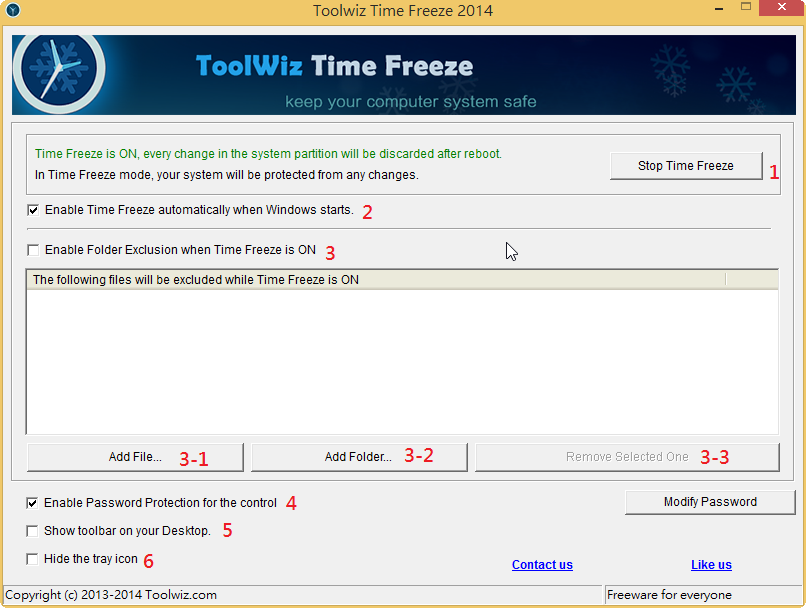
1. 停用 Time Freeze
2. 讓 Time Freeze 在 Windows 開機時一併啟動
3. 選擇不要還原的資料夾或檔案
4. 啟用密碼保護
5. 在桌面上顯示 toolbar
6. 隱藏圖示

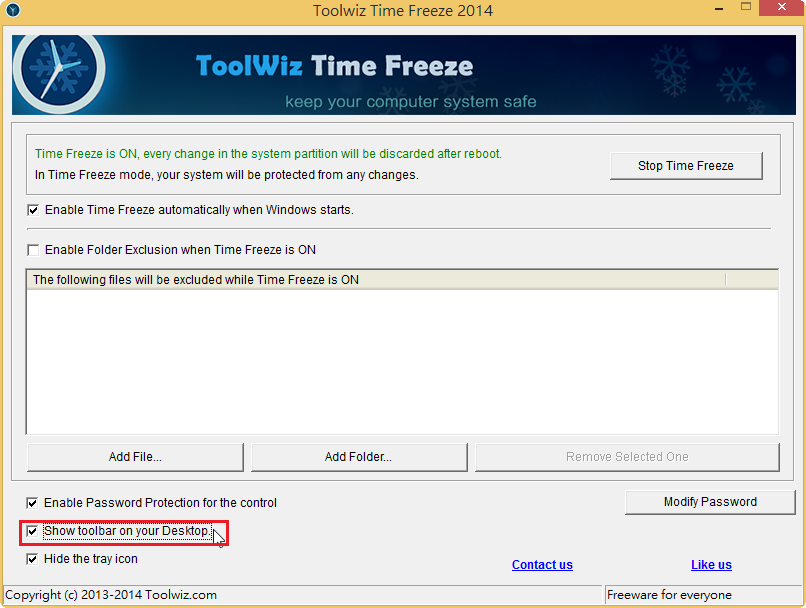
如果勾選 Show toolbar on your Desktop

則在桌面上會出現 Time Freeze On / Off 的提示

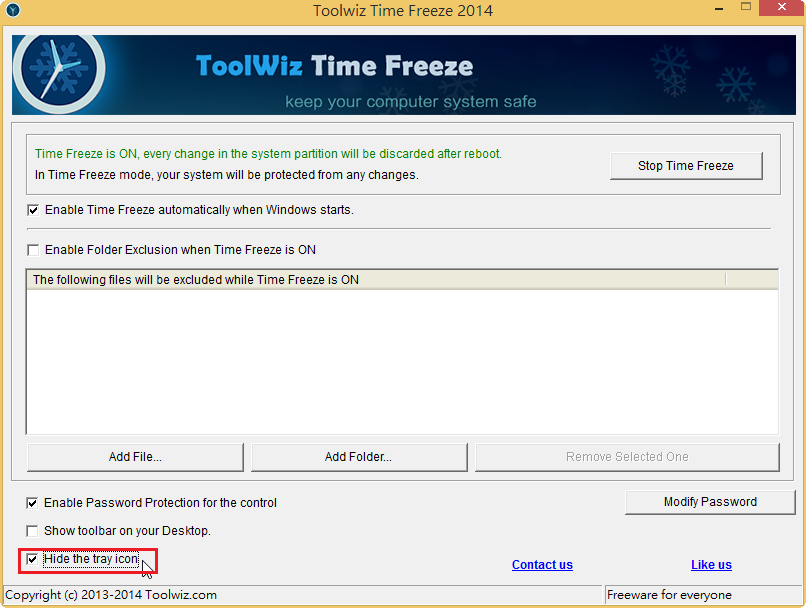
如果勾選 Hide the tray icon

則在隱藏圖示中就會找不到 Time Freeze,如果要設定的話,就要從開始功能表去執行

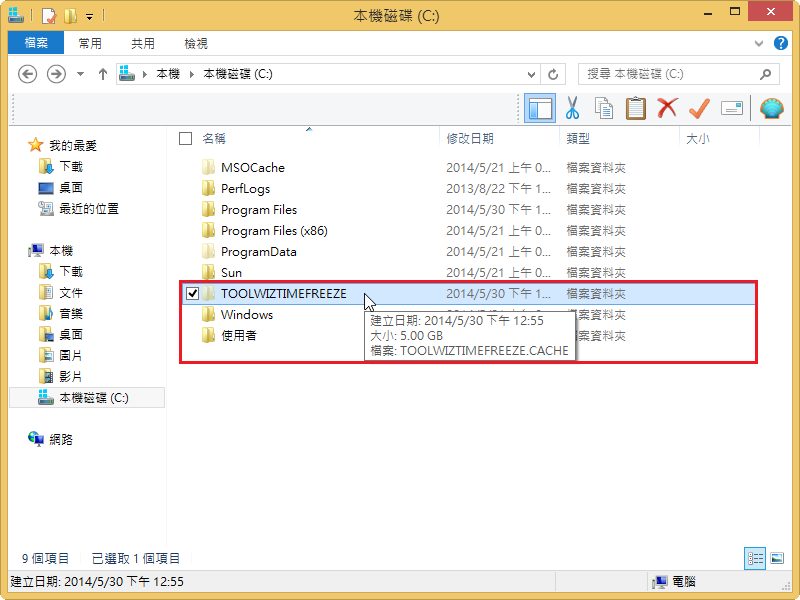
Time Freeze Cache 存放的位置

免費的還原軟體 Reboot Restore Rx 2.0

Reboot Restore Rx 2.0 是一套免費的還原軟體,重新開機之後可以立即還原,支援 Windows 7 / 8 / 8.1 x86 / x64 等常用的 Windows 作業系統。。
Reboot Restore Rx 官方網站:
http://www.horizondatasys.com/en/products_and_solutions.aspx?ProductId=18

[@more@]1. 安裝方式:
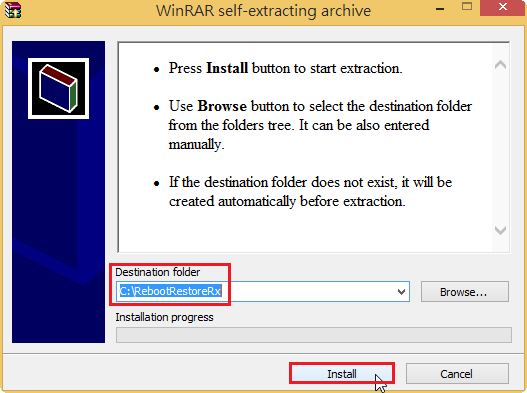
選擇安裝路徑,並按 Install 安裝

選擇安裝的語言

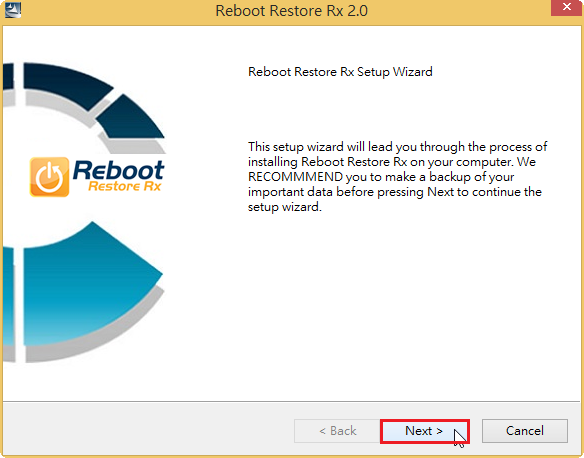
按 Next 繼續安裝

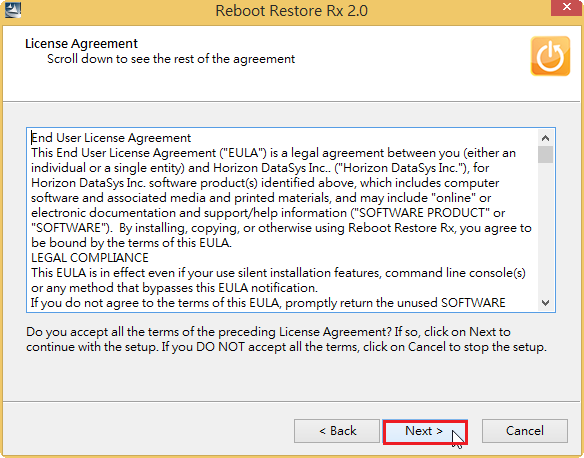
軟體授權合約,按 Next 繼續安裝

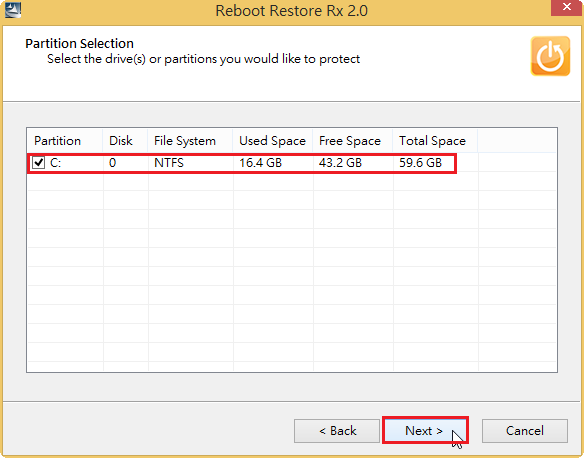
選擇要還原的分割區,如果有個分割區可以一併挑選,按 Next 繼續安裝

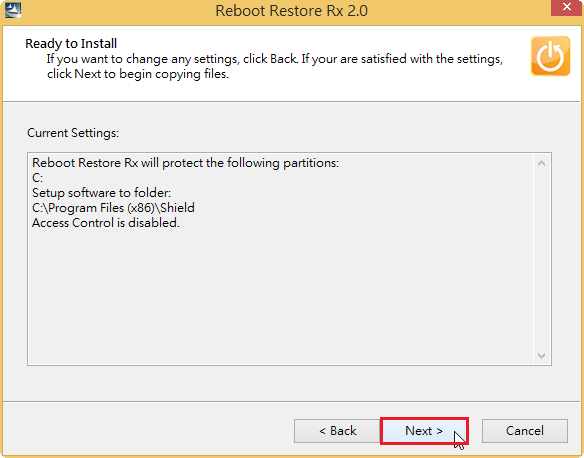
按 Next 繼續安裝

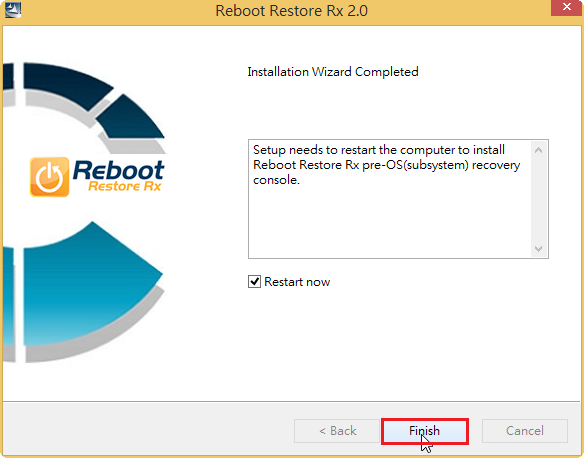
按 Finish 完成安裝,如果有勾選 Restart now,則會重新開機

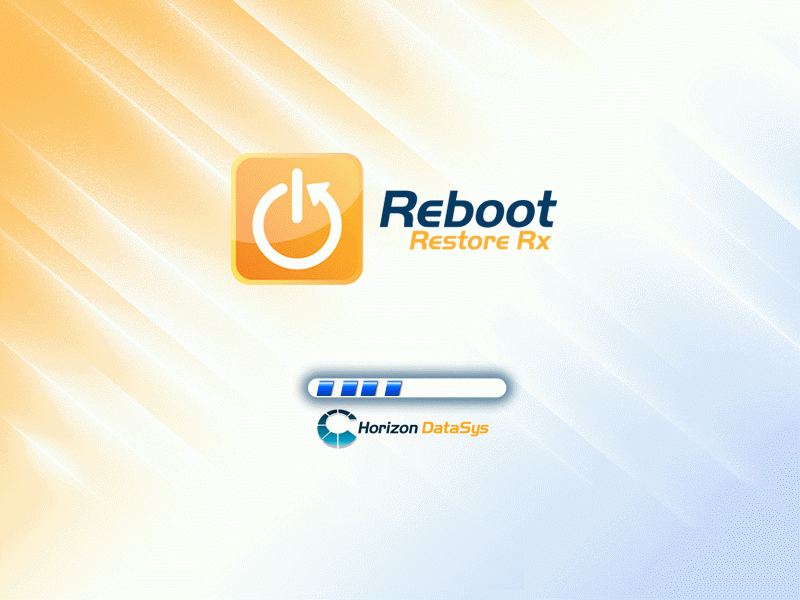
2. 重新開機畫面

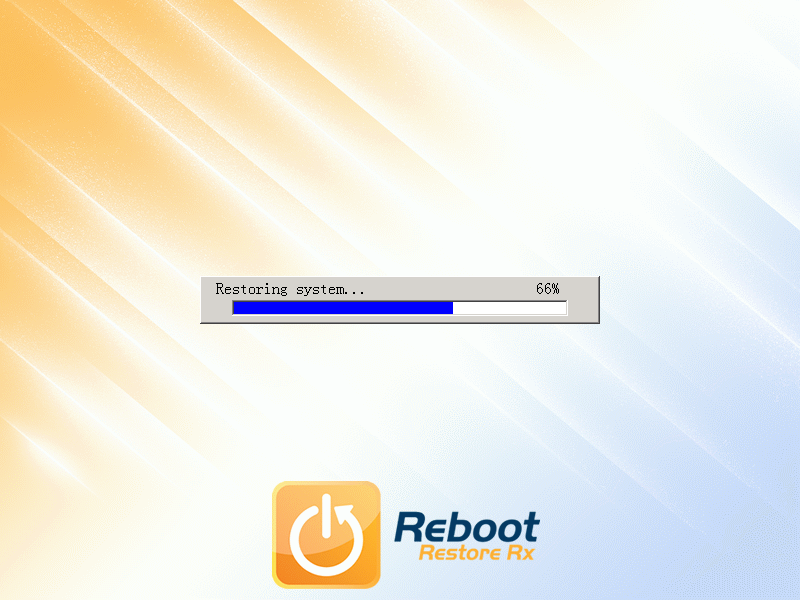
系統還原中,速度很快

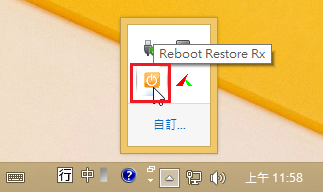
3. 在隱藏的圖示中可以找到 Reboot Restore Rx 圖示,如果有啟動還原,圖示是橘色的

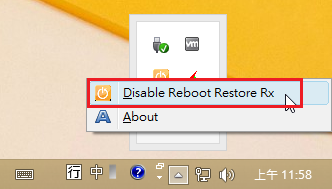
可以按滑鼠右鍵,選擇 Disable Reboot Restore Rx,取消 Reboot Restore Rx 還原功能

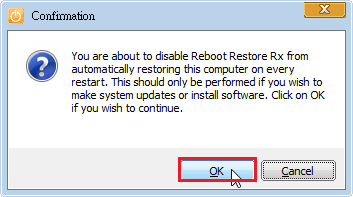
按 OK 確認

取消之後 Reboot Restore Rx 還原功能之後,如果想要重新開啟

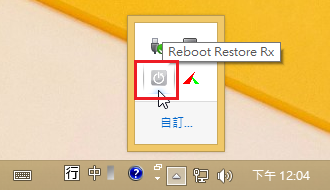
4. 可以選擇隱藏圖示中的 Reboot Restore Rx,因為目前沒有啟動還功能,所以圖示是灰色的

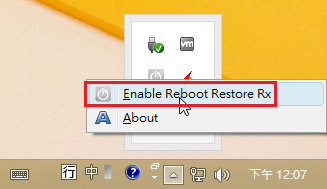
可以按滑鼠右鍵,選擇 Enable Reboot Restore Rx,啟動 Reboot Restore Rx 還原功能

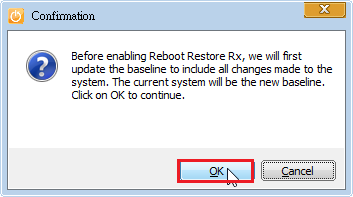
按 OK 確認

個人覺得 Reboot Restore Rx 的功能和使用者介面,都做的不錯,也很簡單,沒有太花俏的功能,唯一最大的缺點是不能設定密碼保護,如果有這樣的須求,可以使用 Reboot Restore Rx 的進階商業版本,如:RollBack Rx 或 Drive Vaccine,或考慮使用也是免費的 Toolwiz Time Freeze 2014。